Team and permissions
Invite people to your workspace with a role template, per-module permission levels and access limited to specific properties.
- Available on Enterprise
- For Workspace owner
What it is
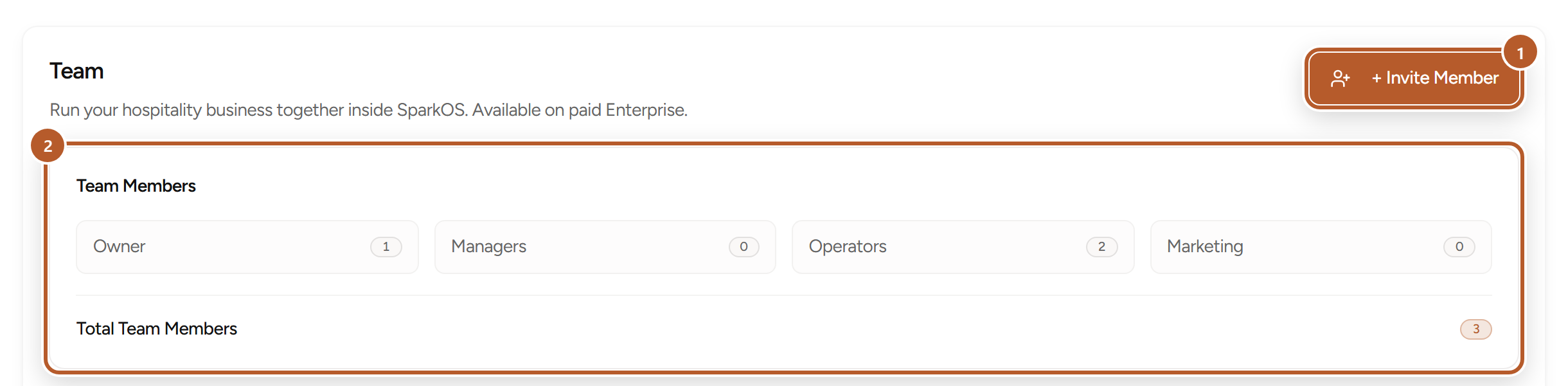
The Team tab lets you invite people to run your workspace with you. Each member gets a role template, per-module permission levels and, if you choose, access to only some properties. The Team Members summary counts people under Owner, Managers, Operators and Marketing, plus Total Team Members.
Before you start
- You need a paid Enterprise plan. During the free trial the tab is locked with Unlock Team on paid Enterprise. On other plans it shows Team Workspace is Enterprise-only. The View plans button takes you to your subscription.
- Only the workspace owner manages the team. People who joined by invitation do not see the invite button.
Step by step
- Open Settings > Team (/settings?tab=team). The /team address leads to the same place.
- Click + Invite Member.
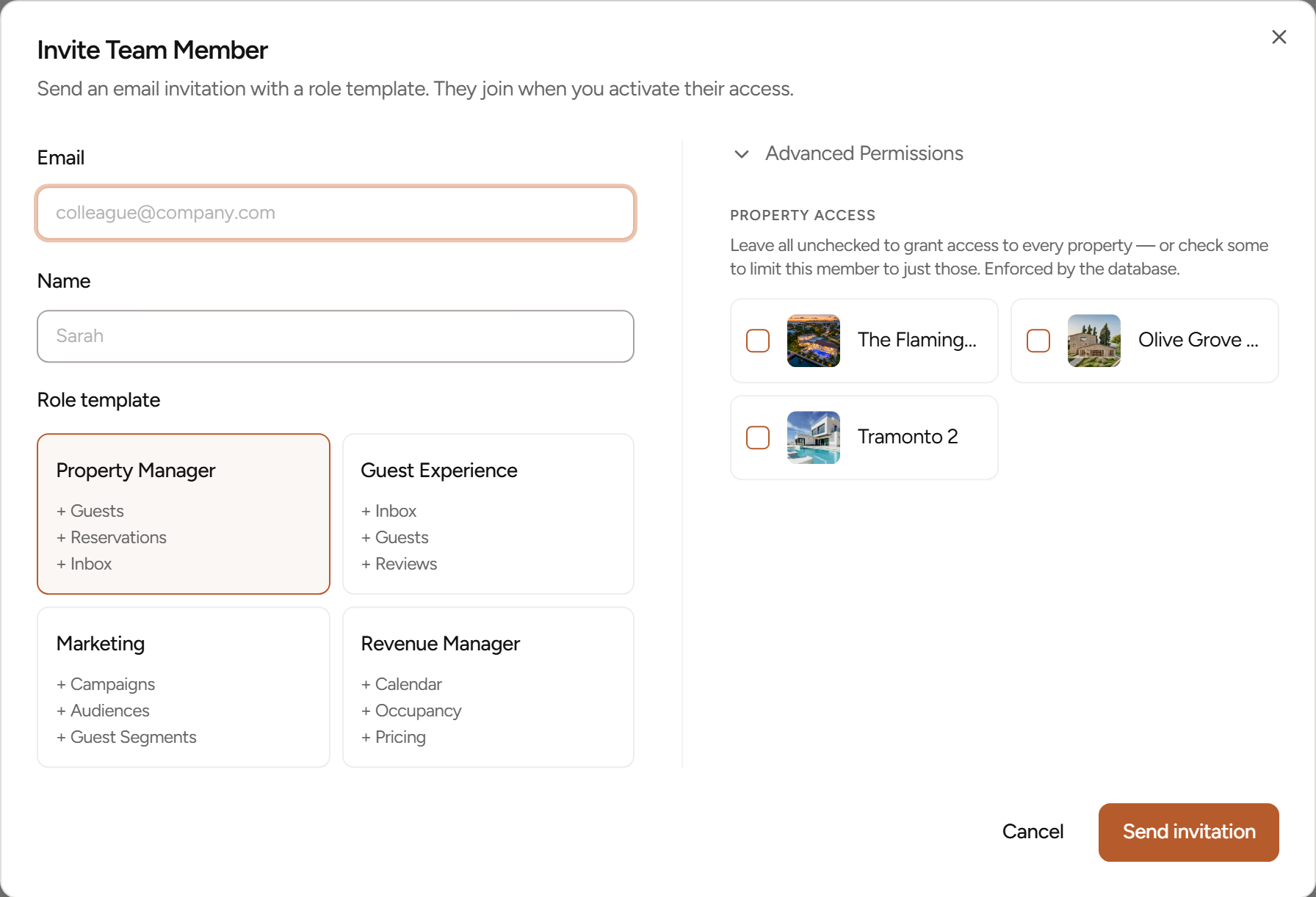
- Fill in Email and, optionally, Name.
- Under Role template, pick a card:
| Template | Can | Cannot |
|---|---|---|
| Property Manager | Guests, Reservations, Inbox, Calendar, Revenue actions | Billing, Team management |
| Guest Experience | Inbox, Guests, Reviews, Guest Journeys | Financial data, Billing, Team settings |
| Marketing | Campaigns, Audiences, Guest Segments, Analytics | Reservation operations, Billing |
| Revenue Manager | Calendar, Occupancy, Pricing, Revenue Opportunities, Campaign Recommendations | Billing, Team management |
- To fine-tune, open Advanced Permissions and set each module to None, View or Act. Any change saves the member with the Custom Role.
- To narrow their reach, pick an agency or a region and tick the properties they may work on.
- Click Send invitation.
What happens next
- SparkOS sends an invitation email. If the address already has a SparkOS account, the person signs in with it and accepts. If not, they create an account with that address.
- Until they accept, the member shows in the list with the Invited tag.
- View is read-only. Act lets them reply, edit and run things. These levels are enforced by the database, not just hidden in the interface.
FAQ
How do I remove a member?
Open the member’s actions menu and click Remove member. Their access is disabled. The owner cannot be removed.
How do conversations reach members?
Through Automatic chat assignment, with the modes Off, By property and Round-robin. Team members only see conversations assigned to them. With assignment off, you assign each conversation by hand.
What is the Agencies tab?
It groups your properties by region and agency, and each property can be assigned to whoever manages it. It has the same plan requirement as Team.
Updated on 10/2/2026