Guest consent and opt-in
How SparkOS records who agreed to receive WhatsApp: template requests, manual records on the profile and bulk updates.
- Available on Pro and Enterprise
- For All workspace members
What it is
Consent (opt-in) is the record that a contact agreed to receive WhatsApp messages from your business. WhatsApp campaigns only reach contacts whose status is Opted in. SparkOS records consent three ways: automatically, when the guest taps the button on the permission template; manually, on the contact’s profile; and in bulk, from the contacts list.
Before you start
- To ask for opt-in on WhatsApp, the number must be connected and the Consent (LGPD opt-in) template must be on the WhatsApp account you send from today (check WhatsApp templates). WhatsApp requires the Pro plan.
- Only contacts with a phone number receive or record a WhatsApp opt-in.
Step by step
Ask a group of contacts for opt-in
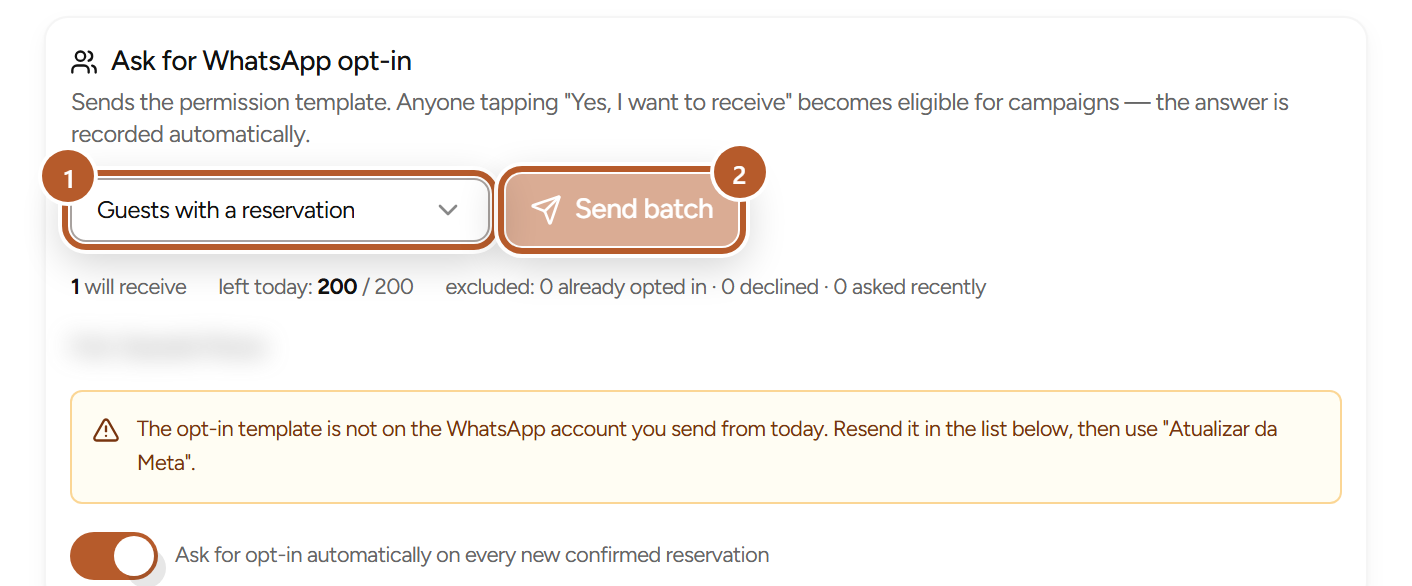
- Open WhatsApp templates (/settings/whatsapp-templates) and go to the Ask for WhatsApp opt-in card.
- Choose the audience: Guests with a reservation (default) or Every contact with a phone. The second one shows a warning about the risk of blocks.
- Check how many will receive, how many are left today and who is excluded (already opted in, declined or asked recently).
- Click Send batch. Each click sends a slice of up to 25 contacts, within the daily cap shown.
- To automate it, switch on Ask for opt-in automatically on every new confirmed reservation. It is the same option shown as Campaign consent requests under Settings → Connections → Meta (Facebook).
Record consent obtained outside the app
- Under Contacts, open the guest’s profile. The Opt-in row shows the current status.
- Click Change. In the Record consent dialog, choose the New status and, for Opted in, Where the consent came from: Booking form, Signed contract, Verbal at check-in, Website form, Imported list or Other (describe). Add a Note and click Record.
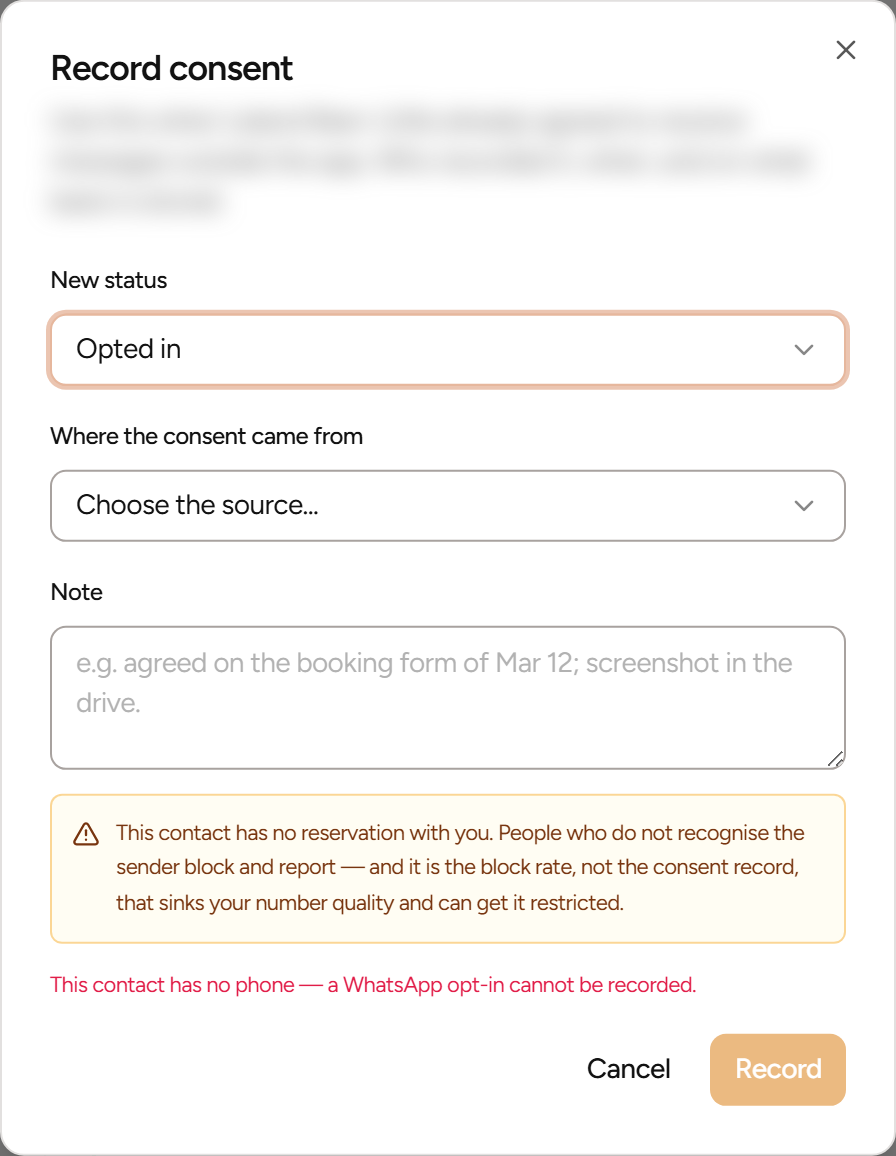
“Marking this as accepted makes the contact eligible for WhatsApp campaigns. Only do it if they really agreed.”
- For several contacts, select them in the list, click Set attribute, choose WhatsApp opt-in, the status and the source, and confirm with Apply to selected.
What happens next
The guest receives the message with the buttons Sim, quero receber and Não, obrigado, and the answer switches the status to Opted in or Declined right away. Contacts who decline stay out of future batches; contacts who do not answer only return to the audience after 30 days. With the automatic option on, the request goes out after the booking is confirmed when the guest has a phone number, has not opted in yet and has no pending request. Pause campaign sending also stops consent requests.
| Status | Meaning |
|---|---|
| Opted in | Can receive WhatsApp campaigns |
| Declined | Out of campaigns; not asked again |
| No answer | No reply yet |
FAQ
Why is “Send batch” disabled?
If you see “The opt-in template is not on the WhatsApp account you send from today.”, resend the template and use Refresh from Meta. The button is also inactive without an eligible audience or once the day’s cap is reached.
Does an imported list count as consent?
No. SparkOS records the source but warns: “An imported list is not consent.” The risk of blocks and a restricted number remains.
Updated on 10/2/2026