Connect Lodgify
How to link Lodgify to SparkOS with your API key, and what happens to properties, bookings, guests and messages.
- Available on All plans
- For All workspace members
What it is
Lodgify is one of the channel managers SparkOS supports. With it connected, properties, bookings and guests are imported from Lodgify, guest conversations show up in the Inbox and booking changes arrive in real time through webhooks. The connection uses your Lodgify account’s API key.
Before you start
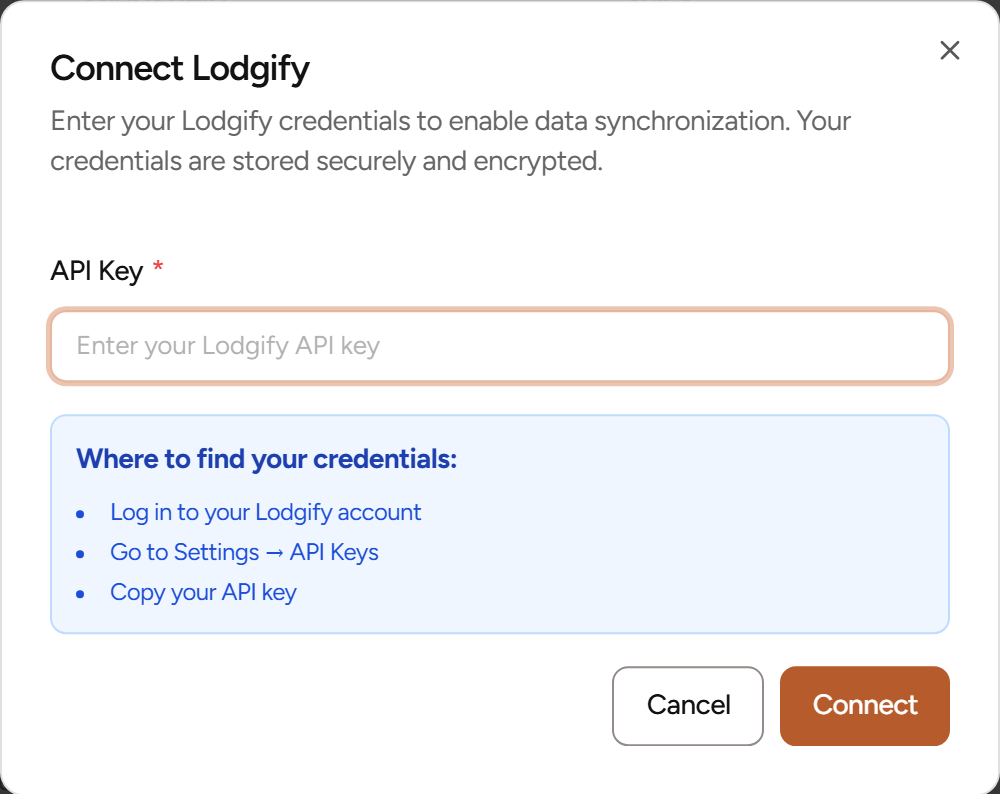
- Log in to your Lodgify account, go to Settings → API Keys and copy your API key.
- Only one channel manager is active per account. Connecting Lodgify disconnects any other active PMS.
Step by step
- Open Settings → Connections (/settings?tab=integrations) and click Connect on the Channel Managers card.
- On the Lodgify row, click Connect.
- In the Connect Lodgify window, paste the key into the API Key field and click Connect.
- On the account’s first PMS connection, confirm the Authorize PMS Connection window with Authorize Connection.
- The button switches to Verifying…. When it finishes, Lodgify connected successfully! appears and, after the import, Properties, bookings, and guests are up to date.
During onboarding
In the first-steps wizard, the Lodgify option opens the Lodgify Integration card: paste the key into Lodgify API Key, use Test Connection to validate it and Save to connect. Once connected, the card shows a block with the subscription ID, the number of synced properties and a reference property, so you can confirm which Lodgify account is linked.
What happens next
- SparkOS validates the key by requesting the property list from Lodgify.
- Webhooks are registered in Lodgify for bookings created and changed, status changes (booked, declined), rates, availability and guest messages.
- Conversations that already exist in Lodgify are imported into the Inbox.
- The initial import runs properties, bookings and guests, with an extra bookings pass to make sure nothing is left out.
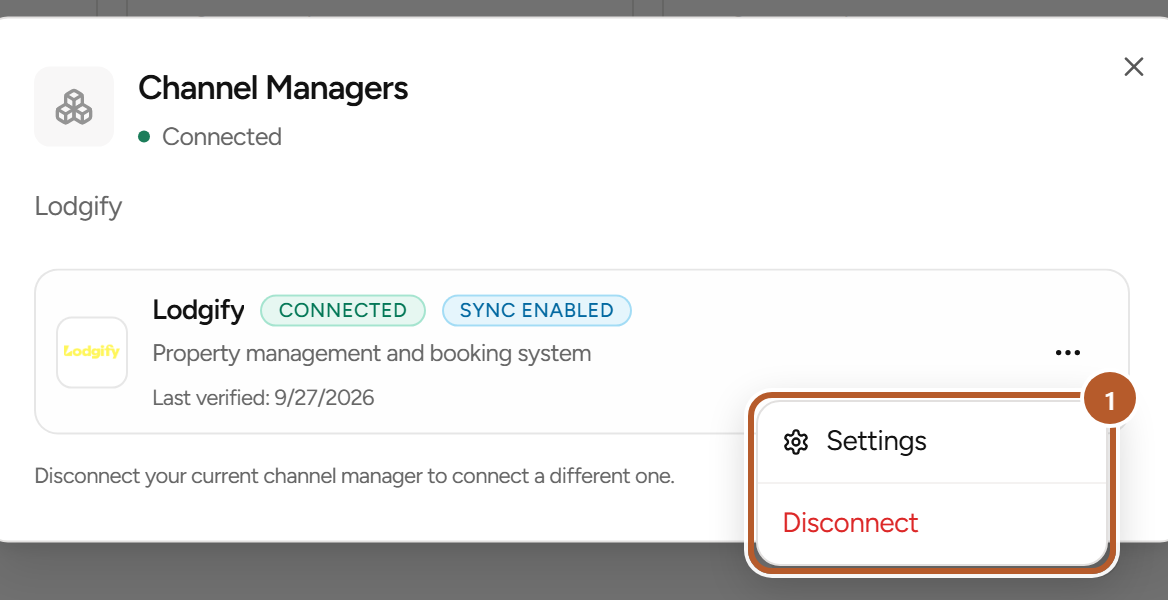
- The Lodgify row now shows Connected, Sync enabled and Last verified: [date].
FAQ
What happens when I disconnect?
On the row menu, click Disconnect and confirm in Disconnect integration. SparkOS cancels the webhooks in Lodgify, archives the bookings that came from Lodgify and sets the properties that were active to Inactive; nothing is deleted, and guest profiles and booking history are preserved. Connecting Lodgify again brings the bookings and properties back.
Is the key visible after saving?
No. The field is masked and the key never returns to the browser.
Can I replace the key?
Yes. On the row menu, choose Settings to open the same window and save a new key. That triggers a fresh full import.
Updated on 10/2/2026