The calendar
See reservations and blocks by week, month or year, open actions for each guest and create reservations right on the calendar.
- Available on All plans
- For Owner and team members with the Calendar permission
What it is
The Calendar is a tab of the Reservations page and shows each property’s reservations and blocks over time. It uses the same data as the Table: reservations synced from your channels, manual reservations, and owner or maintenance blocks. The old /calendar address opens this tab.
Before you start
Team members only see the tab with the Calendar permission. With no properties set up, the calendar shows “No properties found. Add properties to see their bookings.”
Step by step
- In Reservations, click Calendar (/reservas?view=calendario). The calendar opens in the Year view, on the current year.
- Switch views with the Week, Month or Year selector:
| View | What it shows |
|---|---|
| Week | Every property, one per row, with the week’s reservations |
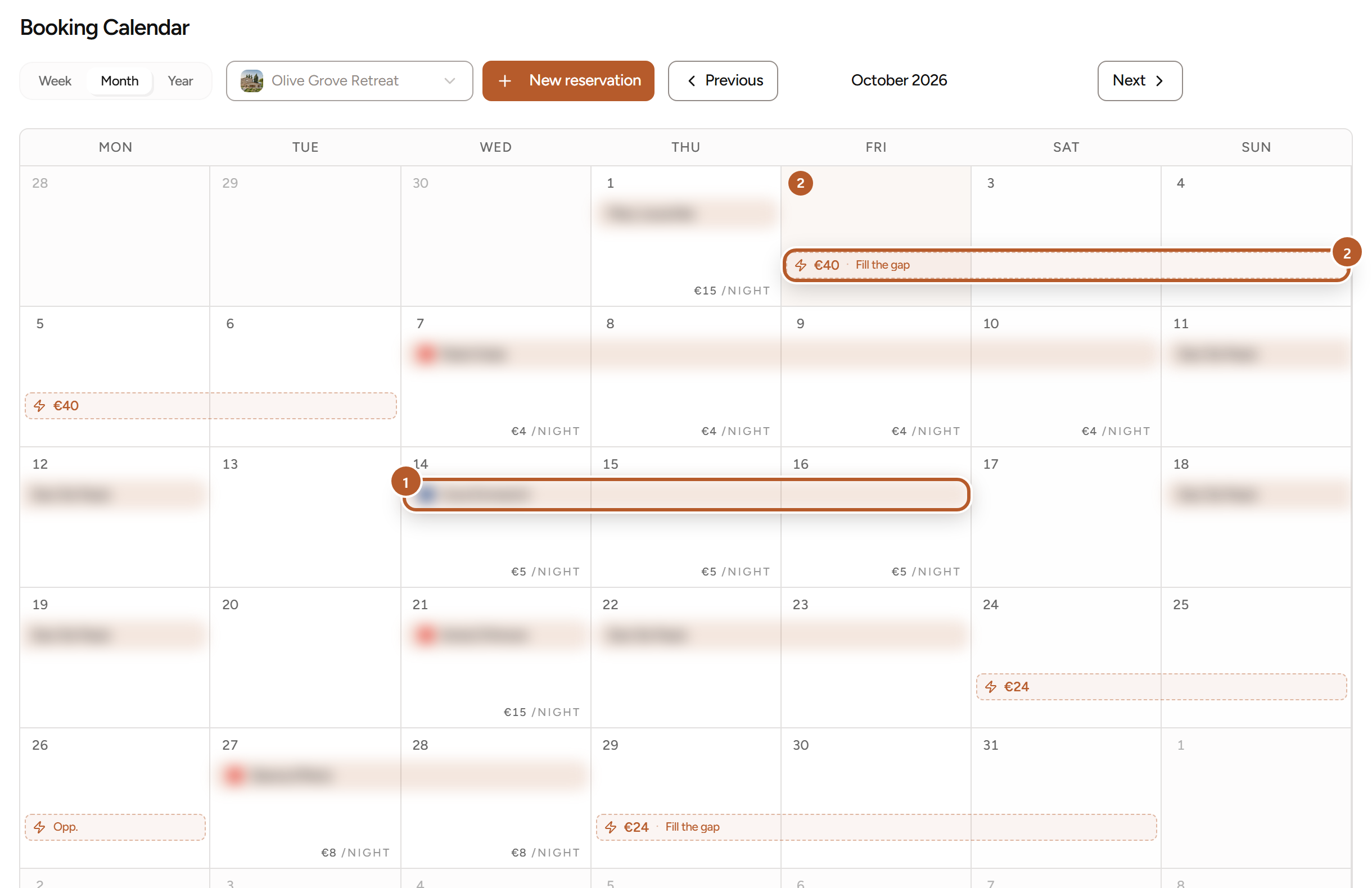
| Month | One property at a time, with the month’s reservations |
| Year | One property at a time, with the 12 months and each month’s occupancy |
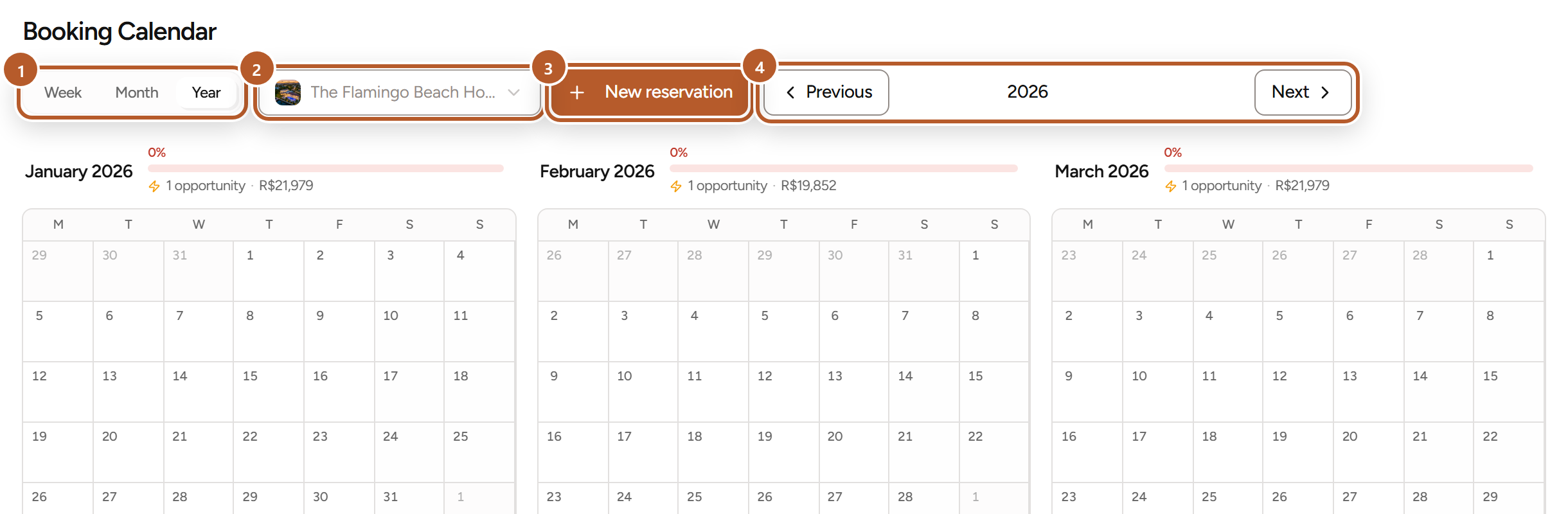
- In the Month and Year views, pick the property in the property selector. It appears when you have more than one property.
- Move around with Previous and Next. Today takes you back to the current period. In the Year view, click a month’s name to open it in the Month view.
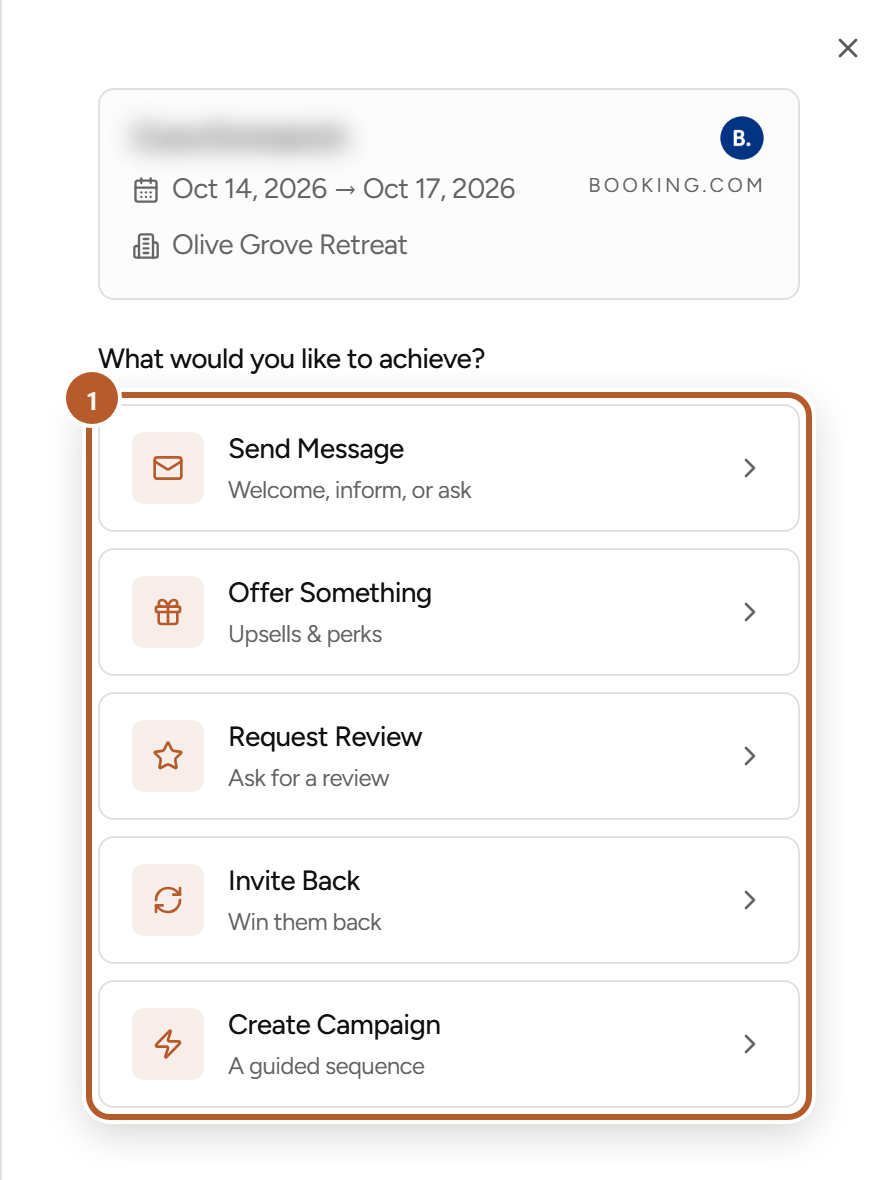
- Click a reservation to open the What would you like to achieve? panel and pick Send Message, Offer Something, Request Review, Invite Back or Create Campaign. Spark drafts the message and you review it before sending. View Reservation opens the reservation page.
- Click New reservation to create a reservation, a tentative hold or a block. In the Month and Year views, clicking a day opens a menu to start a reservation or a campaign from that date.
- In the Month view, SparkOS highlights low-occupancy gaps with Fill the gap. Click it to build a campaign for those nights.
FAQ
Why does a block show in the Calendar but not in the Table?
A block is not a reservation. It only marks the dates as unavailable, so it only appears in the Calendar.
Why can’t I see the property selector?
It only appears in the Month and Year views, and only when you have more than one property. The Week view already shows every property.
Does the calendar remember where I left off?
The Reservations page remembers the last tab you used (Board, Table or Calendar). Inside the Calendar, the view always starts on Year.
Updated on 10/2/2026