What's new in SparkOS: know where every booking comes from, and see your automations working
Website tracking, a channel on every reservation, a reorganized Marketing area, live flow runs, sequences that start on time, campaigns for big contact books and the new Help button (week of Sep 28 to Oct 1, 2026).
This week we shipped the start of something hosts ask us about all the time: which of my efforts actually bring bookings? Along with it came a reorganized Marketing area, WhatsApp flows you can watch running, sequences that start when they should, and a new way to get help. Here is everything that changed, and what it means for you.
1. Know where your bookings come from
Website tracking, one switch per site. Go to Settings → Integrations → Website tracking. Each of your SparkOS sites has its own switch, and it starts off. If your site lives somewhere else (a Lodgify or Stays.net site, WordPress, Wix), copy the one-line snippet shown there into your site’s <head>. A “Last event” line tells you as soon as visits start arriving.
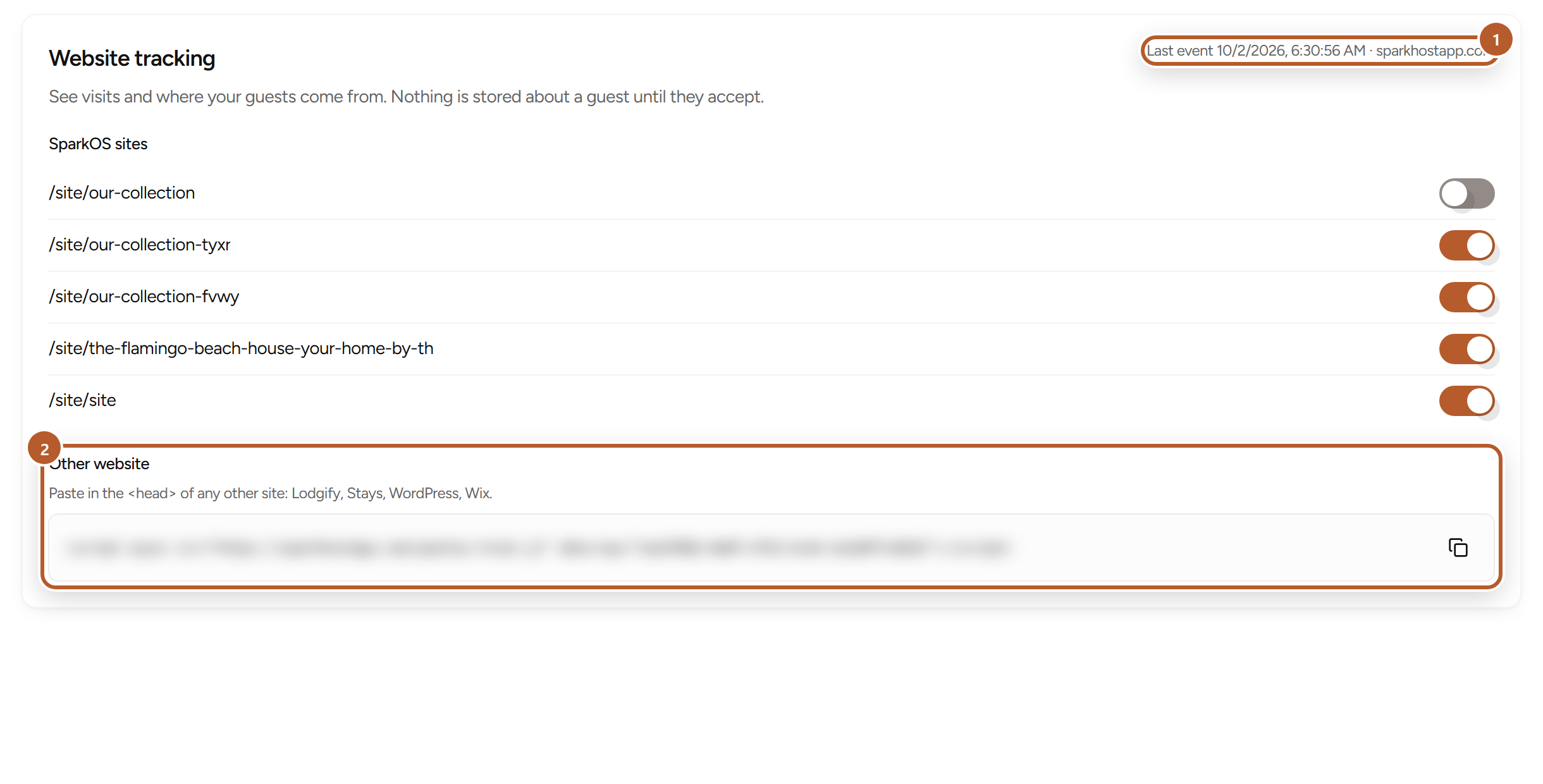
What it measures:
- visits;
- which properties were viewed;
- date searches;
- clicks to book (to your PMS booking engine or to WhatsApp);
- on your SparkOS booking page, when a guest starts the checkout, pays, or lets an unpaid hold expire.
Where your guests came from comes with every step: Instagram, Google, Meta ads, your email campaigns, WhatsApp, or another website.
Privacy built in. Visitors see a short banner. Nothing is stored in their browser until they accept, there are no cookies, and SparkOS never collects a visitor’s name, email or phone number from your site.
Every reservation now carries its channel. All your reservations in SparkOS, past ones included, are labelled with where they came from: Airbnb, Booking.com, Vrbo, Expedia, Decolar, your SparkOS site, your PMS site, or a manual booking. The labels refresh every 15 minutes.
Your channels report back too:
- Email campaigns: links to your own site are tagged automatically, so a visit from a campaign is counted as email, and link clicks are recorded per campaign.
- WhatsApp: SparkOS tells apart a conversation that started from a Meta ad, one that started from your site’s WhatsApp button, and an organic message. When it comes from your site, the guest’s first message ends with a short code such as
[ref:k3x9q2ma]. That code is how SparkOS links the conversation to the visit. - Instagram DMs: links your flows send in a DM now carry tracking by default. You can untick it per step.
What’s next: the report that puts all of this on one screen. Data is collected from the day you turn tracking on, so switching it on now means your report will have history when it arrives.
2. Marketing, reorganized
Marketing now lives in the sidebar:
- Marketing: Overview, Campaigns, Sequences, Flows and Studio.
- Library: templates, audiences and reports.
- Direct booking: your site and extras.
Every section has its own page and a breadcrumb, so links and the back button behave as you expect.
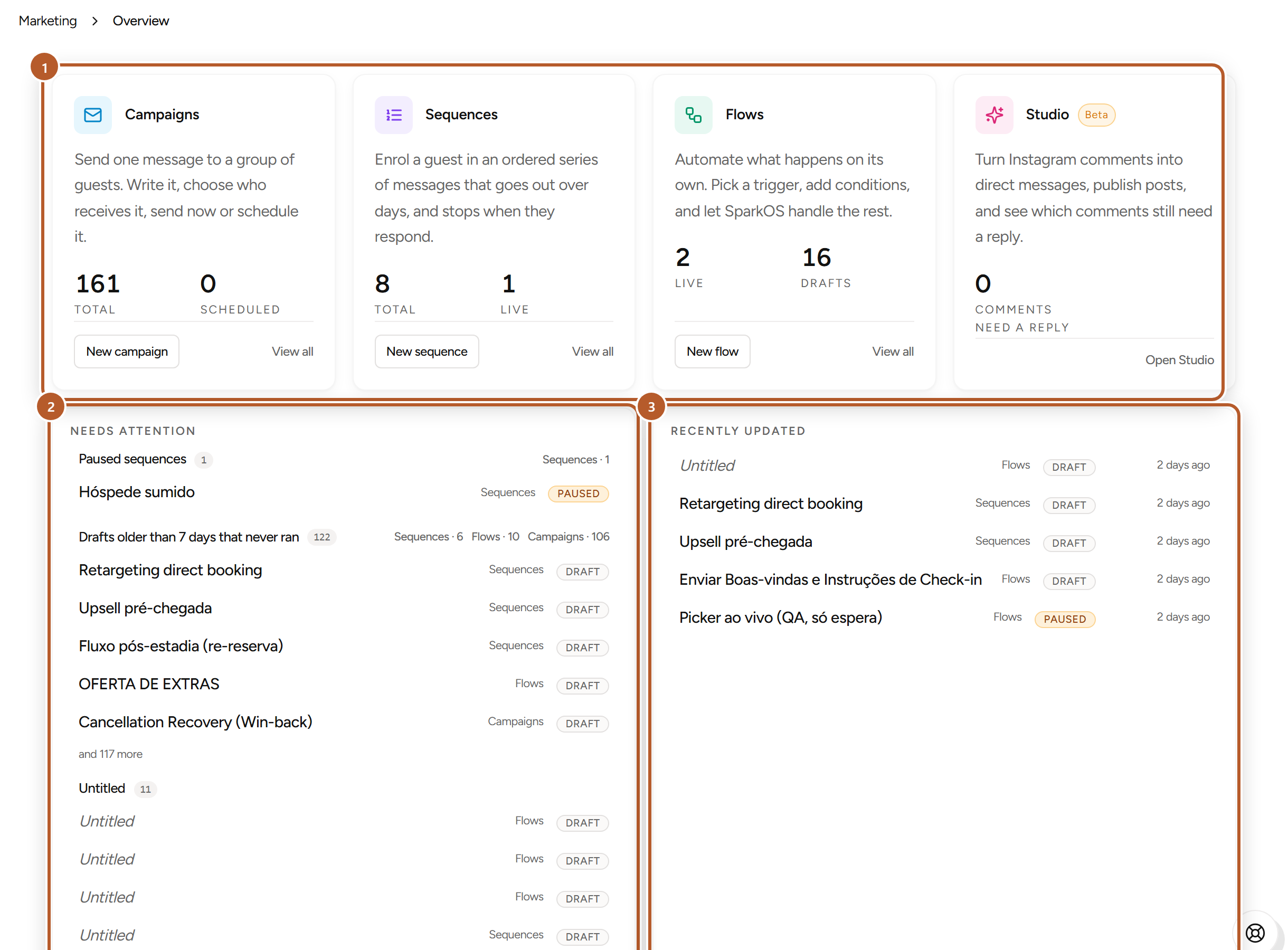
The new Overview shows one card per area with real counts, what needs your attention, and what changed recently. Campaigns, Sequences and Flows share one list: sort, group by status, filter, search, star your favourites, and act on any row from its ⋮ menu. Archived items stay out of the counts unless you choose “Show archived”.
3. WhatsApp flows you can see working
- Run a flow from a contact. Select contacts in your contact list, or open a contact’s profile, and choose Run flow. Your active WhatsApp flows are listed, and the “Run on a contact” trigger is added for you when you run. Pick one contact and Test mode shortens the waits and simulates external actions, so you can try a flow safely.
- Watch real runs live. Open an active flow and its real runs light up on the canvas, step by step, with a pill showing whose run it is. If several are in progress, you choose which one to follow.
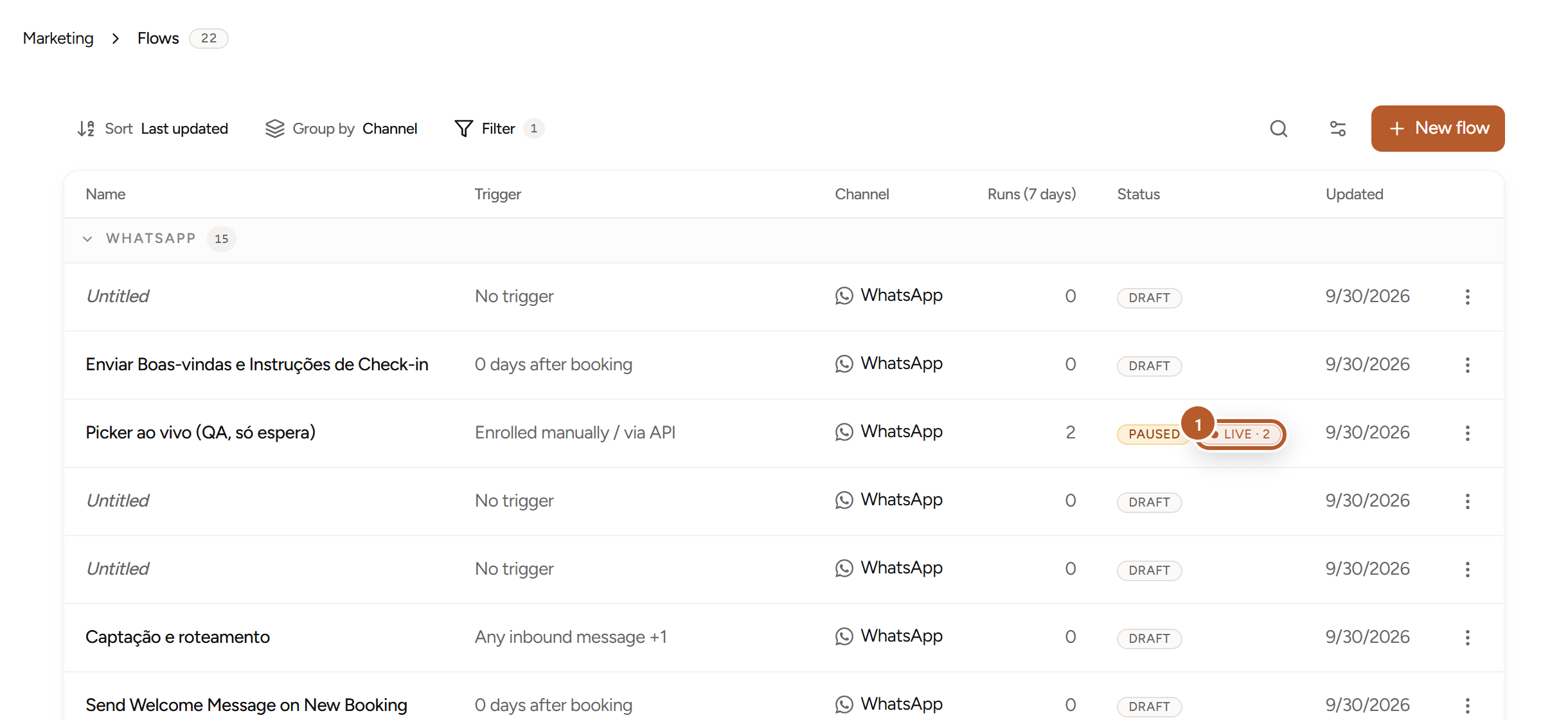
- “Live · N” on the Flows list. You can see which flows are running right now and sort by “Live now”.
- A clearer trigger picker. It is searchable and only offers triggers that actually fire. You can change a trigger in place without losing its keyword.
- Retry from the failed step. When a run fails, you can resume it from the step that failed. If that step had already sent a message, the retry is blocked, so a guest never gets the same message twice.
- Fixes: flows created from a template no longer show two entry cards, and the Instagram post picker now says why posts could not load.
4. Sequences that start when they should
- “Days after check-out” and “days before check-in” sequences now save exactly the trigger our scheduler runs on. Some sequences drafted for you at onboarding (after-stay, pre-arrival and direct-booking retargeting) were set up in a way that would never start, or would start at the wrong time. We updated those drafts.
- Manual sequences say so. A sequence that starts on manual enrolment now shows that it only runs for the guests you enrol.
- Your edits stay yours. Opening Marketing no longer rewrites the drafts SparkOS created at onboarding.
5. Campaigns for big contact books
- Send to your whole contact book. Selecting more than a thousand contacts no longer fails with “Failed to fetch guests”.
- Retry send. A failed email campaign now has Retry send, in the campaign list and on the campaign page. WhatsApp campaigns already resend on their own.
- Clearer errors on the contacts page, and a failed enrichment no longer empties your list.
6. Your direct booking site
- Guests cannot continue to payment without a real quoted price. If the dates cannot be priced, the page says why.
- Property descriptions show as clean text.
- Labels read naturally: “1 bedroom”, “1 bathroom”.
- Across SparkOS, every reservation now shows one Reservation ID label, whatever your PMS.
7. AI replies on PMS conversations
When SparkOS AI answers guest messages that arrive through Lodgify, Guesty or Stays.net, it now waits its turn:
- one reply at a time per conversation;
- a short pause so the guest can finish typing;
- a check that you have not already answered.
If one of your flows is handling the conversation, the AI stays out of it. Each reply is based on the right reservation and the right unit.
8. Help, inside SparkOS
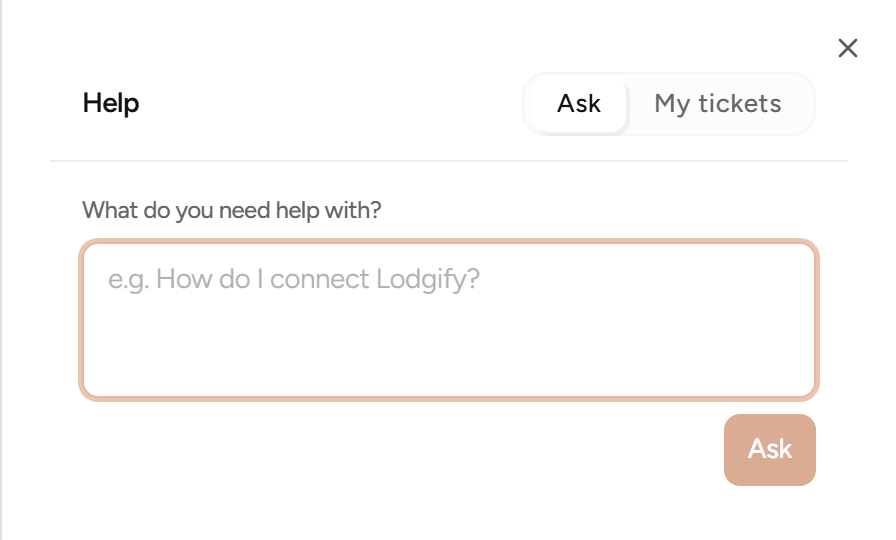
The Help button now opens our own support widget. Ask a question and you get a suggested answer from the help center, plus related Academy videos. Still need help? Open a ticket right there. Our replies come back to the same widget, with an unread count, so nothing gets lost in email.
9. Previews: tell us what you think
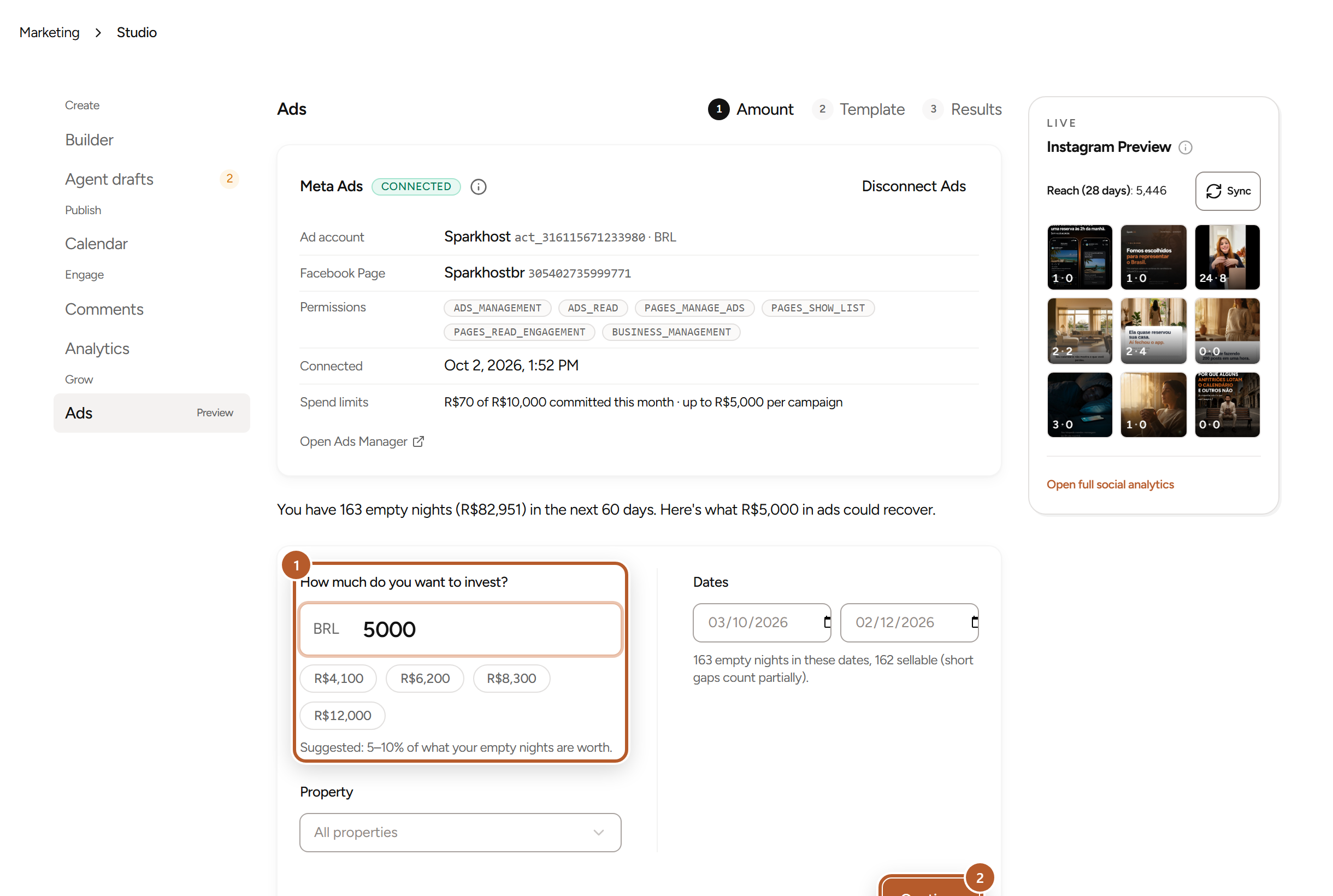
- Studio › Ads (marked “Preview: simulation”): walk through what an ad for your property could look like, built from your own photos and your next free nights. Nothing is published, charged or sent to Meta. We are using it to learn what you would want before we build it.
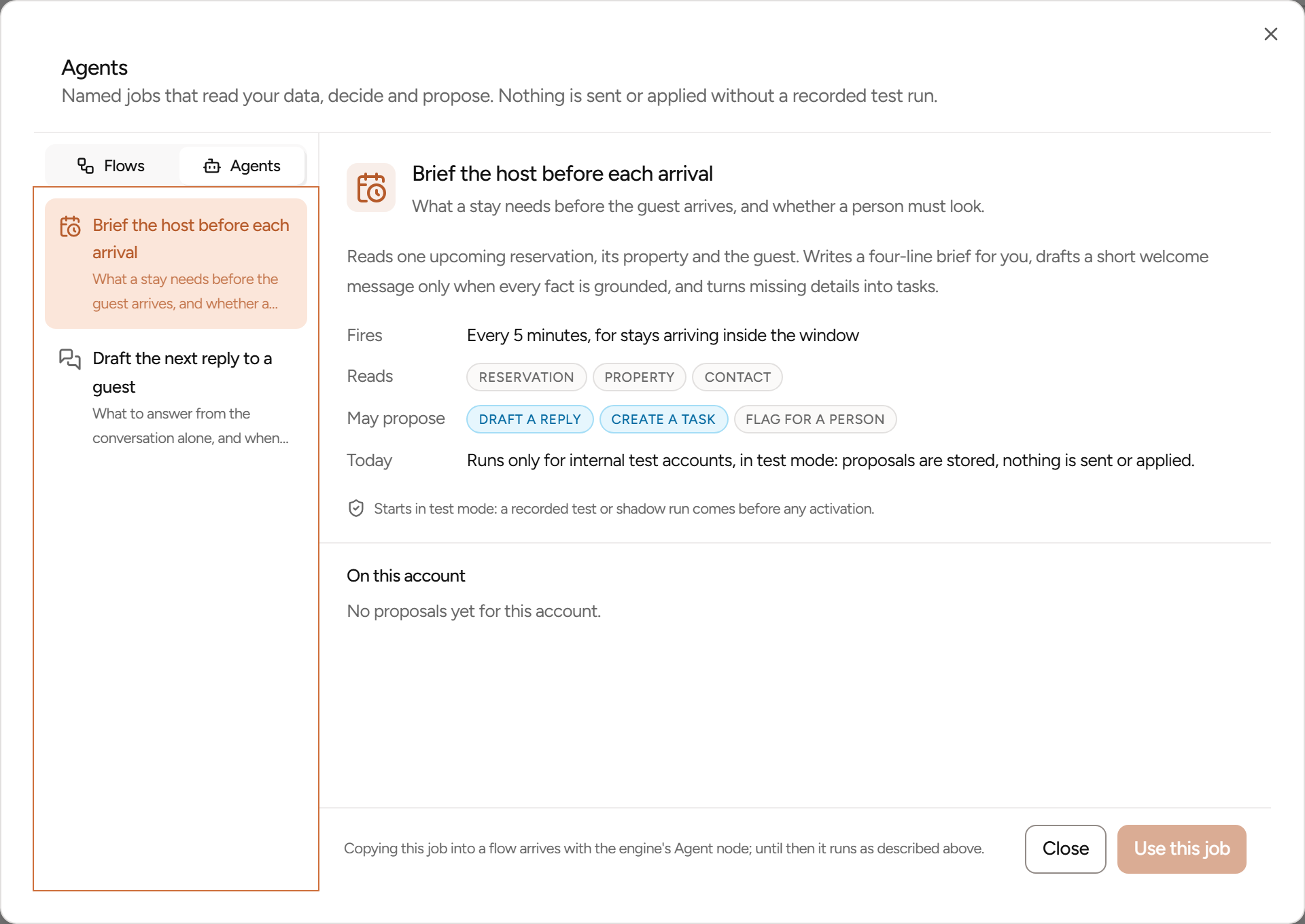
- Agents: the template gallery now has a Flows | Agents switch. It shows the two jobs we are building: a brief before each arrival, and a draft of the next reply to a guest. Today they run only on our internal test accounts, in test mode, and they only propose; nothing is sent without a person. You cannot turn them on yet. We’ll tell you when you can.
Questions about any of this? Open the Help button in SparkOS and ask us.
Updated on 10/2/2026