Workspace settings
Where the Settings tabs are, how to edit your account details and how to turn on two-factor authentication.
- Available on All plans
- For All workspace members
What it is
Settings groups your account and workspace preferences into tabs. The Account tab holds your profile, Subscription, Two-factor authentication and the Account & data area. Each tab has its own address: a link with ?tab=notifications, for example, opens the Notifications tab directly.
Step by step
- Open Settings from your avatar menu or from the gear icon in the top bar (/settings).
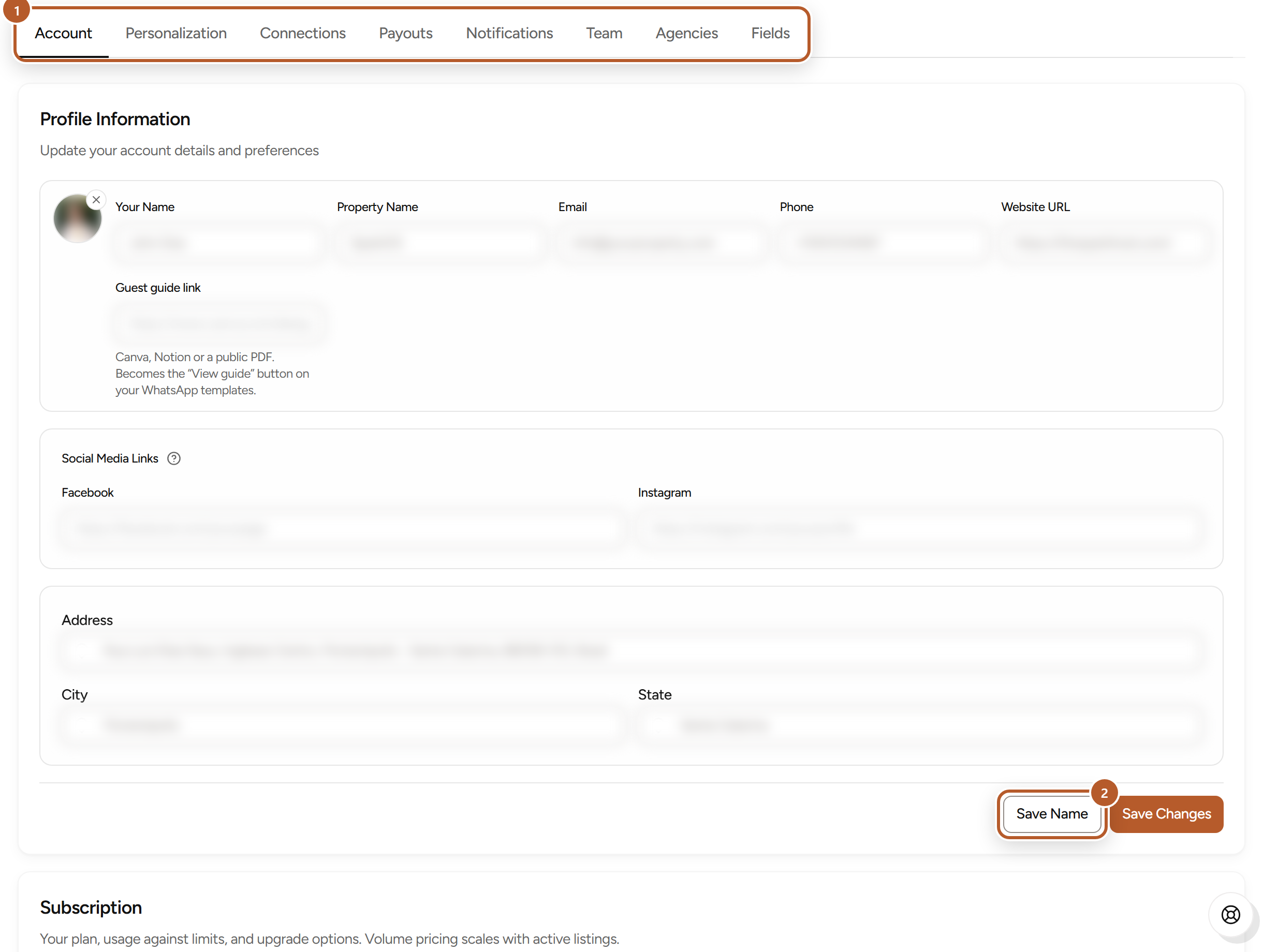
- Pick a tab:
| Tab | What you set there |
|---|---|
| Account | Profile, Subscription, Two-factor authentication and Account & data |
| Personalization | Host style, and what the AI knows and answers in the Inbox |
| Connections | Integrations with PMSs, channels and tools |
| Payouts | How you receive payments |
| Notifications | Alert channels and alerts |
| Team | Members and permissions (Enterprise) |
| Agencies | Properties grouped by region and agency (Enterprise) |
| Fields | Custom guest fields (Enterprise) |
- On the Account tab, under Profile Information, change Your Name and click Save Name.
- Update Property Name, Phone, Website URL, Guest guide link, your social links, Address, City and State. Then click Save Changes.
- To protect your sign-in, go to Two-factor authentication and turn on the Authenticator app (TOTP) switch.
- In the Set up two-factor authentication window, scan the QR code with your authenticator app (or type the secret by hand), enter the 6-digit code and click Turn on 2FA.

What happens next
- The Guest guide link (Canva, Notion or a public PDF) becomes the “View guide” button on your WhatsApp templates.
- With 2FA on, SparkOS asks for a code from the app every time you sign in.
- The switch only stays on once the code is confirmed. If you close the window before that, the setup is discarded.
FAQ
Why does the name have its own button?
Your Name is saved with Save Name. The other profile fields are saved together with Save Changes.
How do I turn off two-factor authentication?
Turn off the Authenticator app (TOTP) switch and confirm with Turn off 2FA. From then on, your password alone protects the account.
Where did Legal & Privacy go?
It left the tab bar but is still reachable from the Legal & Privacy link in the Account & data section of the Account tab.
Can team members open Settings?
Yes, Settings is available to everyone. Only the workspace owner manages the Team tab.
Updated on 10/2/2026