Onboarding: what SparkOS sets up for you
The two onboarding steps: the website that produces your brand kit and draft campaigns, and the Stays.net or Lodgify connection.
- Available on All plans
- For Account owner (invited team members skip onboarding)
What it is
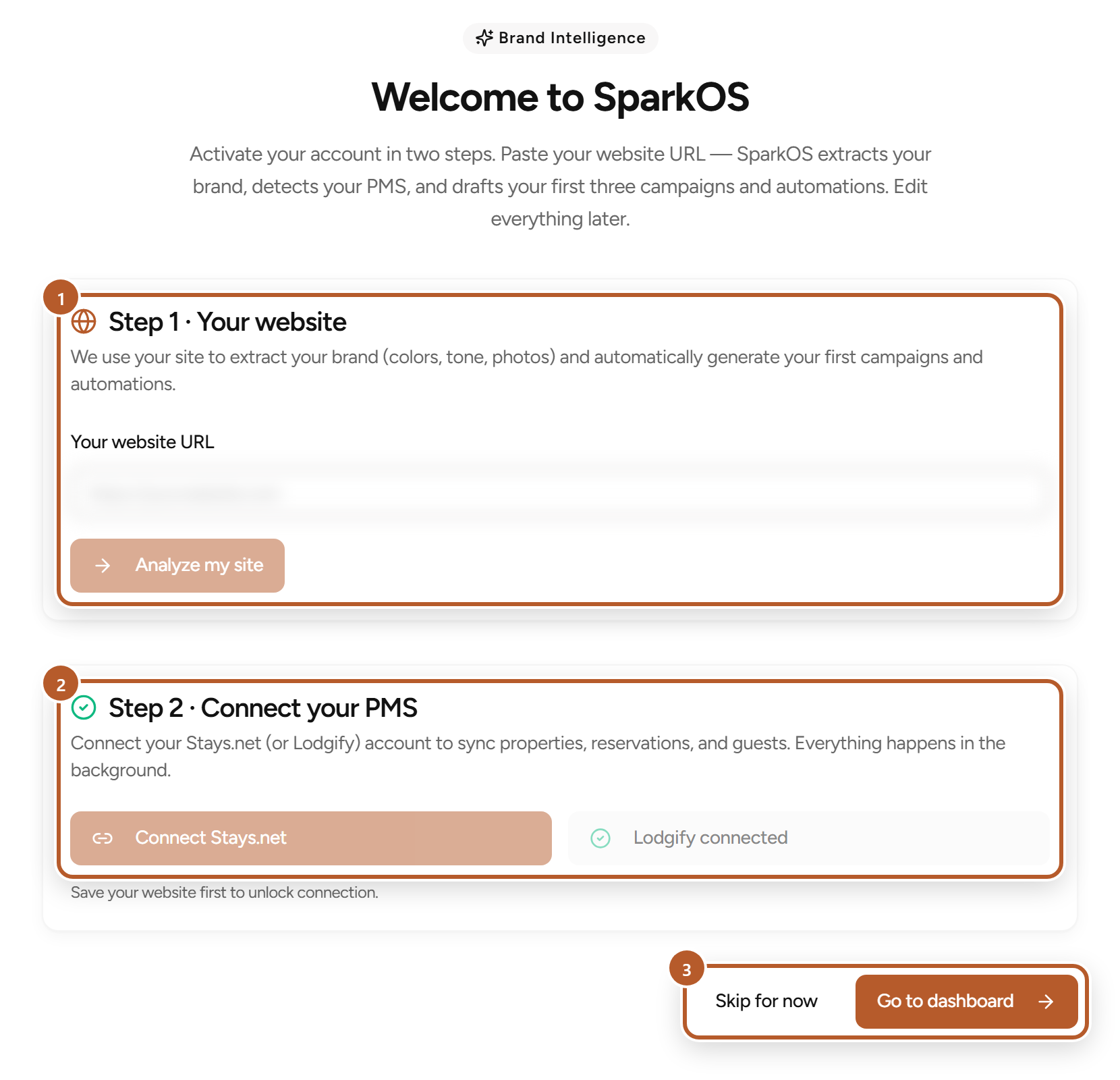
Onboarding (/onboarding) is the Welcome to SparkOS screen you see right after signing up. In two steps you give SparkOS your business website and connect your PMS. From the website, SparkOS builds a brand kit plus draft campaigns and automations for you to review later.
Before you start
- Have your website or listing address at hand.
- For Stays.net: your API login and password and your Stays account address. For Lodgify: your API key.
- People invited to another account’s team skip this screen.
Step by step
- Under Step 1 · Your website, paste the address into Your website URL and click Analyze my site.
- Watch the Analyzing your brand panel. You do not need to wait for it to finish before moving on.
- Under Step 2 · Connect your PMS, click Connect Stays.net or Connect Lodgify. The buttons unlock once the website is saved.
- Fill in the dialog: API Login, API Password and Stays URL / Account ID for Stays.net, or API Key for Lodgify. Click Connect.
- On your first connection, read Authorize PMS Connection and click Authorize Connection.
- Click Go to dashboard. It unlocks only once a PMS is connected; to leave earlier, use Skip for now.
What happens next
| Step on screen | What SparkOS does |
|---|---|
| Reading your website | Collects public pages, photos and text |
| Extracting visual identity | Sets colors, tone of voice and typography |
| Detecting your PMS | Identifies your system from the site or an existing connection |
| Mapping guest personas | Generates guest profiles |
| Drafting 3 campaigns | Creates up to three email campaigns as drafts |
| Building your automations | Creates automations tied to those campaigns, paused |
- SparkOS copies to your profile the website, business name, tone of voice, social links, city, and brand colors and fonts.
- Nothing goes to guests: campaigns stay as drafts and automations stay off until you turn them on.
- Once the PMS is connected, SparkOS syncs properties, reservations, guests and conversations in the background.
- When you leave onboarding, the account is marked as set up and you land on the home screen (/dashboard).
FAQ
The analysis was slow or failed. Did I lose step 1?
No. The website is already saved, SparkOS tells you it is finishing the analysis in the background, and step 2 stays unlocked.
Where do I edit what was generated?
In Settings → Personalization → Brand Intelligence. The campaigns and automations it created show up in Marketing.
I skipped onboarding. Can I go back?
Yes, the screen stays at /onboarding. After you skip, SparkOS stops redirecting you to it.
I use a different PMS. What do I do?
Onboarding only offers Stays.net and Lodgify. Other connections live in Settings → Connections.
Updated on 10/2/2026