Website tracking on an external site (Lodgify, Stays, WordPress, Wix)
Paste one line of code into the <head> of your site and SparkOS starts counting visits, properties viewed, date searches and booking clicks, with the origin of every guest.
- Available on All plans
- For Account owner
What it is
If your site is not built in SparkOS (a Lodgify or Stays.net site, WordPress, Wix or anything else), Website tracking works with one line of code, unique to your account, pasted into the <head> of the pages. From then on, the Direct bookings report shows visits, which properties were viewed, date searches and booking clicks, and where every guest came from.
Step by step
-
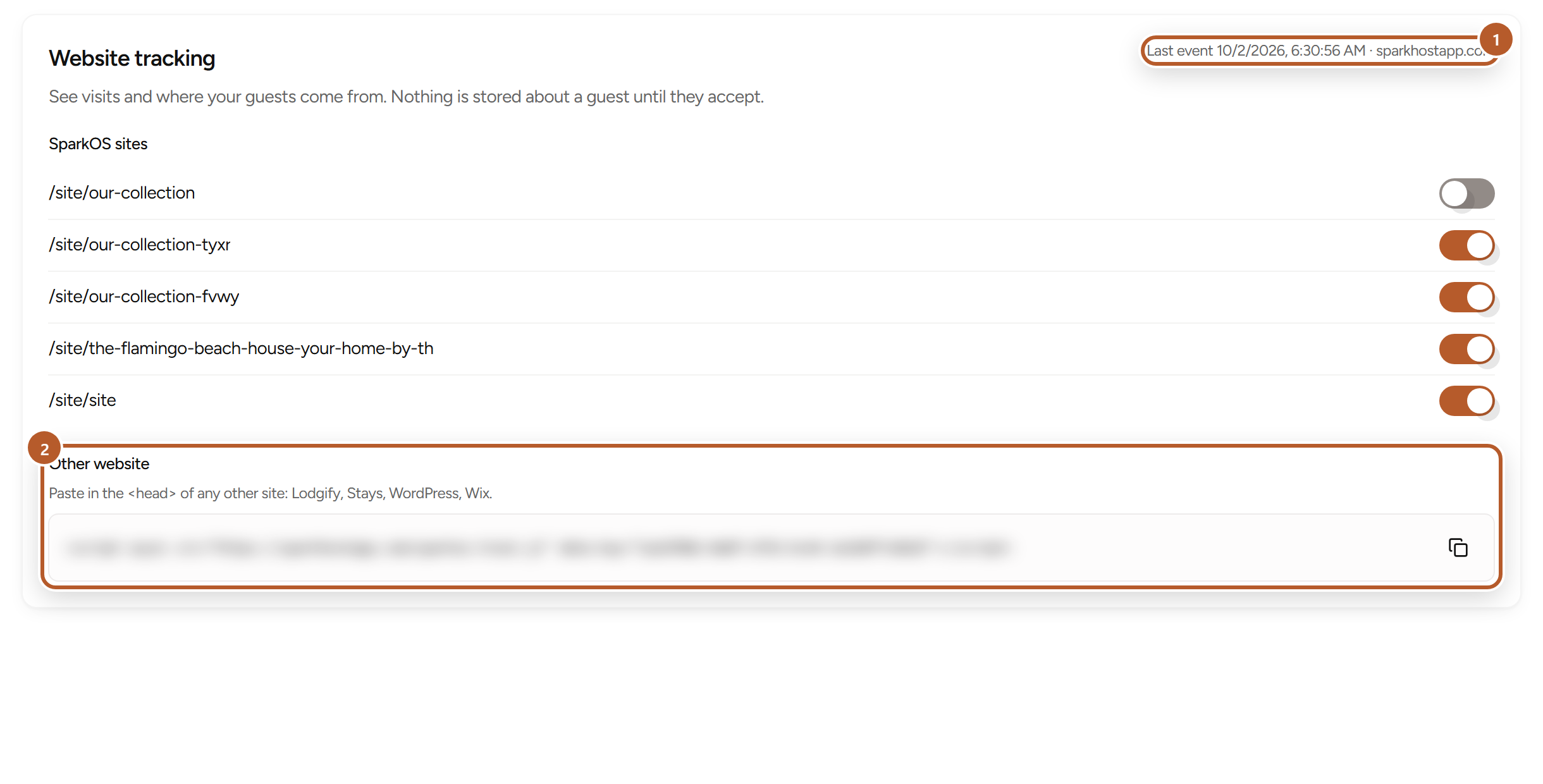
In SparkOS, open Settings › Connections › Website tracking.
-
Under Other website, click Copy snippet. The code looks like this, with your account’s key already filled in:
<script async src="https://sparkhostapp.com/sparkos-track.js" data-key="YOUR-KEY"></script> -
Paste it into the
<head>of your site, where your site builder accepts custom code (usually called “header code”, “custom scripts” or “custom code”). Save and publish the site. If your site is a Lodgify site, read the section below before publishing. -
Go back to Website tracking. The Last event line shows the time and the site address as soon as the first visit arrives. While it still says No events received yet, open your site in a private window, accept the cookie notice and browse to a property page.
Lodgify site: use Lodgify’s own cookie notice
A Lodgify site already shows its own cookie notice, with options to accept and to customize. So the visitor does not see two notices, add data-consent="lodgify" to the code:
<script async src="https://sparkhostapp.com/sparkos-track.js" data-key="YOUR-KEY" data-consent="lodgify"></script>
The SparkOS notice then never appears, and visits are only measured once the visitor accepts analytics cookies in Lodgify’s notice. If they turn analytics off when customizing, nothing is sent. Paste the code once, delete any older SparkOS code (for example a sparkhost-tracker.js line), then republish the site.
What happens next
- The visitor sees a short privacy notice (SparkOS’s, or the site’s own when you use
data-consent). Before accepting, nothing is stored in their browser; after it, only a random identifier. SparkOS sets no cookies of its own and never reads the name, email or phone of anyone visiting your site. - Every visit keeps its origin (the utm tag on the link, an ad, an email campaign, the referring site), and that is what appears under Sources and Where visits come from in the report.
- Clicks to your PMS booking engine or to WhatsApp count as Clicked to book.
- The numbers reach Finance › Direct bookings, refreshed every 15 minutes, from the day the code was installed.
FAQ
I installed it and “Last event” is still empty.
Check that the code is in the <head> of every page (some builders have one field per page and another for the whole site), that the published site already has the new version, and that you accepted the cookie notice while testing (on Lodgify with data-consent="lodgify", that is Lodgify’s notice). Visits before the acceptance are not sent. A test from Lodgify’s preview address counts too, and shows that address under Last event.
Do my own visits count?
Open the site with ?sparkos_internal=1 at the end of the address: from then on, your visits in that browser are marked as test and stay out of the numbers. ?sparkos_internal=0 undoes it.
I have a SparkOS site and an external one. Do I need both?
Yes, each its own way: the SparkOS site has the Track visits on [site] switch on the same screen; the external site uses the code. Both feed the same report.
Can I use my own consent tool?
Yes. On Lodgify, use data-consent="lodgify" (see above). With any other tool, add data-consent="external" to the code and signal the acceptance with sparkos('consent', true); the SparkOS notice stops appearing.
Updated on 10/2/2026