Meta (WhatsApp and Instagram) and Canva
How to connect Meta Business for WhatsApp and Instagram, what the return page shows, and the current state of the Canva integration.
- Available on Pro
- For All workspace members
What it is
The Meta (Facebook) card in Settings → Connections links your Meta Business account to SparkOS with a single Facebook login. It connects WhatsApp Business (Inbox, campaigns and automations) and Instagram (direct messages and publishing). Canva is a separate Studio integration for designing Reels and Posts; in the current version it is paused, see the end of this article.
Before you start
- The Meta (Facebook) card requires the Pro plan. Outside it, the Meta & Instagram are available on Pro notice appears with the Upgrade Plan button. The WhatsApp controls also require Pro.
- Have a Facebook Page with your Instagram professional account linked and, for WhatsApp, a WhatsApp Business (WABA) number in Meta.
- Allow popups for the site: authorization opens in a window.
Step by step
- Open Settings → Connections (/settings?tab=integrations) and click Connect on the Meta (Facebook) card.
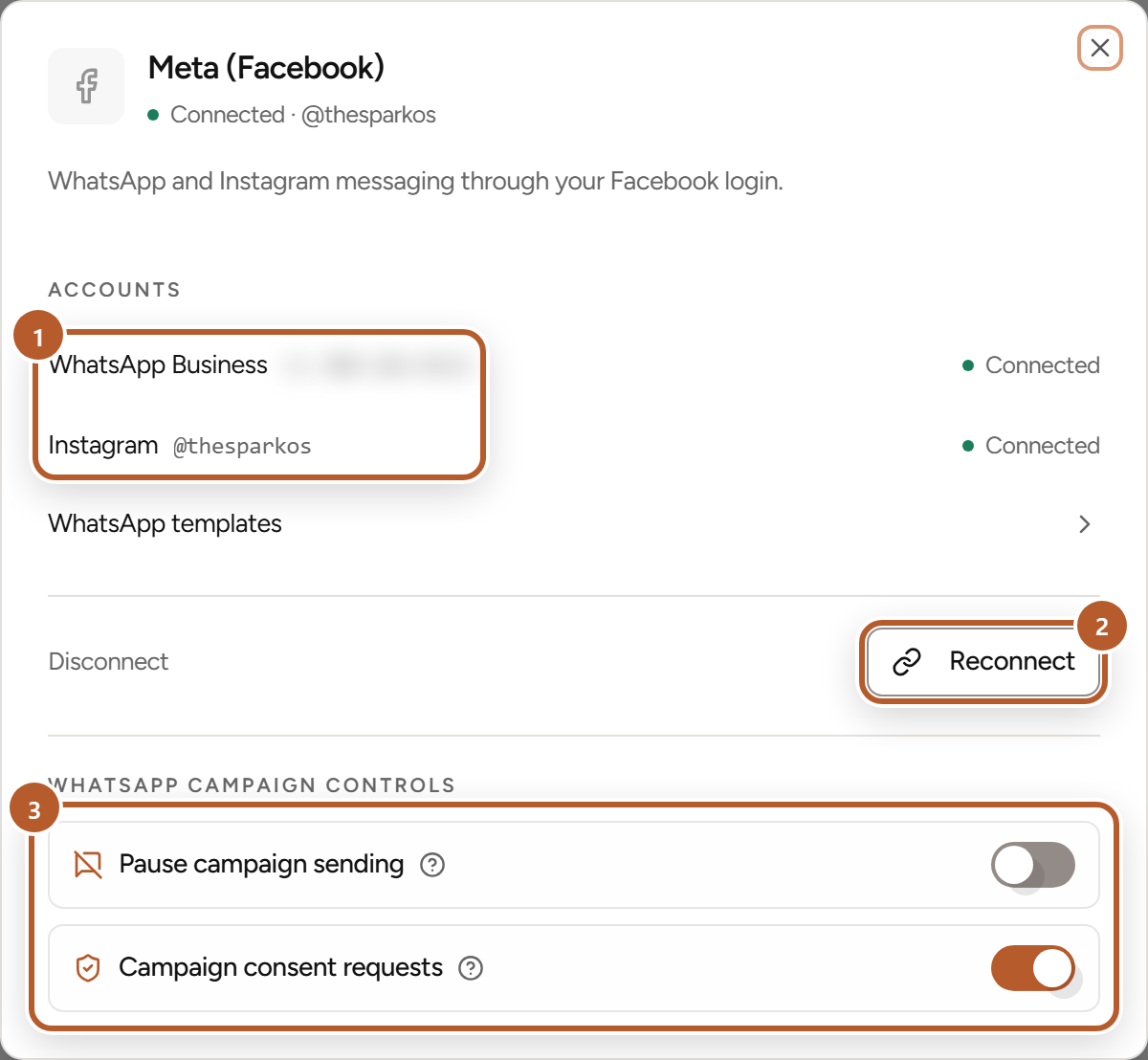
- In the panel, the Accounts section shows WhatsApp Business and Instagram as Connected or Not linked.
- Click Connect Meta Business (or Reconnect). A Facebook window asks for permissions; accept every one.
- The window goes to the return page (/auth/meta/callback) with Connecting your Meta Business… and then Connection saved, listing Facebook, WhatsApp and Instagram. Click Continue to Settings.
- Check the rows under Accounts. With WhatsApp connected, the WhatsApp templates row appears and leads to /settings/whatsapp-templates.
Accounts with guided WhatsApp signup
When guided WhatsApp signup is enabled for your account, the button opens two options: WhatsApp (signup inside Meta) and Instagram and Facebook (classic login).
Assisted WhatsApp
While WhatsApp is not connected, the panel shows WhatsApp connection: assisted onboarding with the Schedule a connection session button: the number is connected in a guided session with the SparkOS team.
What happens next
- SparkOS exchanges the authorization code for tokens and stores the WhatsApp and Instagram accounts it finds. Notices such as WhatsApp and Instagram connected successfully! confirm the result.
- If no Page or professional account is found, the panel explains why (for example, a Page with no Instagram linked) and asks you to reconnect.
- The WhatsApp campaign controls section offers Pause campaign sending and Campaign consent requests.
- Disconnect deactivates both accounts and shows Meta Business account disconnected.
Canva
The Canva section only appears when it is enabled for the account. There, Canva account shows Connected or Not linked, and Connect Canva opens Canva’s authorization in a window; the return page is /auth/canva/callback. While the Canva app review is pending, the Pending Canva review badge replaces the status and the button reads Unavailable; Disconnect stays available for an existing link.
FAQ
Instagram shows as Not linked. Why?
The Facebook Page you picked needs an Instagram professional account linked to it. Fix it in Instagram and click Reconnect.
When should I use Reconnect?
To refresh tokens or grant new permissions, for example Instagram comment automations.
What does Pause campaign sending do?
It stops every WhatsApp send from SparkOS (campaigns, automations and consent requests) until you turn the option off.
Updated on 10/2/2026