Choose and change a flow's trigger
How to pick how contacts enter a WhatsApp flow in the trigger picker, and how to change a saved trigger without losing the canvas connections.
- Available on Pro
- For Owner and team members with the Marketing & Studio permission (Marketing role)
What it is
The trigger decides how a contact enters a WhatsApp flow. The Flow triggers dialog lists the saved triggers and, to add or change one, opens a two-column picker: on the left the trigger types, each with an icon and a one-line hint; on the right the fields of the chosen type, under a line that sums up what the trigger will do. A flow can have several triggers.
Before you start
- WhatsApp flows are part of the Pro plan.
- Campaign reply needs a WhatsApp campaign you have already sent. With no WhatsApp campaign in the account, the Campaign field shows “No sent WhatsApp campaign yet.”
Step by step
- In Marketing → Flows (/marketing/flows), click New flow → WhatsApp flow, or open an existing flow with Open in editor.
- On an empty flow, the canvas shows Start with a trigger. Click Choose a trigger. On a flow that already has steps, click Triggers at the top or double-click the trigger step. While the flow is empty, the Save button is hidden.
- In the left column, click the type. Search triggers… filters by name and hint.
- Fill in the fields on the right and check the summary line. While something required is missing, it reads “Fill in the details on the right.”
- Click Add trigger, then Done.
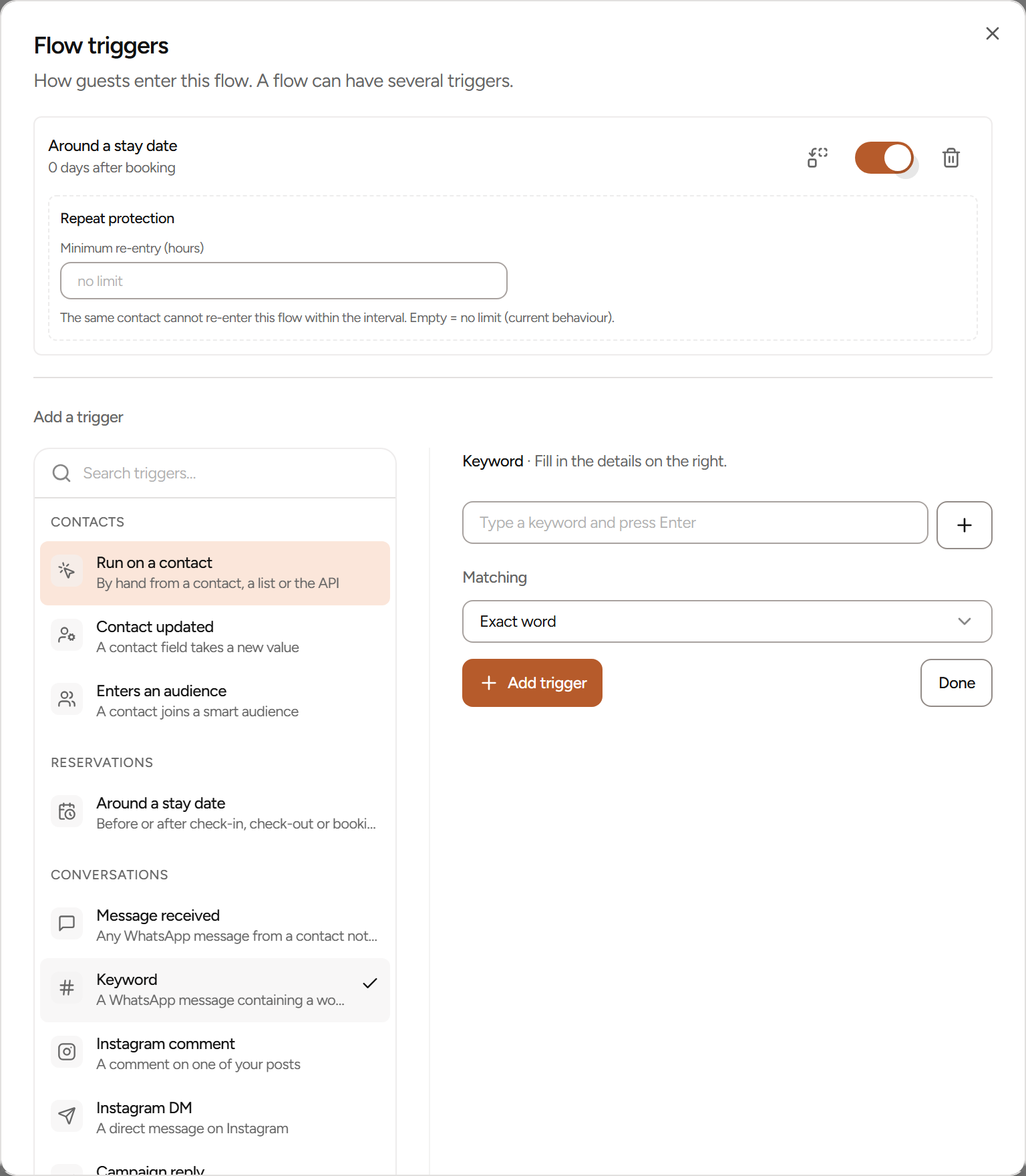
| Group | Types |
|---|---|
| Contacts | Run on a contact, Contact updated, Enters an audience |
| Reservations | Around a stay date |
| Conversations | Message received, Keyword, Instagram comment, Instagram DM, Campaign reply |
| Utilities | Webhook, Notion |
Change a saved trigger
- In Flow triggers, click the Change trigger icon on the row.
- The form opens filled with what is saved. Pick another type or adjust the fields. Keywords you already typed stay in the form if the new type also uses keywords.
- Click Save changes. You see “Trigger updated”.
The change happens on the same trigger, so the connections leaving the trigger step on the canvas stay where they are.
What happens next
If the trigger card on the canvas changes type with the swap, the builder shows Unsaved changes: click Save. Start from a template creates a new draft from the template and opens it; the empty flow you started from stays in the list.
FAQ
Why is the change icon disabled on a webhook?
Because the webhook URL is already in use outside SparkOS: “This webhook’s URL is in use elsewhere. Delete it and add a new trigger instead.”
Can a flow have two triggers of the same type?
Message received, Run on a contact and Webhook are one per flow. Changing another trigger to Message received or Run on a contact when the flow already has one is refused with “This flow already has that trigger.” Changing to Webhook or Notion is refused too when another trigger already uses the flow’s webhook URL.
What is Run on a contact for?
It has no settings: contacts enter through Run flow, the test or the API. An active trigger of this type is what makes the flow show up in the Run a flow dialog.
Updated on 10/2/2026