Properties: add and edit
Add manual properties, bring properties in from your PMS, and edit details, pricing and check-in times in Properties.
- Available on All plans (the number of properties depends on the plan)
- For Owner and team members with the properties permission
What it is
The Properties screen lists every property in the workspace, as cards or as a list. This is where you add manual properties and change their details. Properties synced from a PMS (Lodgify, Guesty, Stays.net) show up here too, but their data comes from the integration. Each card shows the property’s operational state (overdue tasks, unassigned tasks, next check-in) and this month’s metrics: revenue, occupancy and average nightly rate.
Before you start
- Team members only see this screen if they have the properties permission, and they only see the properties shared with them.
- How many properties you can add depends on your plan. Once you reach the limit, the add form is locked and shows a message asking you to upgrade.
Step by step
Add a manual property
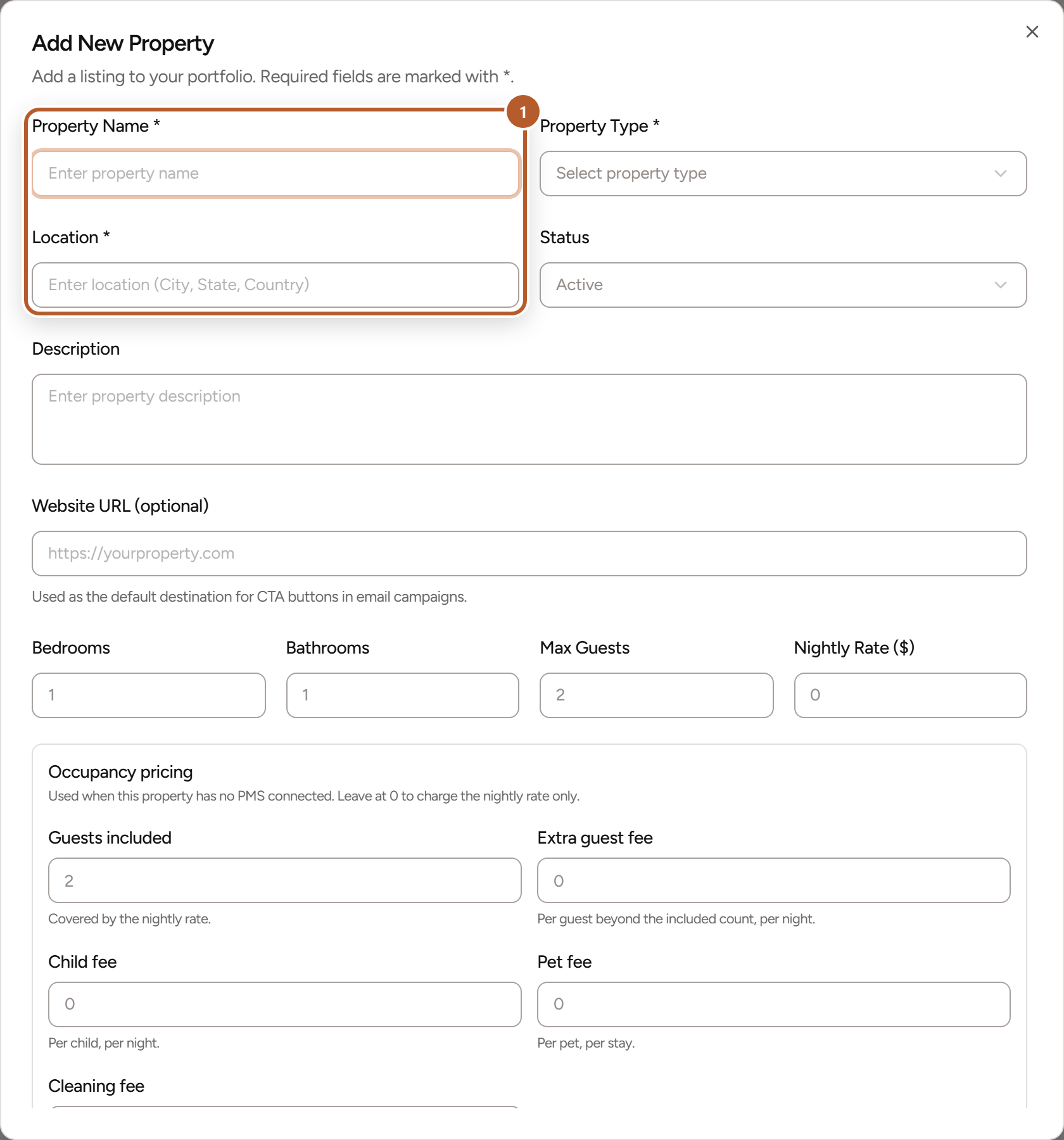
- In the menu, open Properties (/properties) and click Add Property.
- Fill in the required fields, marked with *: Property Name, Property Type and Location.
- Pick a Status: Active, Inactive or Maintenance.
- Optionally fill in Description, Bedrooms, Bathrooms, Max Guests and Nightly Rate ($).
- Optionally set occupancy pricing (guests included, extra guest, child, pet and cleaning fees). These only apply to properties with no PMS connected; leave them at 0 to charge the nightly rate only.
- Add photos under Property Images and click Create Property.

Bring properties in from a PMS
- With no properties yet, Connect in Settings opens the Connections tab in Settings.
- With Guesty connected, use Import from Guesty. With Stays.net connected, a button to sync properties from Stays.net appears.
Edit a manual property
- Click the card to open the property page.
- Click Edit Property to change the name, type, location, photos, pricing, Check-in time, Check-out time and Payout recipient (optional).
- To change only bedrooms, bathrooms and guests, use Edit Details in the Property Details section.
What happens next
- Turning off the status switch on a card makes the property inactive, and SparkOS hides its pages on your site.
- An empty check-in time means 15:00; an empty check-out time means 11:00. The check-in time is what WhatsApp flows show the guest.
FAQ
Why can’t I edit or delete a property?
Edit Property and Delete only exist for manual properties. For synced properties, the property page only lets you change the website URL; everything else is kept by the sync.
Does deleting ask for confirmation?
On the property page, yes: Delete opens the Delete Property confirmation, and the action cannot be undone. In the card’s Actions menu, Delete removes the property without a confirmation.
What is the property website URL for?
It is the default destination for call-to-action buttons in email campaigns.
In what order are properties listed?
By urgency: properties with overdue tasks come first, then those with unassigned tasks. The Needs attention strip lists them with a direct link to Tasks.
Updated on 10/2/2026