Connect Guesty
How to link Guesty to SparkOS with the Open API Client ID and Client Secret, and what gets imported next.
- Available on All plans
- For All workspace members
What it is
Guesty is one of the channel managers SparkOS supports. Once connected, it becomes the source of your properties, reservations and guests, and guest messages can reach the Inbox when the Guesty account has access to conversations. The connection uses the Guesty Open API (OAuth) with a Client ID and Client Secret pair; the credentials stay on the server only.
Before you start
- In Guesty, go to Settings → Open API and create or copy the Client ID and Client Secret.
- Only one channel manager is active per account. If another PMS is connected, it will be disconnected when you connect Guesty.
- If the Guesty row shows the Coming soon badge, the connection is not yet enabled for your account.
Step by step
- Open Settings → Connections (/settings?tab=integrations) and click Connect on the Channel Managers card.
- On the Guesty row, click Connect.
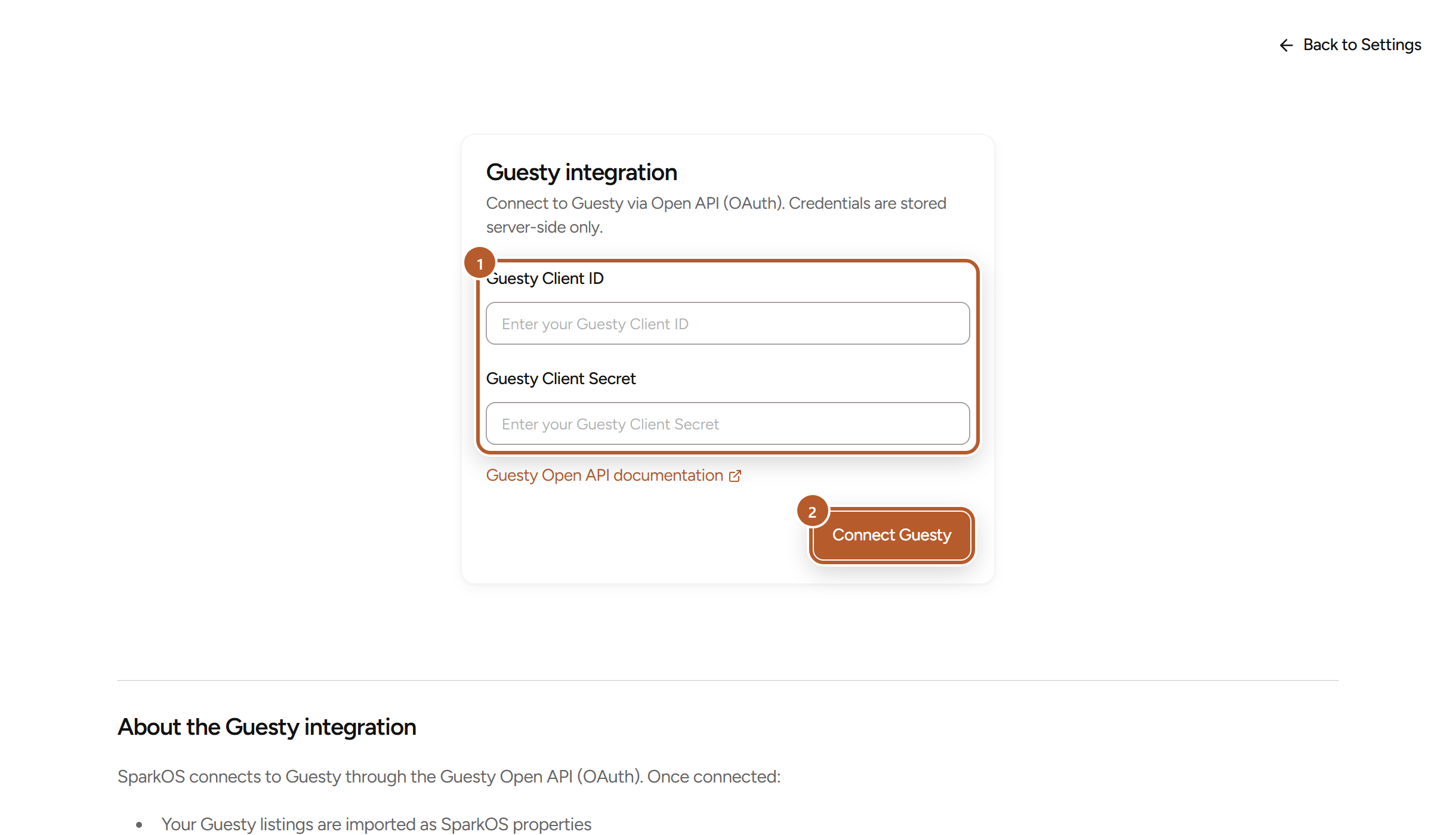
- In the Connect Guesty window, fill in Client ID and Client Secret and click Connect. The Where to find your credentials: block repeats the path inside Guesty.
- On the account’s first PMS connection, SparkOS asks for authorization: read the Authorize PMS Connection window and click Authorize Connection.
- The button switches to Verifying…. When it finishes, Guesty connected successfully! appears and the import of properties, bookings and guests starts.
Authorize PMS Connection: SparkOS will access your reservation data, guest information, property details, availability and pricing from Guesty. You confirm you are authorized to grant access to this data.
Dedicated page
The /integrations/guesty page shows the same form: Guesty Client ID, Guesty Client Secret and the Connect to Guesty button. When done, it returns to Settings.
What happens next
- SparkOS obtains a token from Guesty, confirms the account and probes access to conversations.
- A webhook is registered automatically in Guesty for listings (new, updated, removed), reservations (new, updated), guests (created, updated, deleted) and messages received and sent.
- The initial import runs in three steps: properties, bookings and guests. For Guesty, guests come in with the reservations.
- The Guesty row now shows Connected, Sync enabled and Last verified: [date].
- Periodically, SparkOS re-imports Guesty reservations as a safety net for events that did not arrive.
FAQ
How do I disconnect?
On the Guesty row, open the menu, click Disconnect and confirm in the Disconnect integration window. The webhook is cancelled, bookings that came from Guesty are archived and active properties become Inactive; nothing is deleted and guests stay in SparkOS. Connecting Guesty again brings the bookings and properties back.
The connection failed with a credential error. What should I check?
SparkOS tests the Client ID and Client Secret when saving. The Failed to connect Guesty notice carries the reason returned by Guesty.
Do I need to register the webhook manually?
No. Registration happens automatically on connect.
Updated on 10/2/2026