Create a manual reservation
Record a booking agreed outside your channels, hold dates with a payment link, or block dates for the owner or for maintenance.
- Available on All plans
- For Owner and team members with the Calendar permission
What it is
The New reservation form records a booking you already agreed, for example over WhatsApp or the phone, and blocks the dates. On a property synced with your PMS, the reservation goes to the PMS and also blocks your connected channels. On a manual property, it blocks your SparkOS calendar. The same form also holds dates until payment and records owner or maintenance blocks.
Before you start
- The form lives in the Calendar tab of the Reservations page. Team members need the Calendar permission.
- To create a payment link, the guest needs an email address and your payment account needs to be connected.
Step by step
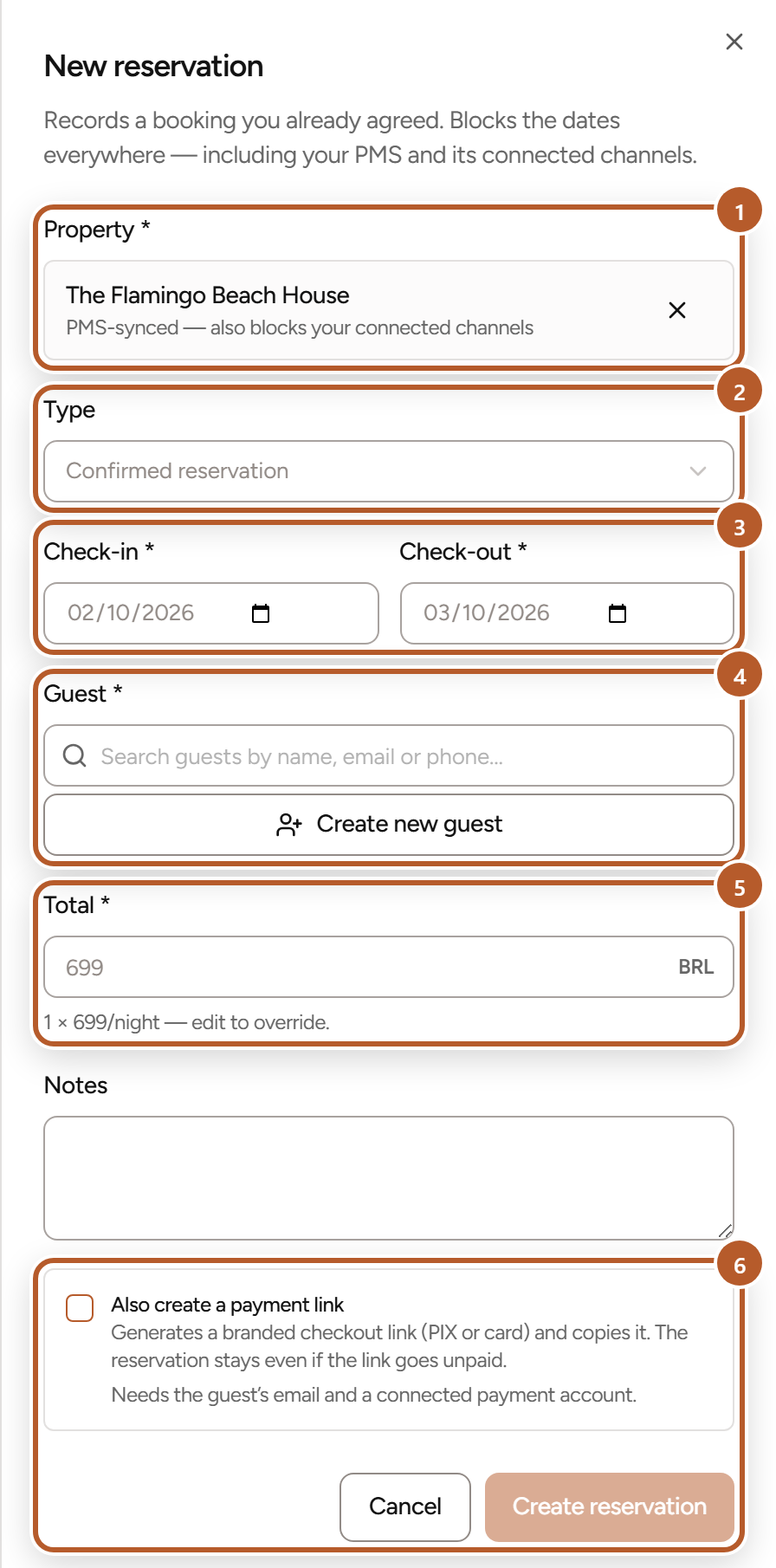
- In Reservations > Calendar (/reservas?view=calendario), click New reservation. You can also click a day in the Month or Year view and choose to create a reservation: check-in is filled with that day.
- Under Property, search for and pick the property. Below it, SparkOS says whether the property is PMS-synced or manual.
- Under Type, pick an option:

| Type | Use it for |
|---|---|
| Confirmed reservation | A booking already agreed |
| Tentative — holding the dates | Holding the dates while the guest decides or pays |
| Block (owner / maintenance) | Closing dates with no guest and no amount |
- Fill in Check-in and Check-out. If the dates overlap another reservation, the form warns you. A check-out and a check-in on the same day do not count as an overlap.
- Under Guest, search by name, email or phone, or click Create new guest and fill in Full name, email and phone. Blocks don’t ask for a guest.
- Check the Total. SparkOS calculates nights × the property’s nightly rate; type another amount to override it.
- If you want, add Notes and tick Also create a payment link (PIX or card).
- Click Create reservation, Block these dates (for a block) or Hold dates & send link (for a tentative reservation with a link).
What happens next
- SparkOS confirms with Reservation created, Reservation created and pushed to your PMS or Dates blocked, and opens the reservation page, except for blocks.
- If you asked for a link, it is copied to your clipboard. On a confirmed reservation, the reservation stays even if the link goes unpaid.
- On a tentative reservation with a link, if the guest does not pay within 2 hours, the dates are released automatically everywhere, including connected channels. The confirmation shows the time the link expires.
FAQ
What if the dates are already taken?
SparkOS refuses with “Those dates are already taken on this property.” and shows the conflicting reservation in the form.
Can I hold dates without a connected payment account?
Not with a link. Untick the payment link to just hold the dates as tentative.
What does the room type error mean?
SparkOS could not resolve the property’s room type from your PMS. Re-sync the property and try again.
Updated on 10/2/2026