WhatsApp message templates
Build, validate and submit templates to Meta, follow their status and activate the ready-made SparkOS templates.
- Available on Pro and Enterprise
- For All workspace members
What it is
Templates are WhatsApp messages Meta pre-approves. They are the only way to reach a guest outside the 24-hour window, and they feed campaigns, flows and the Inbox Templates panel. On the WhatsApp templates page you build, validate and submit templates straight to your Meta account, follow the review and activate the ready-made SparkOS templates.
Before you start
- WhatsApp connected under Settings → Connections (the Meta (Facebook) card).
- Pro plan: WhatsApp requires the Pro plan.
Step by step
- Under Settings → Connections → Meta (Facebook), click the WhatsApp templates row (/settings/whatsapp-templates). In Templates, with the WhatsApp filter on, the New WhatsApp template button leads to the same place.
- Click New template.
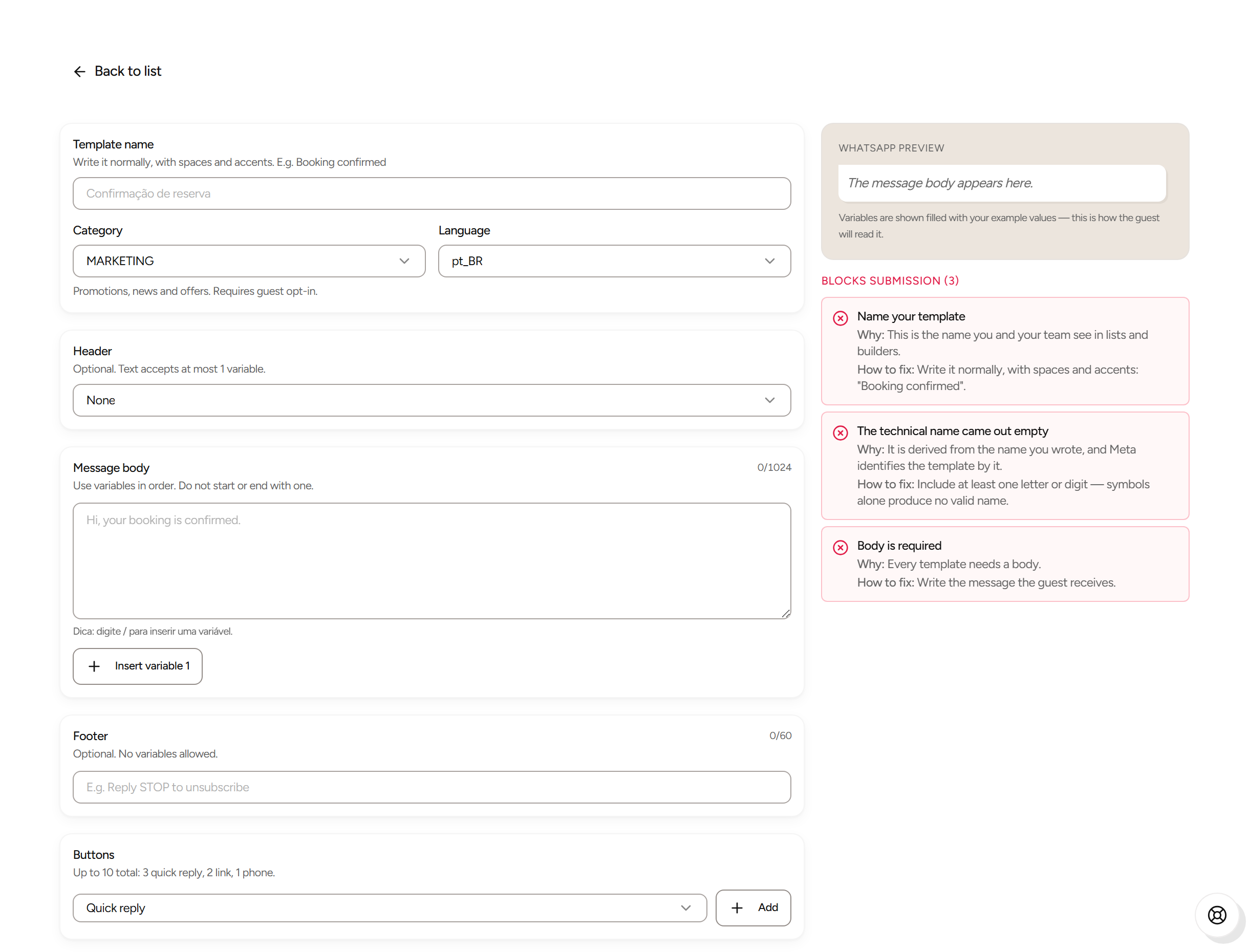
- Fill in Template name normally: the technical name appears under “Sent to Meta as”. Choose Category and Language (pt_BR, en_US or es_ES).

| Category | Use |
|---|---|
| MARKETING | Promotions, news and offers. Requires guest opt-in. |
| UTILITY | Confirmations and updates about something the guest already requested. |
| AUTHENTICATION | One-time verification codes only. |
- Set the Header (None, Text, Image, Video, Document or Location) and write the Message body. Use Insert variable N or type ”/” to insert system fields, and fill in the Example values for every variable.
- Optionally add a Footer and Buttons (Quick reply, Link or Phone): up to 10 in total, with 3 quick reply, 2 link and 1 phone.
- Check the WhatsApp preview and the issues panel (Ready to submit, Blocks submission or Rejection risk), where each item carries “Why:” and “How to fix:”.
- Click Submit to Meta for approval. While errors remain, the button reads “Fix the errors above to submit”.
Ready-made and standard templates
SparkOS ready-made templates lists models by category with an Activate button; utility ones go to Meta when you connect the account. SparkOS standard templates shows the ones shipped features need (property carousel, LGPD consent) and offers Submit N for approval when any is missing.
What happens next
SparkOS confirms “Template submitted to Meta for review.” and the template joins the list as In review. Meta reviews it, usually within 24h. Refresh from Meta syncs the statuses.
| Status | Meaning |
|---|---|
| Approved | Ready; the In campaigns and flows pill confirms it is on the current account |
| In review | Waiting for Meta |
| Rejected | Shows “Meta’s reason:” and the Duplicate and fix button |
| Paused / Disabled | Suspended by Meta |
FAQ
Can I edit an approved template?
Not in place. When you open it from the Templates list, SparkOS opens a copy with a “(v2)” suffix for you to adjust and submit as a new template.
What does “Not on the current WABA” mean?
The template was created on a number the account no longer sends from. Resend to the current WABA (or Resend all) submits it to the account connected today.
Updated on 10/2/2026