Create your account and start the trial
How to sign up with email or Google, try the tools before signing up, and what changes when the 14-day trial starts.
- Available on All plans
- For All workspace members
What it is
You create your SparkOS account on the sign-in screen (/auth). A new account gets a free trial and moves on to onboarding. If you want to see the product first, the demo page (/activate) shows the tools working without an account. Links from the SparkOS website go through /start, which opens the tool named in the link.
Step by step
With email and password
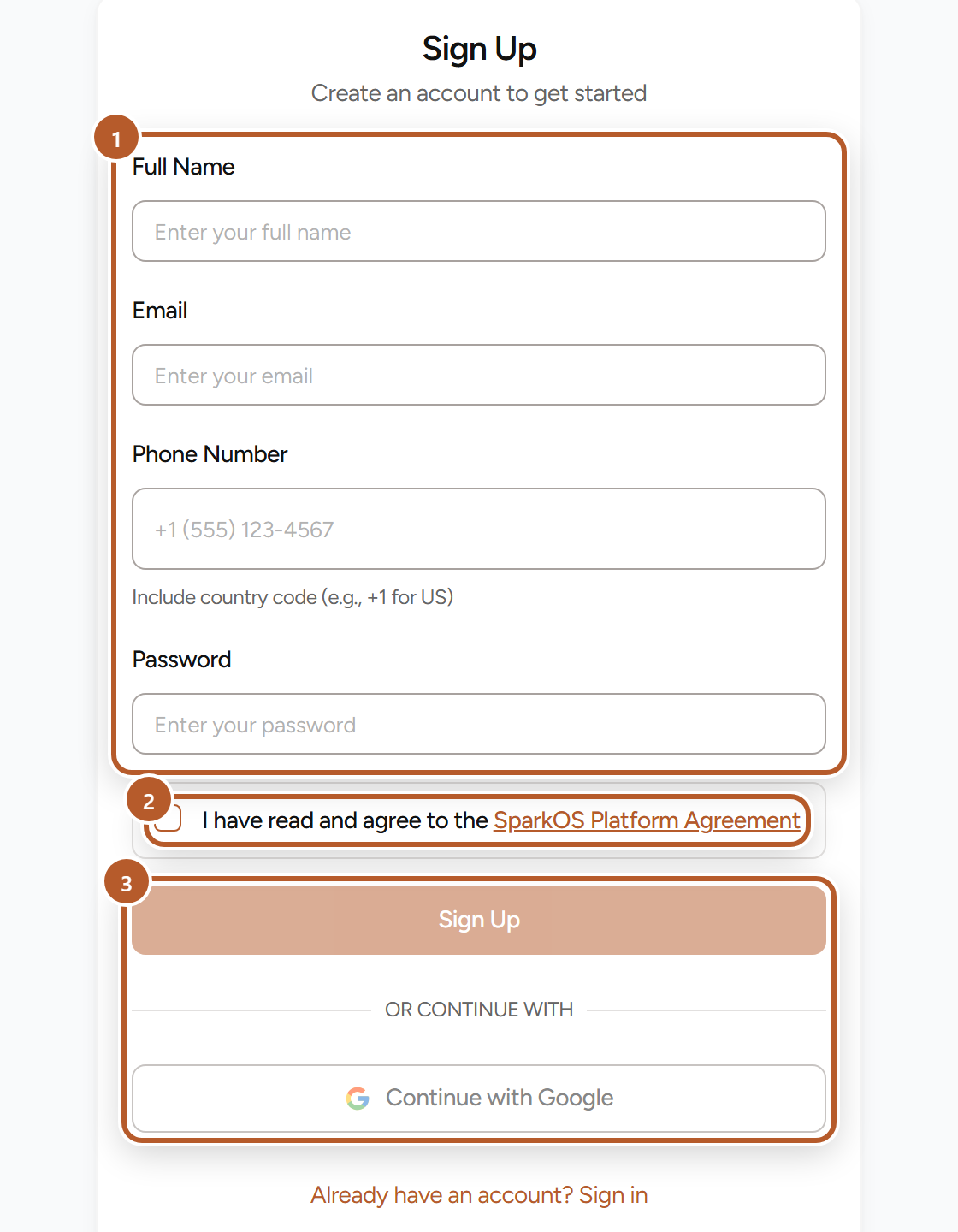
- Open the sign-in screen (/auth). If it shows Sign In, click Don’t have an account? Sign up.
- Fill in Full Name, Email, Phone Number and Password. The phone field accepts only digits and a leading +, including the country code. The password needs at least 6 characters.
- Tick I have read and agree to the SparkOS Platform Agreement. Until you do, the sign-up buttons stay disabled.
- Click Sign Up.
With Google
- On the same screen, tick the SparkOS Platform Agreement box.
- Click Continue with Google and pick your account.
Trying it before you sign up
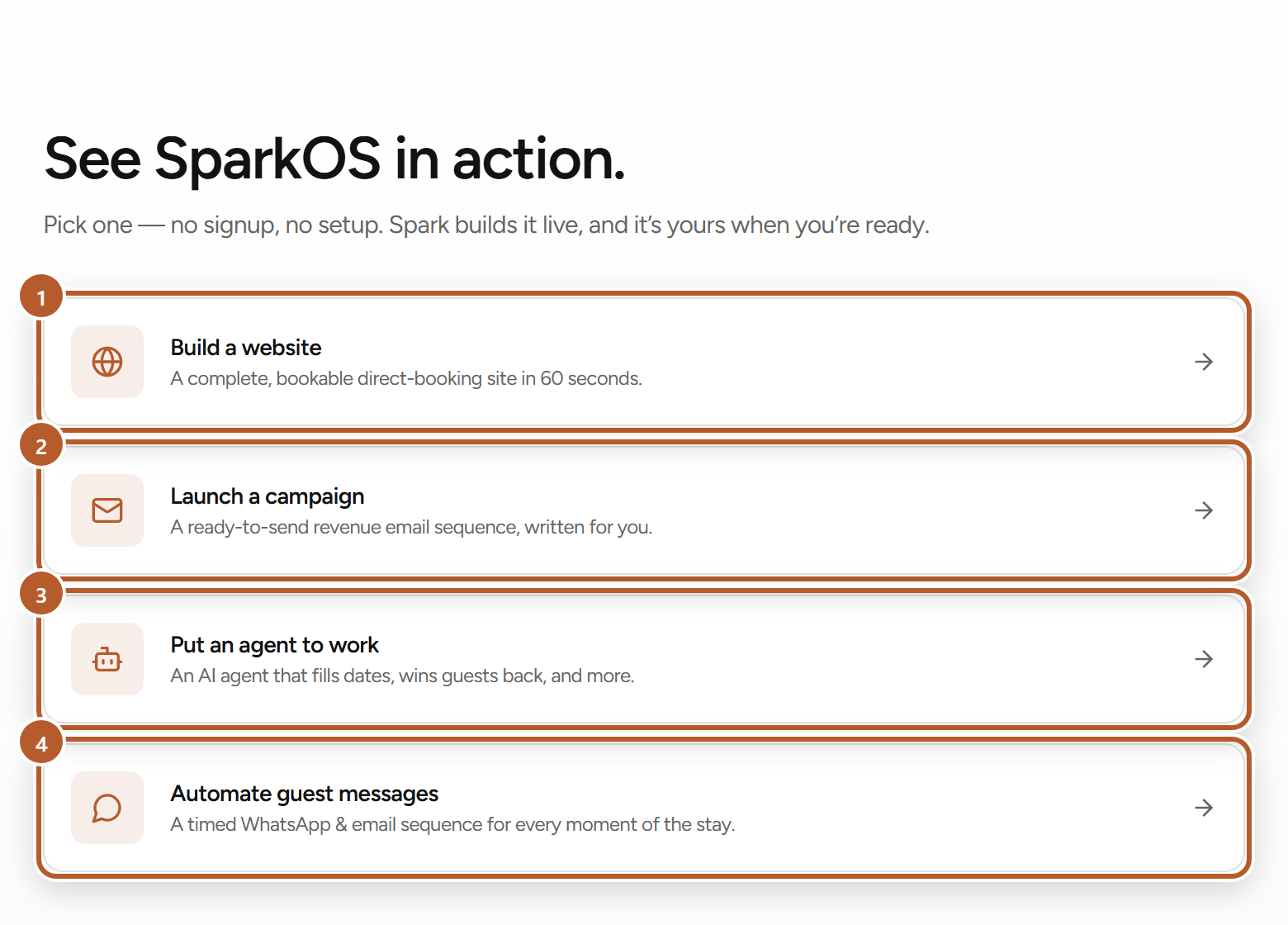
- Open /activate. The See SparkOS in action. page lists Build a website, Launch a campaign, Put an agent to work and Automate guest messages.
- Pick one and follow the screen. SparkOS builds the result right there.
- When you click the final action (Send, Activate or Export), SparkOS asks for your email and takes you to sign-up.
- To skip the demo, click Create your account at the bottom of the page.
What happens next
- If the account needs confirming, you see Check your email. Open the link you received to sign in.
- SparkOS starts a 14-day free trial. In Settings, a notice shows how many days are left, with an Upgrade button. When the trial ends, the notice changes and the button becomes Upgrade Now. Both buttons open the subscription checkout. In the last 3 days of the trial, and after it ends, a notice also appears at the top of every screen.
- You then land on onboarding (/onboarding). If the account came from a demo, you go straight to the tool you were using.
FAQ
My email is already registered. What now?
SparkOS shows Account already exists. Click Already have an account? Sign in and use your password.
I forgot my password. How do I get back in?
On the sign-in screen, click Forgot password?, enter your email and click Send Reset Link. The new password needs at least 8 characters.
I was invited to someone else’s team. Do I need to sign up?
Open the invitation link. Your email is already filled in: choose a password and click Join workspace. Accounts created from an invitation join the inviter’s workspace and do not start a trial of their own.
Can I change the language of the sign-in screen?
Yes. Use the English / Português switch in the top-right corner.
Updated on 10/2/2026