Task templates (turnover and cleaning)
Build templates that create tasks automatically on every check-in, check-out or booking confirmation, or on a fixed schedule.
- Available on Enterprise
- For Workspace owner
What it is
A task template turns each reservation, or a fixed schedule, into the work it needs. You define the tasks once, such as post-checkout cleaning, and SparkOS creates them automatically in the Tasks view, with a due time, an assignee and an expected cost.
Before you start
- Only the workspace owner sees the Task templates button in the Reservations header.
- Tasks created from templates show up in the Tasks tab, which requires the paid Enterprise plan. Without it, the tab is locked with a View plans button.
- To assign tasks to people, invite your team first: only active members appear as assignees.
Step by step
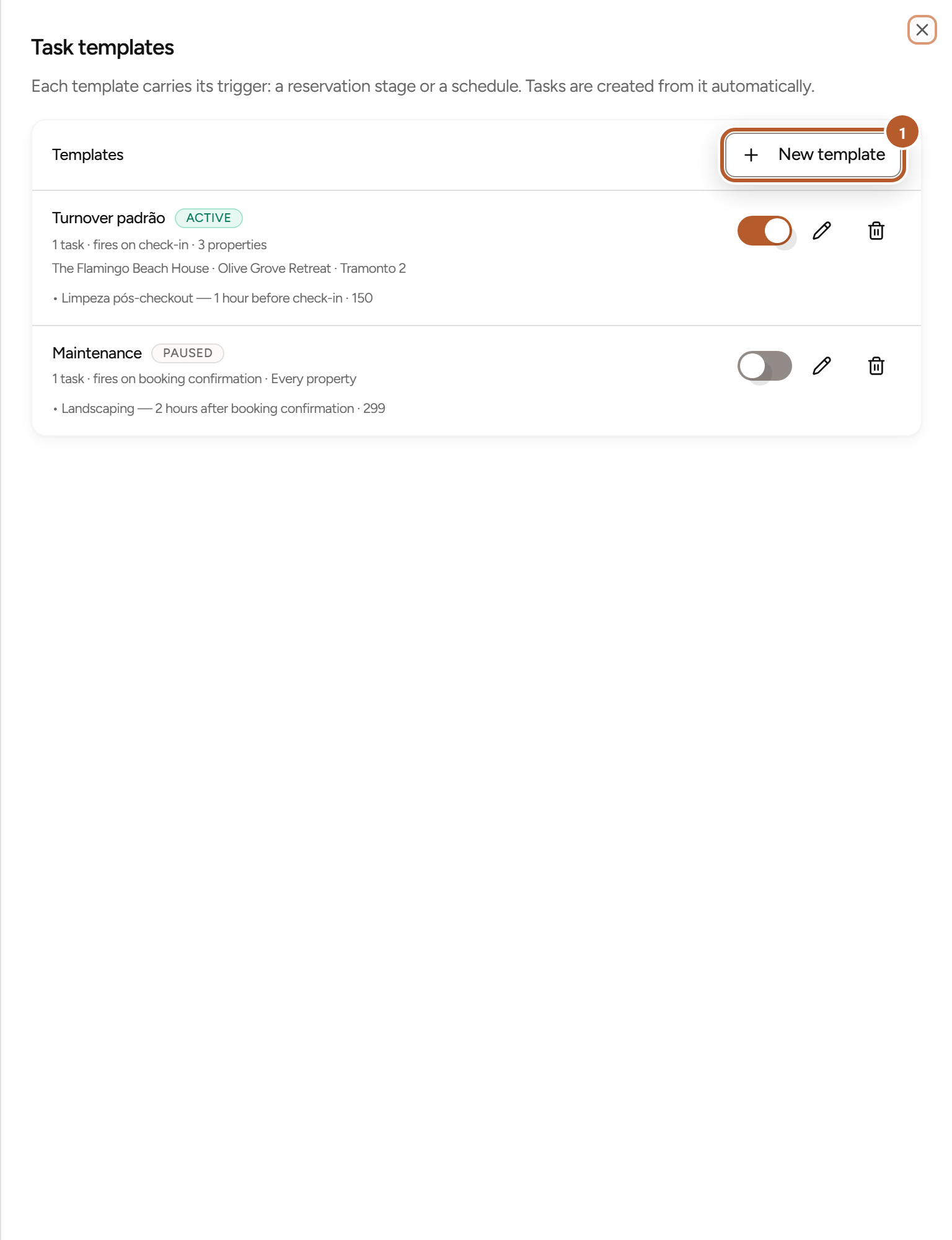
- In Reservations (/reservas), click Task templates. The first time, click Use the turnover template to start from the “Turnover padrão” preset, which already includes cleaning, inspection and linen restock, or click New template to start from scratch.
- Give the template a Name and leave Active on.
- Under When do these tasks run?, pick one of the options below.
On a reservation
Under Triggers on, choose check-in, check-out or booking confirmation.
On a schedule
Pick the Frequency (Daily, Weekly or Monthly), the Day of week or the Day of month (1 to 28), and the Time.
- Under Applies to, keep Every property (including properties you add later) or choose Selected properties and tick them.
- Under Tasks this template creates, fill in each row: Task, Category (Cleaning, Maintenance, Supplies, Services, Admin or Other), Assignee and Cost. In reservation mode, also set the Due time and whether it falls before or after the trigger. Use Add task for more rows.
- Click Save.
What happens next
When you save, SparkOS creates the tasks right away and tells you how many were created or updated from your reservations. If there are no eligible reservations yet, tasks appear as bookings come in. For a scheduled template, tasks are created on the next occurrence. Active templates are listed under Automations in the right-hand column of Tasks. Costs use your account currency, and due times are calculated in each property’s timezone.
FAQ
What happens if I delete a template?
The Delete this template? confirmation spells it out: the template stops creating new tasks and its open tasks are cancelled. Tasks already completed, and any cost already posted, stay untouched.
What if I narrow a template to fewer properties?
Open tasks from that template at properties outside the list are cancelled. Completed tasks and posted costs do not change.
Can I pause a template without deleting it?
Yes. Turn off its switch in the template list; the label changes from Active to Paused.
What is the “Cleaning · queue” assignee?
It assigns the task to the Cleaning role rather than to a person. The task counts as unassigned in the Tasks counters.
Updated on 10/2/2026