Email templates
Create, file into folders and reuse email templates; the same screen lists your Meta-approved WhatsApp templates.
- Available on All plans
- For Owner and team members with the Marketing & Studio permission (Marketing role)
What it is
Templates is Marketing’s library of reusable messages. Email templates can be opened in the campaign builder and picked in the send-email node of a flow. WhatsApp templates appear in the same table for reference and filing only; authoring and Meta submission happen in WhatsApp templates under Settings.
Step by step
- In the sidebar, under Marketing, in the Library, click Templates (/marketing/templates). This page does not require campaign access.
- Find a template with Search templates and the folder filter (All folders or Unfiled). Columns are Name, Edited and Uses; WhatsApp templates show Language and Meta status.
- To create one, click Create new template. In the New template dialog:
- Optionally describe the email under “Describe the email you want to create…” and click Generate with AI; the subject and body are filled in.
- Fill in Name, Subject and Category (Welcome, Billing, Marketing, Relationship).
- Write the Message. The {} button inserts variables by group: Guest & booking, Financial, Property & listing, Personalization & KB (Settings) and Host & account.
- Use Preview with example booking to see placeholders filled with a real booking in the Preview panel.
- Optionally fill Plain text (optional) and click Save template. Name, subject and body are required.
- Organise with folders: New folder, Rename & colour and Delete folder. Deleting a folder returns its templates to Unfiled.
- In each row’s menu use Edit in builder, Duplicate, Move to folder and Delete (confirmation “Delete this template?”). System templates cannot be deleted.
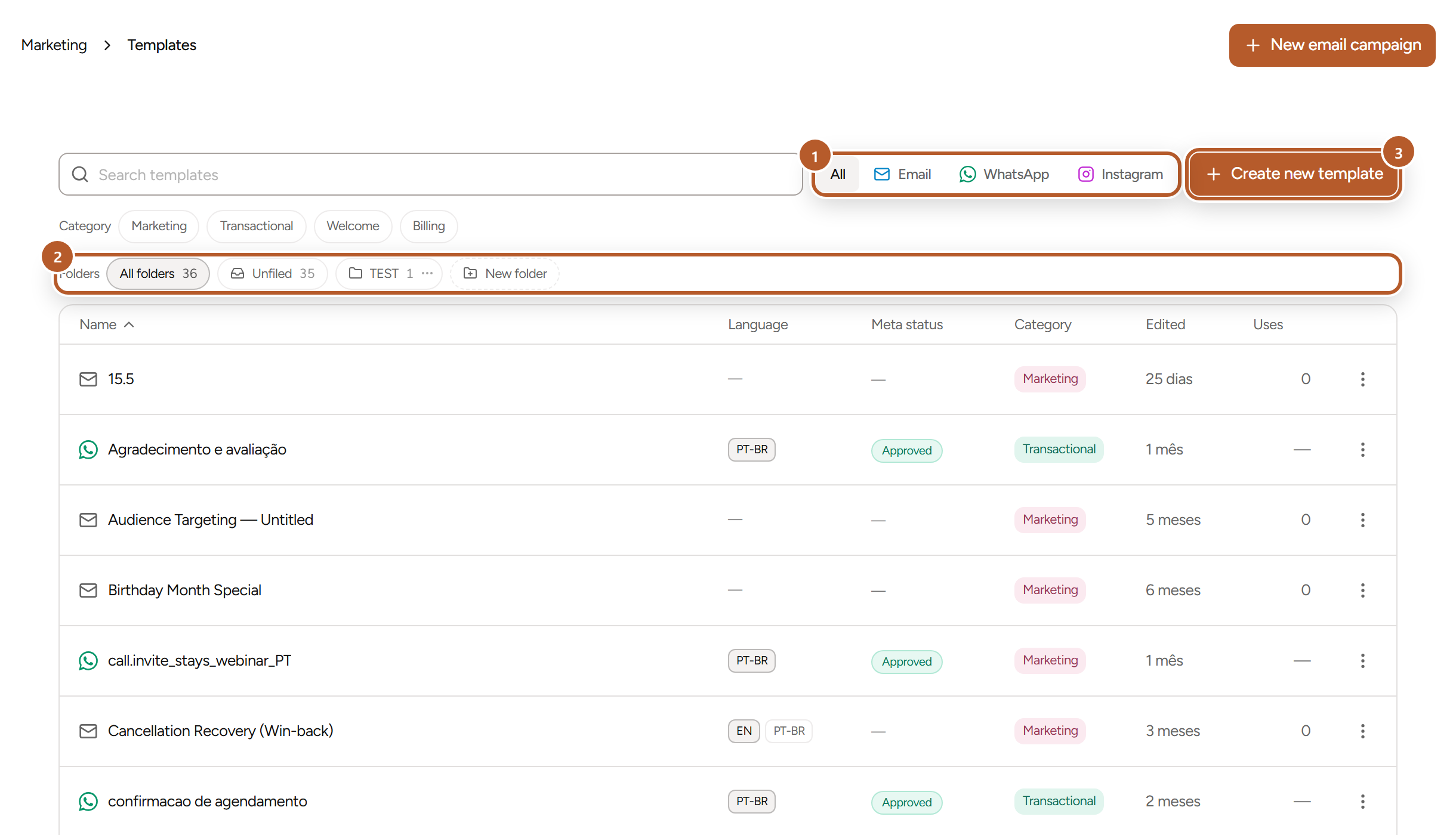
WhatsApp templates
New WhatsApp template opens the WhatsApp templates screen in Settings. For rejected templates, View rejection reason shows the Rejection reason; Open in WhatsApp templates takes you to the template.
What happens next
A new template is saved unfiled with a block document, so Edit in builder opens it in the campaign builder ready to send. Templates created from the builder with Save as Template show here and also on the Starting point step of a new campaign, under Saved templates & drafts.
FAQ
Can I edit a WhatsApp template here?
No. Here you only list, filter and move them into folders; editing lives in WhatsApp templates.
What does the preview show without a booking?
“Sample data only”: placeholders use mock data until you pick a booking.
When is a variable replaced?
At send time, with guest, booking and property data; in the editor it stays as {{…}}.
Updated on 10/2/2026