Payments: charges received via Asaas
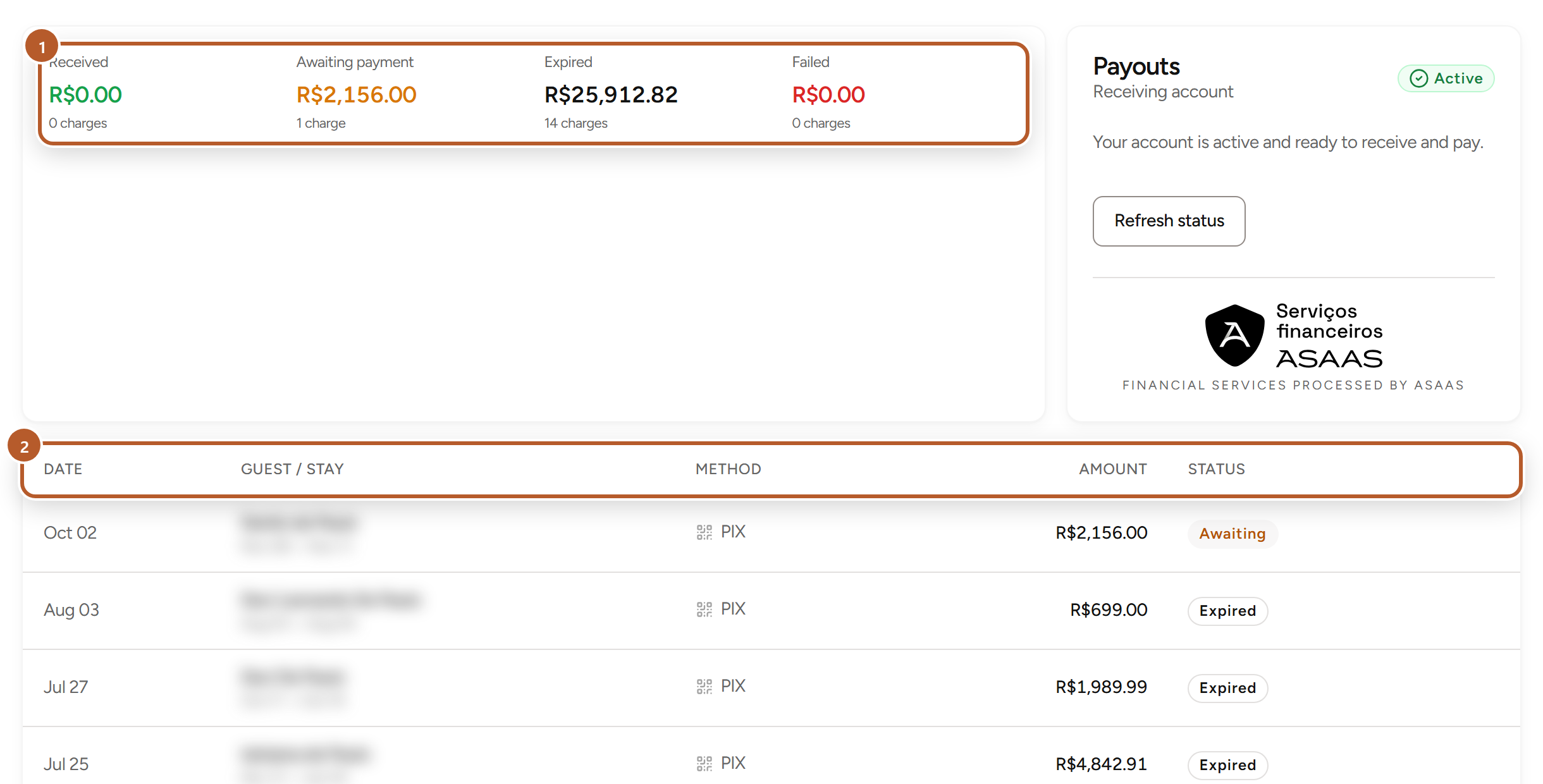
The Payments tab lists every PIX or card charge issued by SparkOS via Asaas, with totals for received, awaiting payment, expired and failed.
- Available on All plans
- For Host account: workspace owner and team members with the Finance module (View or Act level)
What it is
The Payments tab of Finance (/payments) lists “Charges issued by SparkOS via Asaas — paid, awaiting and expired”. Each row is a PIX or card charge created for a reservation, with guest, stay, method, amount and status. Charges show up here when you charge a reservation on the Reservations screen, or when a guest pays through your site.
Before you start
- Payment country Brazil (Asaas) and an Asaas account connected under Settings → Payouts (Connect with Asaas). Without it, the Reservations screen says “Connect payouts (SparkOS) under Settings > Payouts to generate a PIX charge”.
- The guest’s CPF or CNPJ: charges in Brazilian Real require the payer’s document.
- For a listing on owner-direct routing, an approved and linked recipient, otherwise the charge is blocked (“This listing requires owner-direct payout onboarding in Finance › Payouts before charges can be sent”).
Step by step
Create the charge
- In Reservations (/reservas), on a reservation with an outstanding amount, click Generate secure charge.
- In the Review charge and notifications sheet, check Charge details — Outstanding amount, SparkOS fee and Guest total; pick Charge via PIX or Charge via installments (Installments from 1 to 12x); enter the Document (CPF/CNPJ); under Messages, review the WhatsApp text, the Charge email body and the Charge email send time.
- Click Confirm and send charge. The confirmation reads “Charge sent successfully to [guest]”.
Track it
- Open Finance → Payments. The Received, Awaiting payment, Expired and Failed cards add up the last 200 charges, each with “N charges”.
- The table shows Date, Guest / stay, Method (PIX, Card or Card Nx), Amount and Status.
- On Awaiting charges, use Copy payment link or Open charge to resend it to the guest.
- The Payouts card next to the totals (your receiving account) displays your account status (Active, Pending, Awaiting documents, Inactive, Rejected or Not set up); Refresh status queries Asaas.
| Status | Meaning |
|---|---|
| Paid | payment confirmed; the date is shown next to it |
| Awaiting | sent and still within its deadline |
| Expired | deadline passed without payment |
| Failed | issuing error or cancelled charge |
What happens next
When the guest pays, Asaas notifies SparkOS: the charge becomes Paid, the paid amount is added to the reservation and the outstanding balance is recalculated. A charge whose deadline has passed is listed as Expired even before Asaas confirms it. If an open PIX charge already exists for the reservation, the app answers “A PIX charge already exists for this booking”.
FAQ
Does the table amount include fees?
No. It is the reservation amount used for the charge — the same value the reservation records as paid — not the fee-inclusive total the guest sees.
Do Stripe payments show up here?
No. The tab lists only charges issued via Asaas; in Brazil, PIX, boleto and card are processed exclusively by Asaas, and Stripe is used only for international accounts.
What is the difference between Expired and Failed?
Expired is neutral: the guest did not pay in time. Failed means an issuing error or a cancelled charge.
Updated on 10/3/2026