The reservations list
How to use the Reservations page: the Board by stay stage, the Table with search and filters, and the actions on each row.
- Available on All plans
- For Owner and team members with the Reservations permission
What it is
The Reservations page (/reservas) brings together the reservations on your properties: those that arrive from your connected channels and those created in SparkOS. The tabs at the top, Board, Table and Calendar, show the same data in different ways. SparkOS remembers the last tab you used and keeps it in the page address, so a shared link opens on the same tab.
Before you start
- To see reservations from Airbnb, Booking.com and other channels, connect your channel manager under Settings > Connections.
- Team members see Board and Table with the Reservations permission. The Calendar tab needs the Calendar permission.
Step by step
- In the sidebar, click Reservations. The total shows under the title, for example “12 reservations”.
- Click Board to see reservations in four columns:
| Column | Who shows up |
|---|---|
| Confirmed | Arrival more than 7 days away |
| Arriving | Arrival today or within the next 7 days |
| Checked in | Already arrived and not yet departed |
| Post-stay | Departed within the last 30 days |
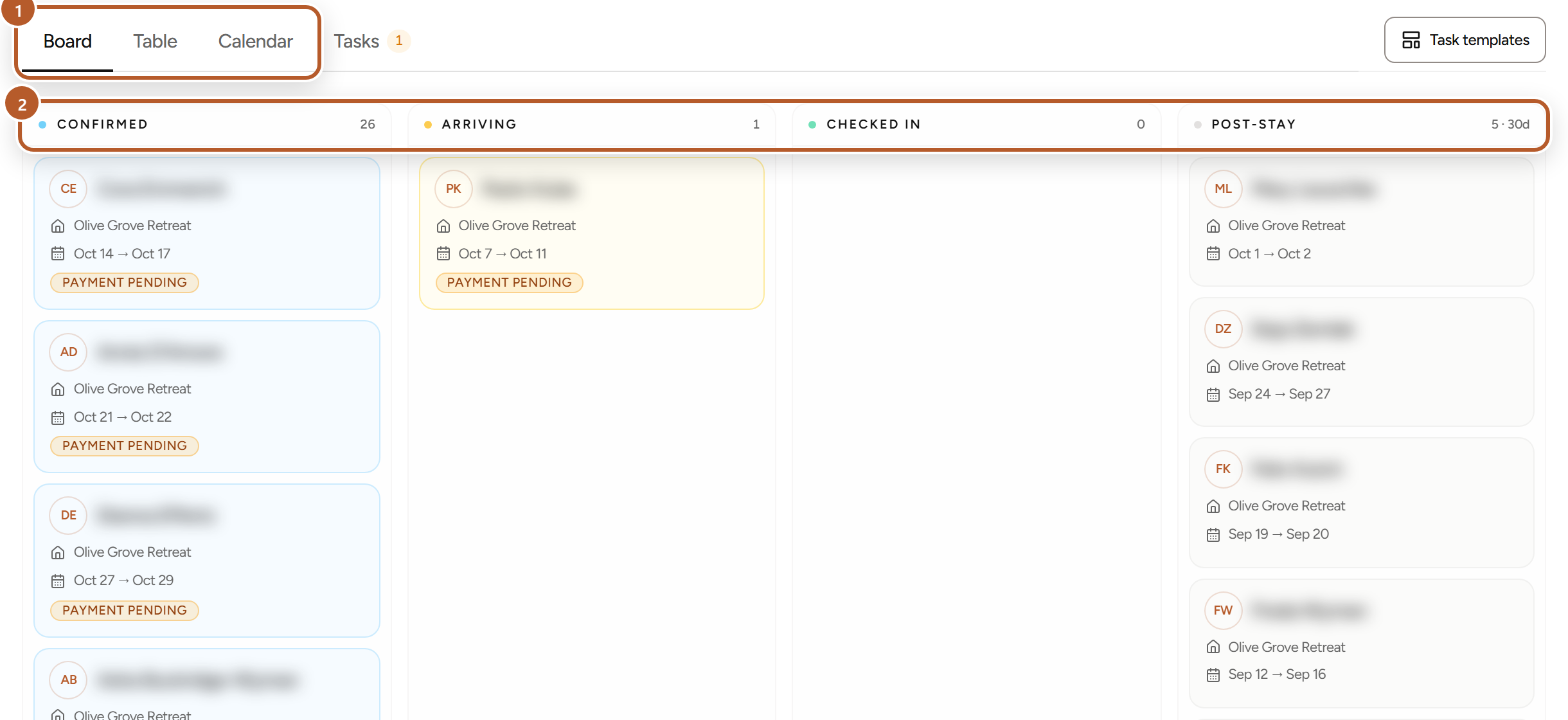
- Cancelled reservations stay off the Board. Click a card to open the reservation.
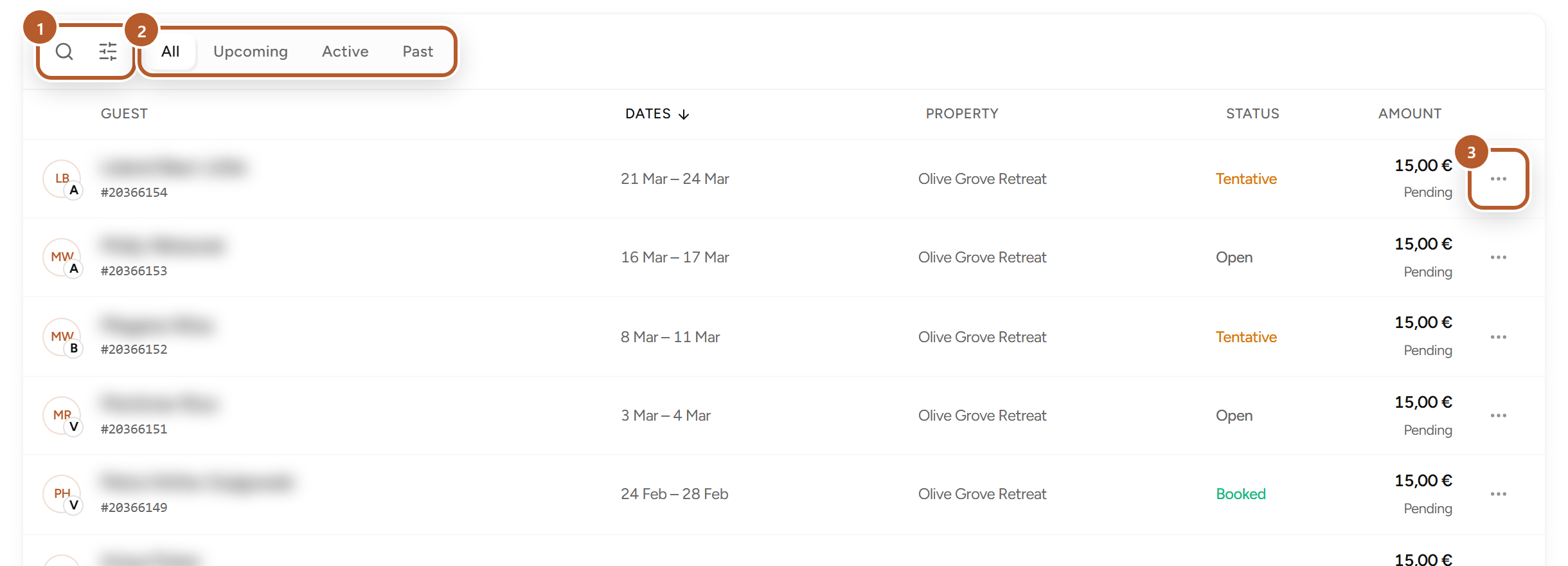
- Click Table for the full list, with the columns Guest, Dates, Property, Status and Amount. Click a column header to sort. The list shows 12 reservations per page, with Previous and Next.
- Use All, Upcoming, Active and Past to split the list by period.
- Click the Search icon to search by guest name, guest email or property ID.
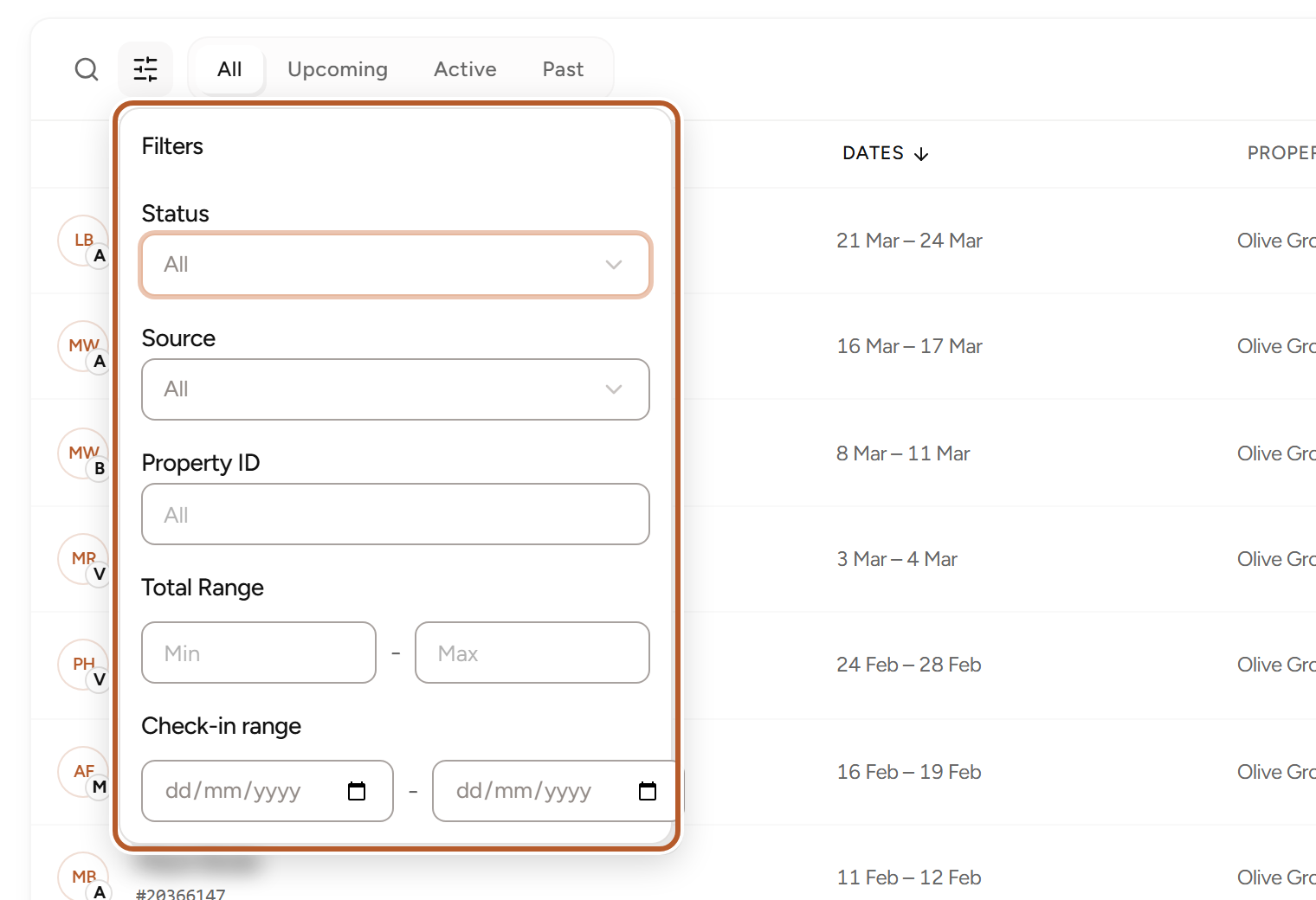
- Click the Filters icon to filter by Status, Source (Lodgify, Stays.net, Manual, Airbnb, Booking.com, Direct), Property ID, a Total range and Check-in range. Each active filter becomes a chip with an X to remove it; Reset clears them all.
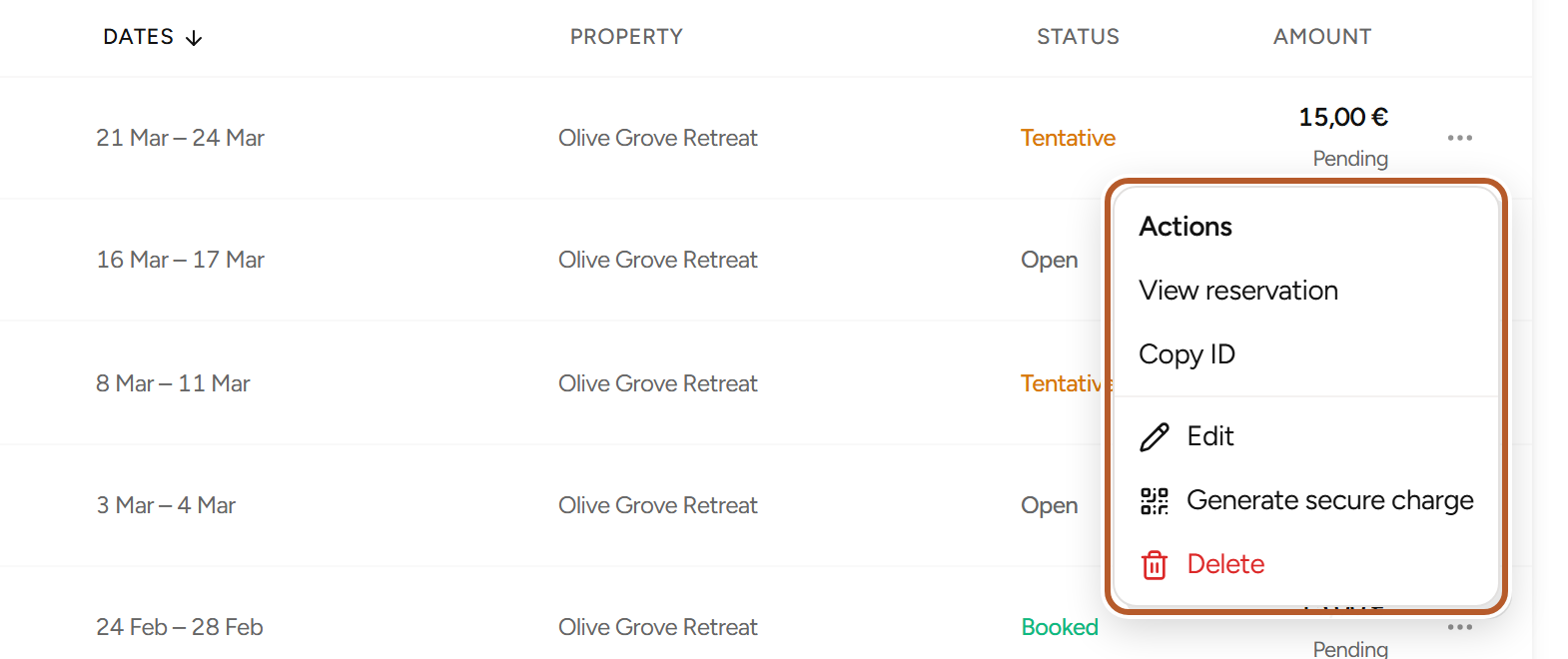
- Click a row to open the reservation, or use the row’s three-dot menu (Actions): View reservation, Edit, Copy payment link (when a charge is open), Generate secure charge (when a balance is due) and Delete.
FAQ
Why doesn’t a date block show in the Table?
Owner or maintenance blocks are not reservations. They stay out of the Table and appear in the Calendar, where they mark the dates as unavailable.
Can I drag a card to another Board column?
No. A card moves on its own as the stay dates pass and the reservation advances in your PMS.
What does the sync warning on the Board mean?
It appears when the last reservation sync with your PMS failed. The reservations shown may be out of date.
Do my filters reset when I switch tabs?
No. The search and filters live in the page address and still apply when you come back to the Table.
Updated on 10/2/2026