Connect Claude to SparkOS (MCP)
How to link Claude to your account through the SparkOS MCP server, what the authorization screen grants, what the panel shows afterwards and how to disconnect.
- Available on Enterprise
- For All workspace members
What it is
SparkOS exposes an MCP (Model Context Protocol) server so Claude can read your operation and run actions you approve. The Claude card in Settings → Connections makes the link through OAuth: you add SparkOS as a custom connector in Claude and authorize it with your account. Once connected, Claude reads reservations, guests, marketing and reports and, with the write scope, creates drafts and runs sending actions only after you approve each one.
What you can ask once connected is in What Claude can do in SparkOS, in this same category.
Before you start
- MCP access requires the Enterprise plan (the trial has it too). Outside it, the card shows MCP access is available on Enterprise and the Upgrade Plan button.
- Have a Claude account with access to custom connectors (claude.ai, Claude Desktop or Claude Code). Other clients such as ChatGPT or Cursor cannot connect: the SparkOS authorization accepts Claude only.
Step by step
- Open Settings → Connections (/settings?tab=integrations) and click Connect on the Claude card.
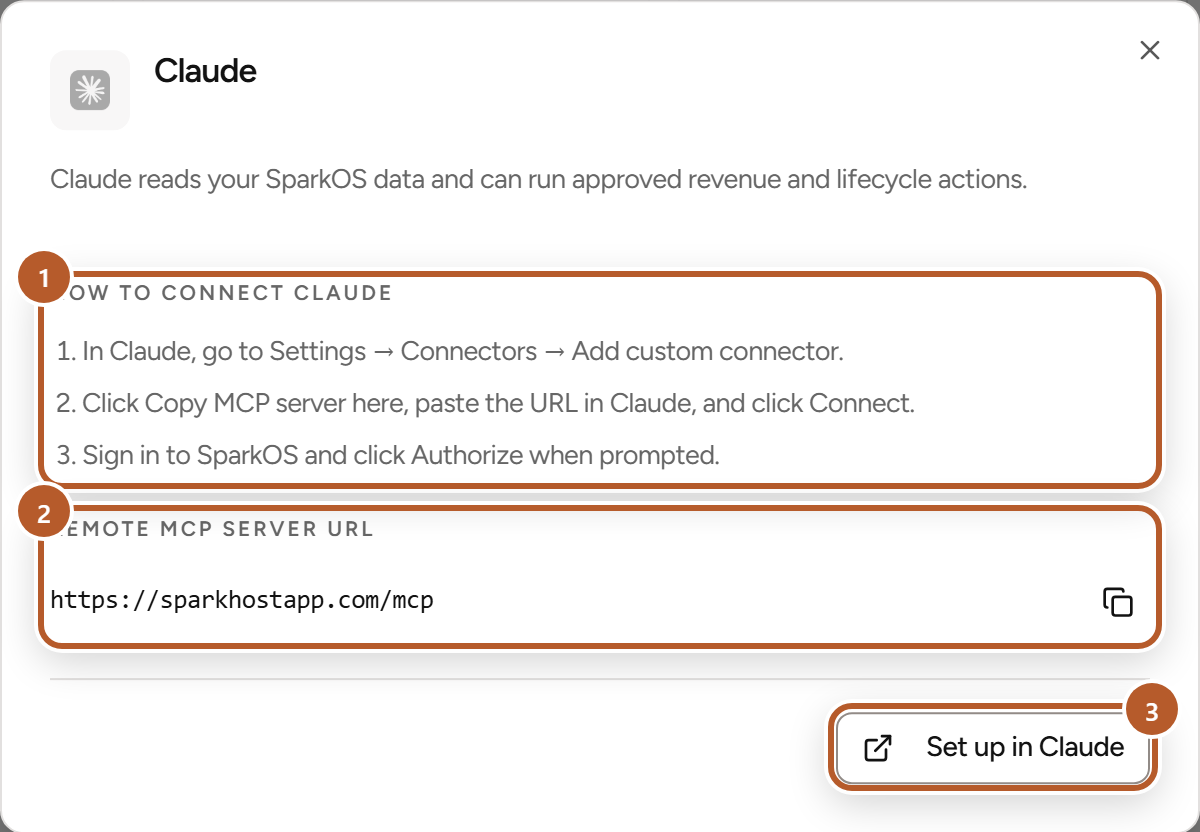
- The panel shows How to connect Claude and the Remote MCP server URL field. Click the copy icon next to the URL; the Copied to clipboard notice confirms.
- Click Set up in Claude to open Claude. There, go to Settings → Connectors → Add custom connector, paste the URL and click Connect.
- Claude opens the SparkOS consent page (/auth/mcp/consent): Claude wants to access your account. If you are not signed in yet, sign in with your account on that page.
- Review the scopes and click Authorize (or Cancel).
| Scope | What it allows |
|---|---|
| Read | Read guest, reservation, and property data |
| Write | Create campaigns and automations, and send emails (with explicit approval per send) |
If Claude asks for read-only access, the page warns that write access is granted as well, since it is required to send campaigns and transactional emails via MCP. Write does not mean automatic sending: every send, deletion, guest merge, automation activation or reservation asks for your approval in the chat.
What happens next
- The Claude card turns Connected, with the date (Connected …) and the scopes. The panel shows Data access (read) with Reservations, Guests, Marketing and Reports, and what it can run: Approved revenue and lifecycle actions or Read-only — reconnect, with the instruction to reconnect and approve both read and write.
- Tools available lists WhatsApp Business, Instagram and Knowledge Workspace when those connections are active.
- The Auto-publish Instagram content switch lets brand-ready carousels created via Claude go live without Studio review; off, every post queues in Studio for your approval.
- Disconnect asks for confirmation (Disconnect Claude? It will lose access to your SparkOS data until you reconnect.) and revokes the tokens; the Claude disconnected notice confirms.
- In Claude, each call shows as a running tool (for example
properties_listorcampaigns_create_email_campaign). That is normal: it is Claude reading from or writing to SparkOS.
FAQ
Do I need an API key?
No. Claude uses OAuth and the authorization happens on the consent screen. There are no API keys to create on the Connections tab.
Does Claude consume my SparkOS credits?
No. Claude OAuth sessions do not consume SparkOS API credits. Only goal-based campaign planning (Plan in the chat) uses your account’s AI quota, as in the app.
How do I give write access to a connection that shows Read-only?
In Claude, remove SparkOS, add the connector again and approve both read and write on the consent screen.
Does the connection expire?
Access renews itself while you use Claude. After 30 days without use, Claude asks you to connect again.
Updated on 10/8/2026