Email sequences
Ordered email series spaced by days: start from a ready-made template, describe it with AI or build it from scratch in the linear editor.
- Available on All plans
- For Owner and team members with the Marketing & Studio permission (Marketing role)
What it is
A sequence is a linear chain of automatic emails: a trigger enrolls the guest, each step is an email and there is a wait between steps. The Sequences page lists these chains and the linear editor (tabs Editor, Enrolled and Report) handles content, sending and exit criteria.
Step by step
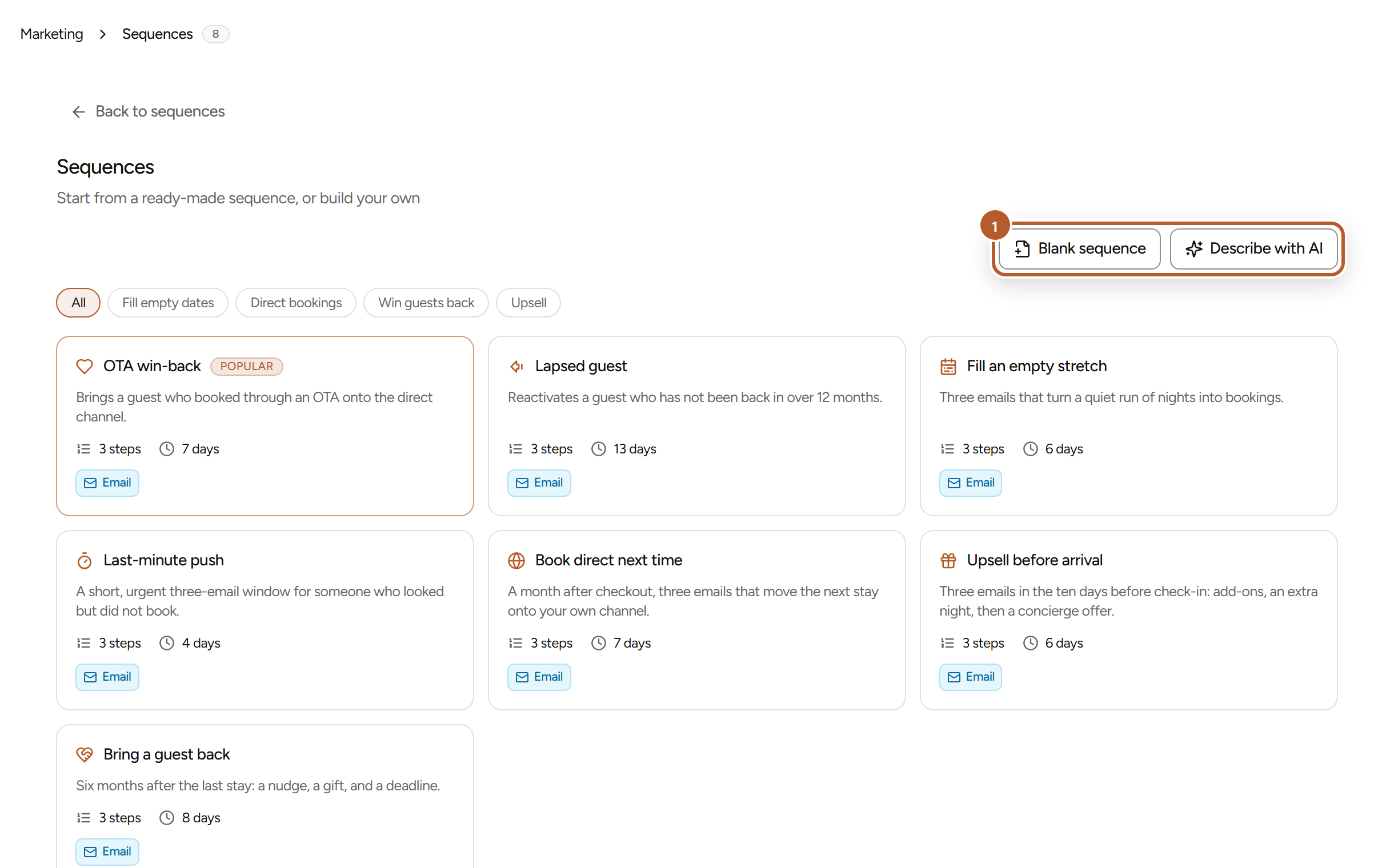
- In the sidebar, under Marketing, click Sequences (/marketing/sequences), then New sequence. The catalog “Start from a ready-made sequence, or build your own” appears.
- Pick a starting point:
- A ready-made card (for example OTA win-back or Lapsed guest). Filter by outcome with the chips (All, Fill empty dates, Direct bookings, Win guests back, Upsell, During the stay); only outcomes that have templates available get a chip. The card opens Preview sequence; “Nothing is created until you use this template”. Click Use this template.
- Blank sequence: creates a sequence with manual enrollment and one empty email.
- Describe with AI: write the goal and click Generate sequence. The AI plans the cadence and writes each email; the sequence opens in the editor.
- In the editor, name the sequence under Flow name. In each Step, fill in Subject and Email body. The step toolbar holds Variable, Email links, Edit with AI, Preview and Edit as HTML. Use Add step to the flow to add emails and adjust the Wait (hours or days) between them.
- In the editor, set When the guest enters the flow (Days before check-in, Days after check-out or Manual enrollment), Sending (Sending window, Timezone, Weekdays only), Email (Keep in the same thread, Include signature) and Exit criteria.
- Click Test to send every email to an address of yours: they arrive “in order, 3 minutes apart, with [Teste] in the subject”.
- Click Publish flow, then switch on Activate flow. Until you publish: “Guests only enter after you publish.”
- To enroll now, click Enroll guests, choose an audience under Guest folders or Smart audiences and confirm with Enroll audience. On a sequence with Manual enrollment, the same dialog opens from the list, through Run on selected contacts in the ⋮ menu.
Exit criteria
| Criterion | Effect |
|---|---|
| Made a reservation | Fixed; counts a booking on any channel |
| Bought an extra | Optional |
| Clicked a link in the email | Optional |
| Unsubscribed | Optional |
“The check runs when the next step is about to send, not in real time.”
What happens next
Guests entering through the trigger or manual enrollment appear under Enrolled with the states Queued, In sequence, Completed, Left or Failed; from there you can Remove from sequence or Re-enroll in the flow. The Report shows Enrolled, Sent, Delivery, Opens, Clicks and Left per step. Guests without an email, unsubscribed or already in the flow are skipped at enrollment.
FAQ
My sequence opened in the node canvas. Why?
The linear editor only draws email chains. If there are conditions or WhatsApp sends, the flow opens at /workflows/v2.
The AI stopped generating?
Each plan has a monthly AI allowance; once it is used up, SparkOS asks you to upgrade to keep composing sequences with AI.
What does deleting remove?
“The flow, its run history and its scheduled sends will be removed. Guests mid-sequence stop receiving.”
Updated on 10/2/2026