A guest profile and the guest journey
Everything about one person on one page: contact details, stage, tags, bookings, purchases, emails, notes and the journey timeline.
- Available on All plans
- For Owner and team members with guest access (on by default for the Property Manager and Guest Experience roles)
What it is
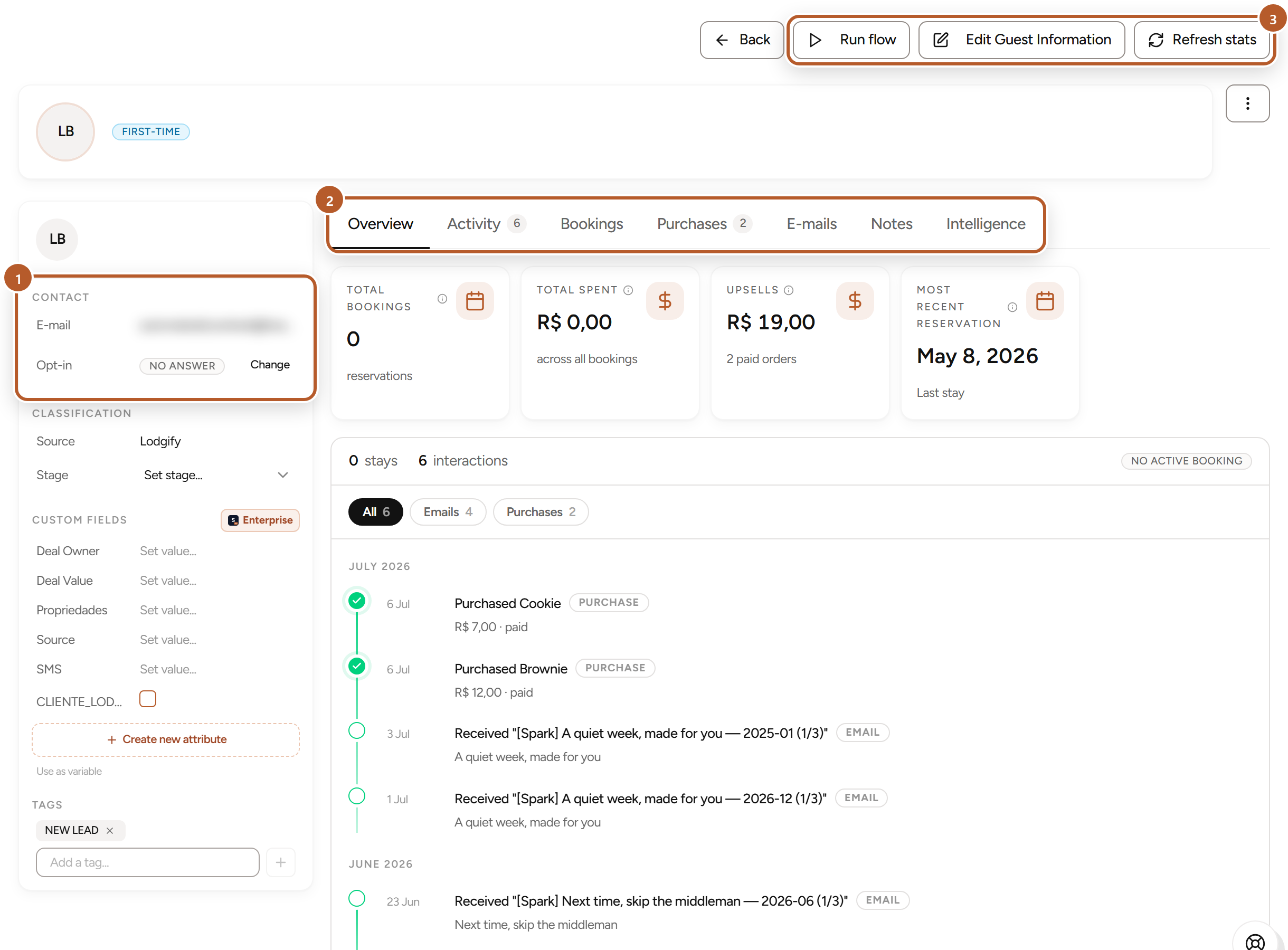
The profile brings together everything about one person: contact details, classification, tags, bookings, purchases, emails and notes. A fixed column on the left shows who the contact is; the tabs on the right hold the content. The Activity tab shows the journey as a timeline, newest event first.
Step by step
- In Contacts, click the name of a guest or lead. The profile opens at /guests/ followed by the contact’s ID.
- In the left column, check Contact (E-mail, Phone, Language and Opt-in) and Classification (Status, Source and Stage). Click the phone number to open the conversation in the Inbox.
- To change the funnel stage, open the Stage selector and pick New, Contacted, Qualified, Guest, Past guest or Lost.
- Under Tags, type in the Add a tag… field and press Enter. Automatically detected interests are summarised as “+N automatic”.
- Move between the Overview, Activity, Bookings, Purchases, E-mails, Notes and Intelligence tabs. The number next to a tab is its item count.
- To correct the record, click Edit Guest Information, then Save Changes. To write notes, open Notes and click Edit Notes. To start a WhatsApp flow for this person only, click Run flow, next to Edit Guest Information (team members only see it with the Act level on Marketing & Studio); with a single contact, the dialog offers Test mode.
- If the counts look wrong, click Refresh stats.
The timeline (Activity tab)
| Part | What it shows |
|---|---|
| Summary | Number of stays and interactions, plus Currently Staying, Upcoming Stay or No Active Booking |
| Filters | All, Emails, Bookings and Purchases, only for the types this person has |
| Up next | Scheduled check-ins and sequences, when there are any |
| Events | Grouped by month; Load more shows 25 more |
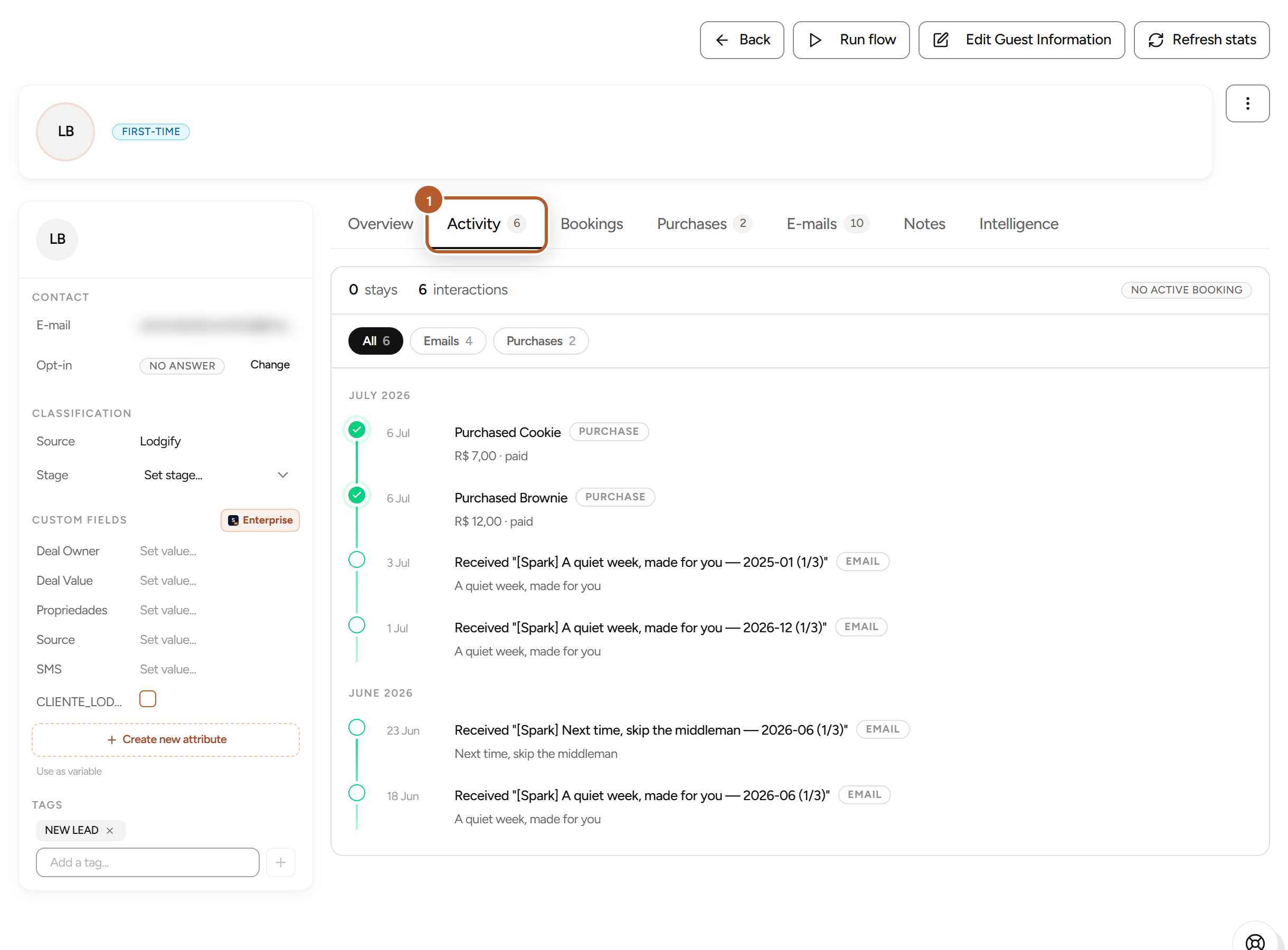
Click an event to see its status, time and details such as campaign, subject and property.
What happens next
Refresh stats relinks bookings to the profile and recalculates bookings, total spent and last stay. When it finishes you see Stats recalculated. Purchases only appear on the timeline once the order is paid or delivered.
FAQ
Why does a team member see a lower total spent?
Members limited to some properties see figures calculated only from the bookings of those properties.
How do I combine two profiles of the same person?
From the menu next to the header, use Merge a duplicate into this guest… and pick the duplicate. Bookings, conversations and history move to the open profile, and the duplicate is hidden in a way that can be reversed.
How do I record WhatsApp consent?
On the Opt-in line, click Change, pick the New status and, to mark it as accepted, fill in Where the consent came from. Then click Record.
Updated on 10/2/2026