Import guests from a CSV file
How to bring a CSV or Excel spreadsheet into Contacts, review the column mapping and read the import result.
- Available on All plans
- For Owner and team members with guest access (on by default for the Property Manager and Guest Experience roles)
What it is
Import brings a spreadsheet of guests or leads into Contacts. SparkOS analyzes the file in your browser, suggests a match for each column and shows what will be imported before anything is saved. Contacts are identified by email, so importing the same file again does not create duplicates.
Before you start
- The file must be CSV or Excel (.csv, .xlsx or .xls) and under 10MB.
- The spreadsheet needs an email column.
Step by step
- In Contacts (/contatos), open the Guests or Leads tab and click Import.
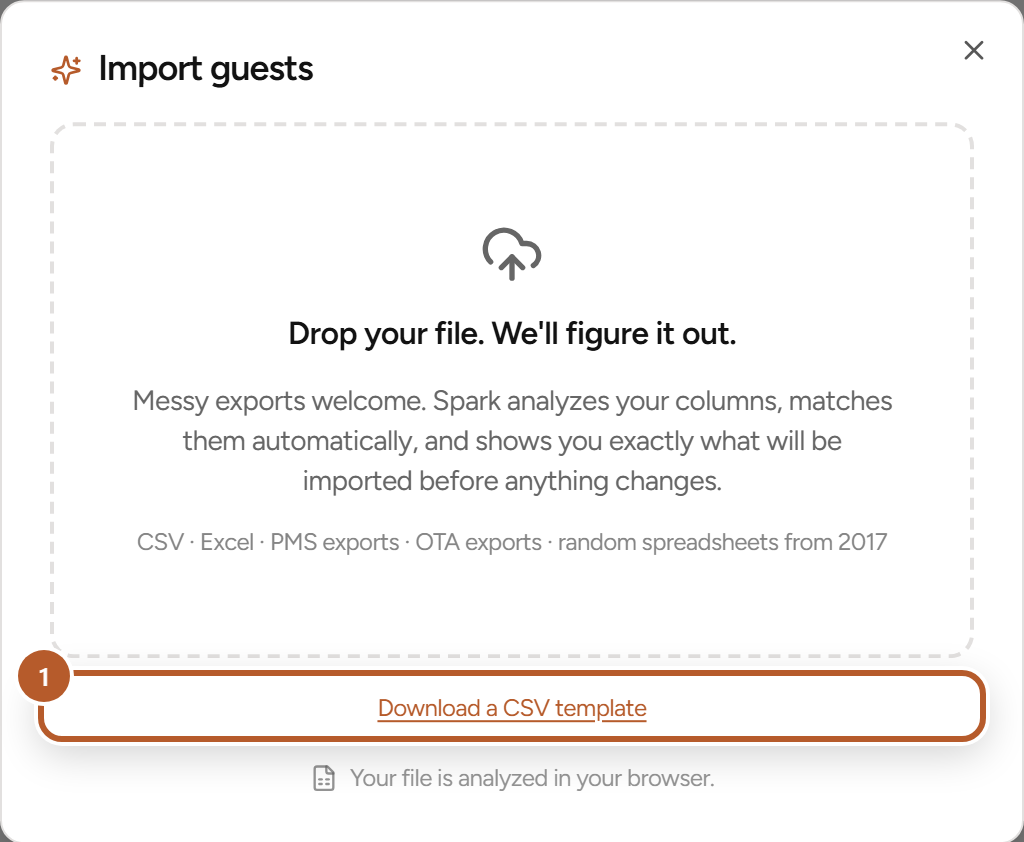
- In the Import guests window, drop the file or click to choose it. For a starting point, use Download a CSV template, which has the columns name, email, phone, address, notes, birthday and tags.
- Check the recognised columns. Those under Needs review have a Map / Ignore switch. When you map one, pick the target field, such as Name, Email, Phone, Birthday, Tags or Last Stay, or a custom field.
- Review the Ready to import box: row count, duplicates detected and columns ignored.
- Under Import these contacts as, choose Guests or Leads.
- If you are asked about phone numbers without a country code, choose Yes, +55 or Leave as is.
- Click Import Guests or Import Leads.
What happens next
| Situation | Result |
|---|---|
| New email | The contact is created with the source CSV import |
| Email that already exists | Only empty fields are filled in; nothing is overwritten |
| Email repeated in the file | Only the first row is imported |
| Phone already used by another contact | The person is imported without the phone |
| Invalid or missing email | The row goes to the error list |
| Plan guest limit reached | The extra rows are left out and the result says so |
Large files are sent in batches of 300 rows, with progress on screen. If a batch does not answer in time, the import stops there and everything before it is already saved; import the same file again to continue. At the end, the summary shows imported, updated and skipped counts, with the failed rows and the reason for each.
FAQ
What changes when I import as Leads?
New contacts land in the “New” column of the Leads board, and so do existing contacts who never booked and are not in the funnel yet. Total spent and last stay columns are ignored.
My spreadsheet only has emails. What about names?
SparkOS tries to work out a first and last name from the email address. When it cannot, it uses the part before the @ as the name.
How are dates read?
The day and month order is decided from the cells themselves: 26/11 can only be day first. Without such a clue, the interface language decides.
Can imported contacts receive email?
Yes. New contacts with an email address are imported as opted in to email.
Updated on 10/2/2026