Leads and forms
How to follow leads on the funnel board, move stages, add leads by hand and what happens when a lead arrives from a form.
- Available on All plans
- For Owner and team members with guest access (on by default for the Property Manager and Guest Experience roles)
What it is
The Leads tab in Contacts shows people who have not booked yet, laid out as a funnel board. Leads come from your website, ads, WhatsApp and imports, or you add them by hand. A lead is the same person who later becomes a guest: when they book, the card moves to Converted.
Step by step
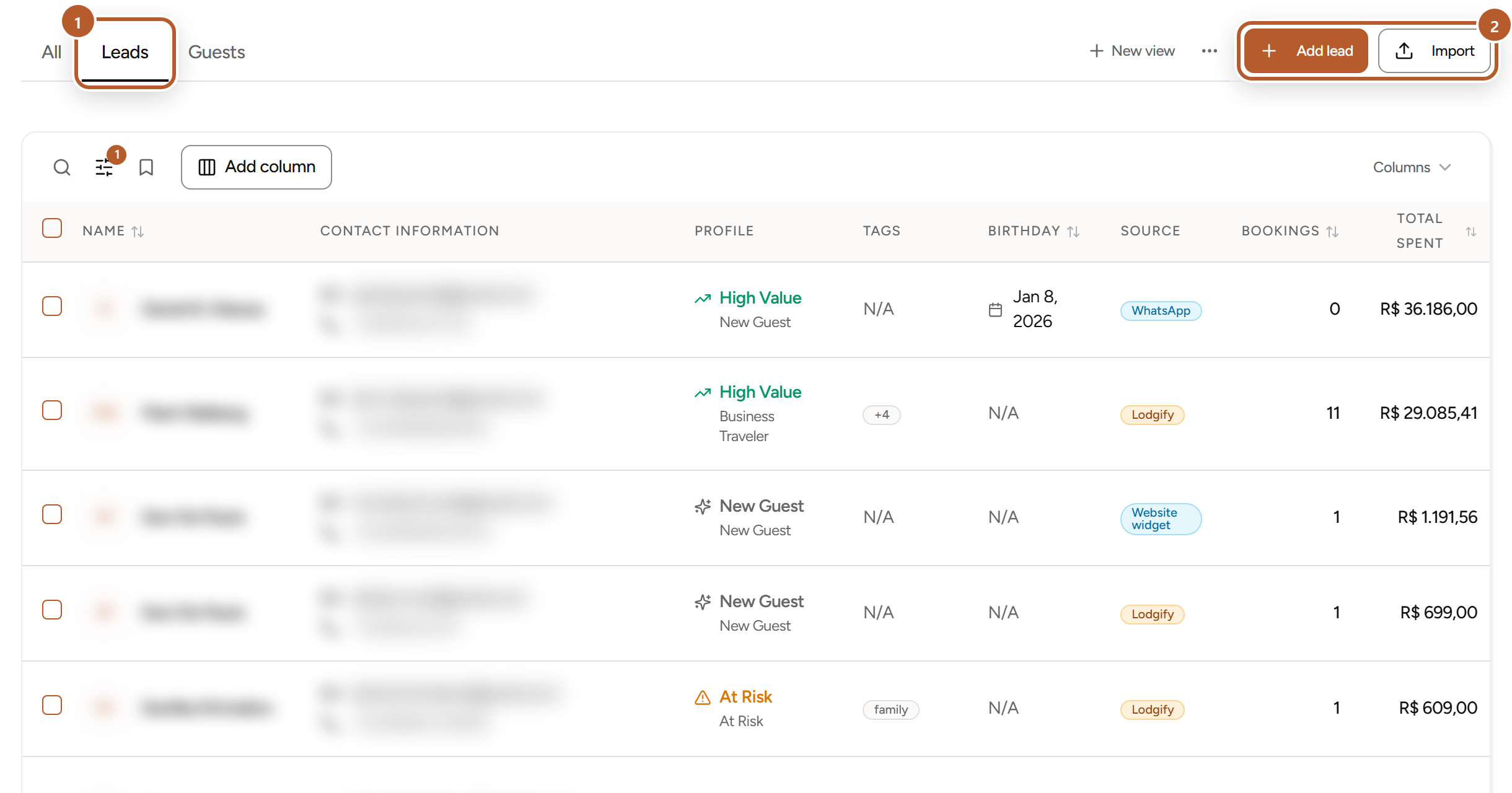
- Open Contacts and click the Leads tab (/contatos?view=leads). The old /leads address lands here.
- On the board, each column is a stage: New, Contacted, Qualified, Converted and Lost. Drag a card to change its stage, or open the card menu and pick the stage under Move to stage.
- Use Search by name or email and the source filter (All sources, WhatsApp, Form, Ad, Website, CSV import or Other source).
- Click Add lead to create a contact that starts in New, or Import to bring in a spreadsheet.
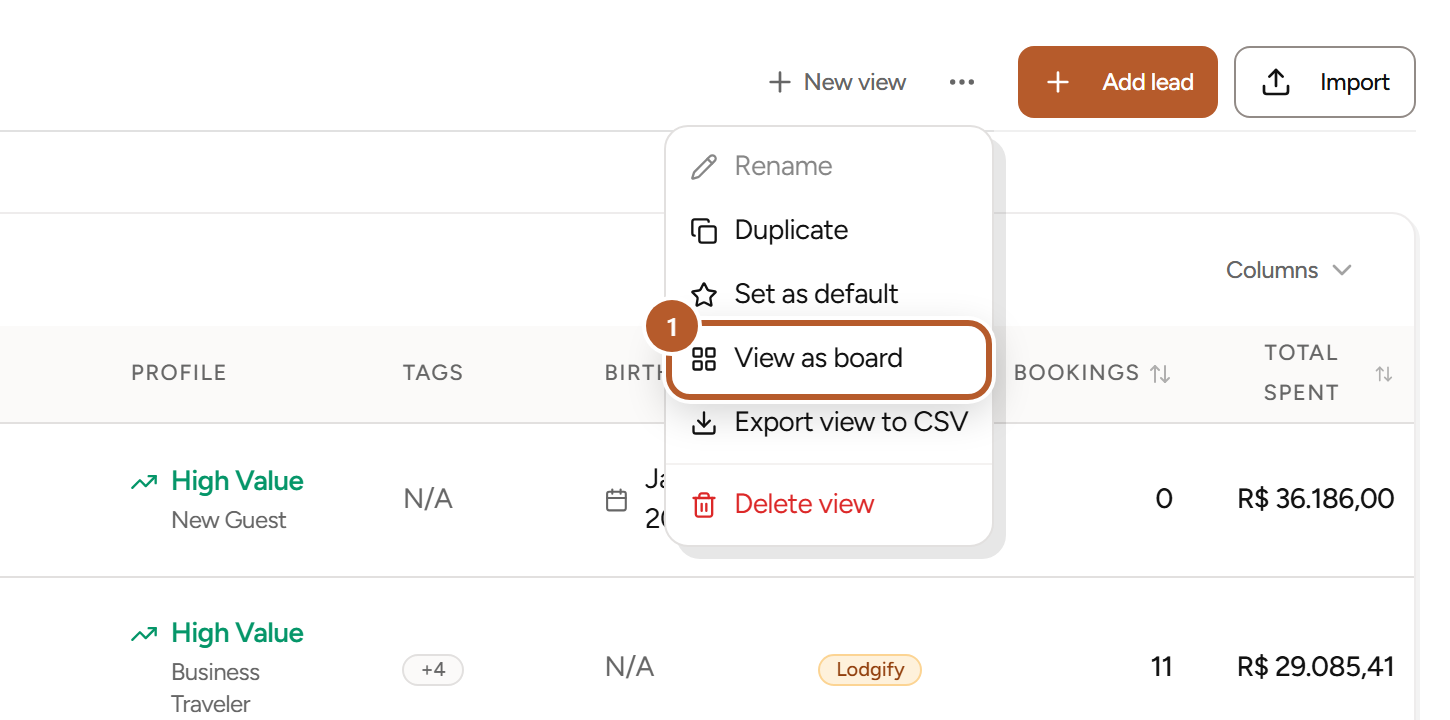
- To see leads as a list, switch from Board to Table. The table adds a Stage column and its own filters, such as Funnel Stage, Arrived and Days in stage. SparkOS remembers your choice.
- If your workspace has custom fields, the Fields button picks which ones show on the cards.
- Click the name on a card to open the lead’s profile.
| On the card | Meaning |
|---|---|
| “2h ago”, “3 days ago” | Time since the lead last moved |
| Quote sent | A quote approved in the Inbox was sent |
| Calendar hold placed | An approved hold is blocking the dates |
| Became a reservation and View reservation | The lead booked; the link opens the reservation |
What happens next
Converted does not accept dragged cards: a lead only gets there when there is a real reservation, and the column only shows conversions from the last 30 days. Each column shows 5 cards, and a link at the bottom reveals 5 more at a time.
When a website form, an ad or an integration sends a lead, SparkOS looks for a contact with the same email and then the same phone number. If none exists, it creates the contact in New and sends an in-app notification that links to the profile. If one exists and the person has never booked, they go back to New, and the message they sent is added to their notes. Each submission needs at least an email or a phone number.
FAQ
Can I move a lead to Converted by hand?
No. SparkOS tells you: “Converted comes from a real reservation — it can’t be moved by hand”.
Can a Lost lead come back?
Yes. You can drag it to another stage, and if they book they move to Converted.
How do I take someone out of the funnel?
In Table view, select the contacts and use Set stage > Remove from funnel.
Updated on 10/2/2026