Create a WhatsApp campaign
A one-off WhatsApp send to a guest folder with opt-in, using a Meta-approved marketing template.
- Available on Pro
- For Owner and team members with the Marketing & Studio permission (Marketing role)
What it is
New WhatsApp campaign builds a one-off send to a group of guests. The copy always comes from a marketing template approved on your WhatsApp Business account; you only pick the audience, map the variables and decide when to send. Only opted-in guests with a phone number are messaged.
Before you start
- The WhatsApp channel is part of the Pro plan. Without it, the route shows the “WhatsApp is available on Pro” card.
- WhatsApp connected. If it is not, the WhatsApp campaign option sends you to Settings → Connections, and the email builder’s button says “Connect WhatsApp in Settings to send campaigns”.
- An approved marketing template. With none: “No approved marketing templates found. Create + get them approved in your WhatsApp Business account, then try again.”
- A guest folder containing opted-in contacts.
Step by step
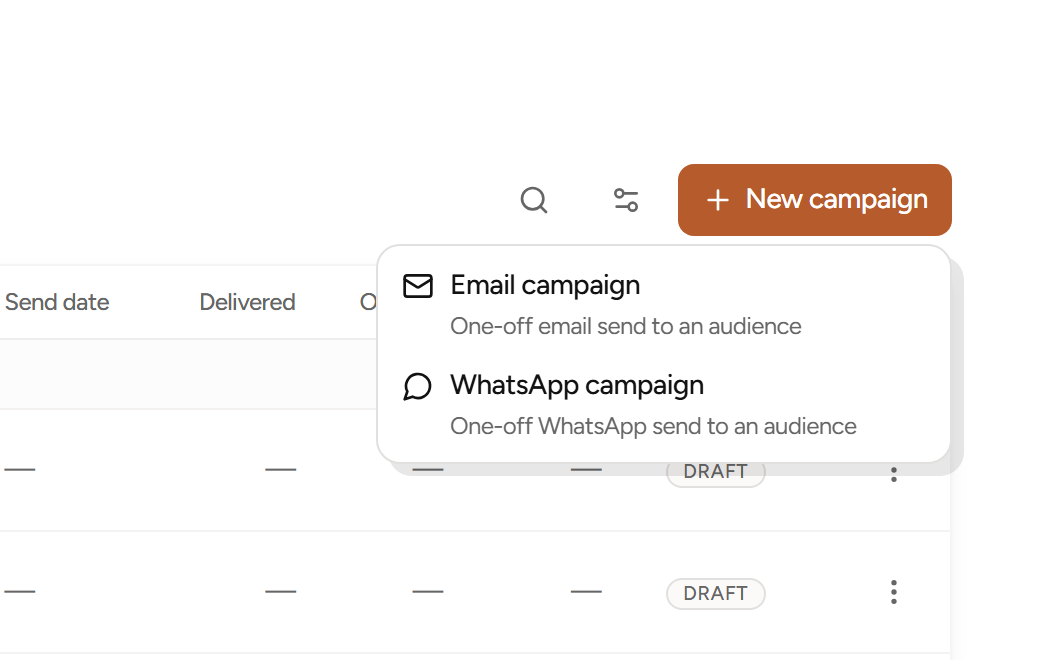
- In the sidebar, under Marketing, click Campaigns (/marketing/campaigns), then New campaign and WhatsApp campaign (/campaigns/whatsapp/new). The New WhatsApp campaign button in the email builder leads to the same place.
- Name the campaign. The status starts as Draft.
- Under Audience, pick a folder in Select a folder…. The screen shows “N opted in”, “N skipped (no consent / no phone)” and “of N in folder”.
- Under Template, select the template. If it was approved with a media header, fill in Header image (public URL); Meta requires the image on every send.
- Under Personalize, map each template slot to a guest field (for example Guest first name, Property name, Booking link). Common slots are pre-filled.
- Under Schedule, choose Send now or Schedule and set the date and time.
- Under Review, check Recipients (consented), Skipped (no consent / no phone), US numbers (“blocked for marketing”) and Daily ceiling (“capped to your WhatsApp messaging tier”). Click Send campaign or Schedule campaign.
“No opt-in ⇒ no send. Cost is billed by Meta to your WhatsApp Business account per delivered message.”
What happens next
With Send now, SparkOS dispatches the first batch immediately and you land on the campaign page. Audiences above 120 opted-in contacts are sent in paced batches of 120 every few minutes, respecting your WhatsApp messaging tier. Scheduled campaigns fire when their time comes. The campaign page shows Recipients, Delivered, Failed, queued items, Cost, the Sending status, Quality signals and, per contact, the skip reason (No opt-in, No phone number, US marketing block) or the error Meta returned.
FAQ
Can I send to a smart audience?
No. A WhatsApp campaign’s audience is always a guest folder.
How do I repeat a campaign?
In the Campaigns list, use Duplicate: the builder opens with the name “(copy)”, folder, template and variables pre-filled. Nothing is created until you send.
Why did Meta refuse sends with code 132012?
The template has a media header and the send carried no image. Set the Header image (public URL) and send again.
Updated on 10/2/2026