Custom fields
How to create your own contact attributes, fill in values on the profile or in bulk, and use them as columns and message variables.
- Available on Enterprise
- For Owner and team members with edit access to guests
What it is
Custom fields are attributes you create for the contact profile, such as CPF, travel profile or preferences. They show on the profile, can become columns in the Contacts table, are available when mapping an import and work as variables in messages. Each workspace can have up to 30 active fields.
Before you start
Creating and editing fields requires the Enterprise plan. Without it, the tab shows Custom fields are available on Enterprise.
Step by step
Create a field
- Open Settings and the Fields tab (/settings?tab=custom-fields).
- Click Create new attribute.
- Fill in Attribute name and choose the New attribute type: Text, Number, Date, Select, Multi-select or Checkbox.
- For Select and Multi-select, type the Options (one per line). For Number, pick a Currency (optional) or keep Plain number.
- Tick Required on the profile if you want, and click Create attribute.
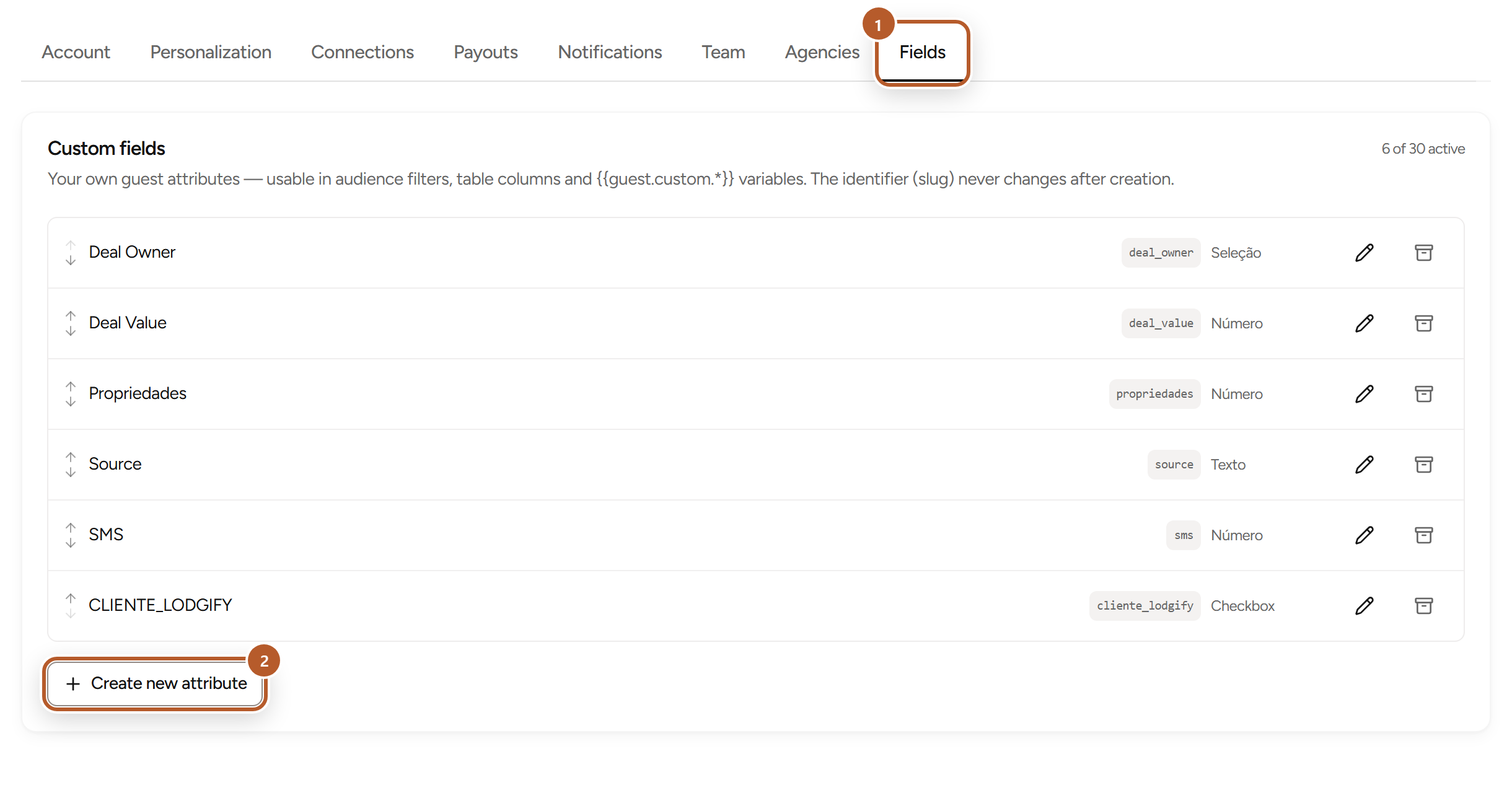
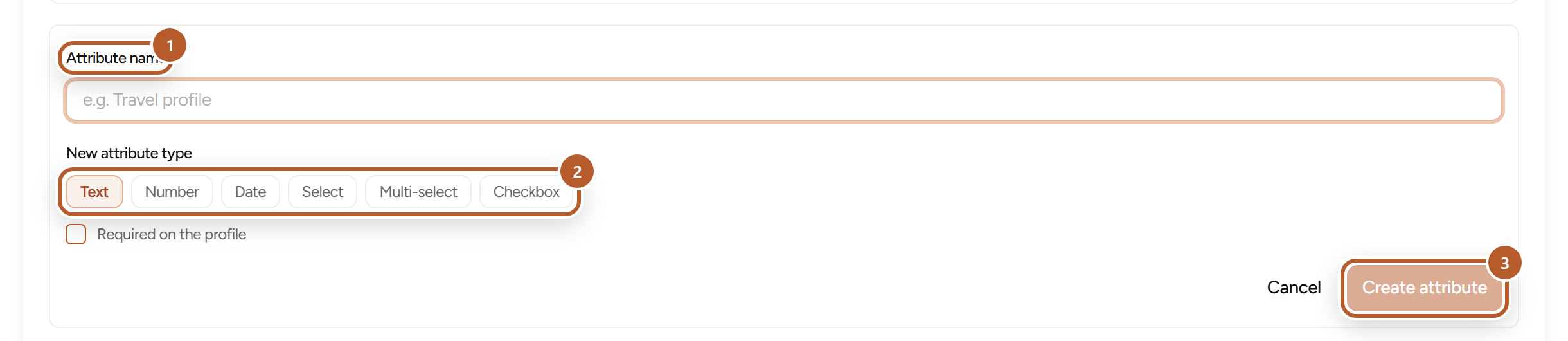
You also find Create new attribute at the bottom of the table’s Add column button, on the profile and in the import mapping step.
Fill in values
- On the profile, the Custom fields group lists each field. Click Set value… to edit; for select fields, Clear removes the value.
- In the table, select contacts and use Set attribute, Pick a field… and Apply to fill them all at once.
- Under Add column, tick the fields that should become columns. Custom fields carry the ✦ mark.
Use them in messages
On the profile, click Use as variable and click a variable to copy it. It looks like {{guest.custom.identifier}} and works in Flows, Campaigns, WhatsApp and the AI email generator.
What happens next
On the Fields tab, the pencil edits the name, options, currency and required setting, and the arrows change the order. The identifier and the type cannot change after creation. Archive hides the field and keeps its values; it moves to Archived, where Restore brings it back.
If an archived field is in use, SparkOS shows An attribute in use was archived: sends keep working, but the variable now comes out empty. Choose Undo (restore) or Keep archived.
FAQ
Can two fields have the same name?
No. SparkOS blocks a name that another active field or a table column, such as Source, already uses.
What happens to my fields if my plan changes?
Fields you already created keep showing on the profile, but they can no longer be edited.
What if a spreadsheet value does not fit the field type?
The whole row goes to the import error list, with the field name and the reason.
Updated on 10/2/2026