WhatsApp flows: the builder
Build automated conversations with triggers, steps and branches, test them with one contact and follow every run.
- Available on Pro
- For Owner and team members with the Marketing & Studio permission (Marketing role)
What it is
A WhatsApp flow is a graph of steps that starts from a trigger and runs the conversation on its own: it sends messages, asks questions, branches on conditions, waits and executes actions. The Flows page lists the account’s flows, the builder edits one flow at a time and the Runs view shows what happened to each contact.
Before you start
- WhatsApp flows are part of the Pro plan. Email flows stay available on the other plans.
- WhatsApp connected under Settings → Connections, with approved templates if the flow may start outside the 24-hour window.
Step by step
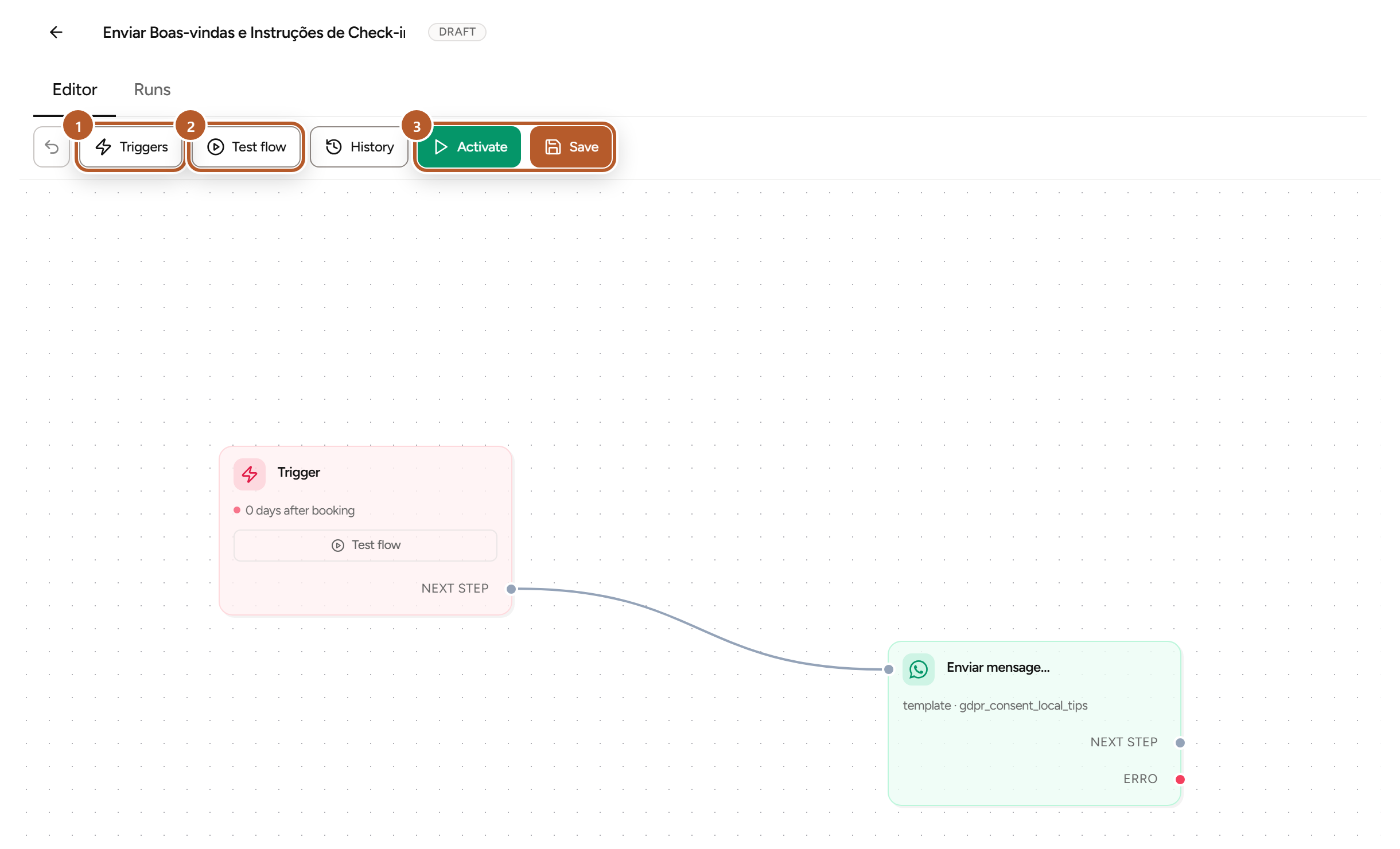
- In the sidebar, under Marketing, click Flows (/marketing/flows), then New flow → WhatsApp flow. An unnamed draft is created and the builder opens with the Flow name field selected; the canvas shows Start with a trigger, with Choose a trigger and Start from a template.
- Name the flow. Without a name, saving warns “Give the flow a name first.” and activation is refused too.
- Click Choose a trigger (or Triggers at the top). Pick the type in the left column, grouped into Contacts, Reservations, Conversations and Utilities, fill in the fields on the right, click Add trigger, then Done. To change a saved trigger without losing the canvas connections, use Change trigger.
- On the trigger step, use Add next step to open the Add a step panel and connect each node’s outputs to the next step. The trigger step cannot be removed.
- Click Save. The Unsaved changes dot disappears once everything is stored.
- Click Test flow and, in the Test this flow dialog, pick the Test recipient (required), then click Run test. Messages go only to that contact, and “The test runs the SAVED version of the flow.”
- Click Activate (at least one step is required). The confirmation says the flow is live and triggers can now enroll guests. Pause stops guests advancing until you reactivate.
- Open the Runs tab (/campaigns/whatsapp/flows/:id/runs), also reachable from View runs in the list’s ⋮ menu, for the Enrollment funnel, Step performance and Recent runs; click a run to see it drawn on the canvas, with the path it took, every step and Retry from the failed step when it failed.
Steps
Message, Ask a question (Buttons (max 3) or Menu (max 10)), Capture answer, City router, Card carousel, Condition, Instagram reply, Action, Wait, Jump to flow, AI conversation and App action. On Message, the field If the 24h window is closed sets the approved template to use.
What happens next
With the flow active, SparkOS evaluates every inbound message, enrolls the contact when a trigger matches and advances pending runs on a schedule. You can also put contacts into the flow with Run flow in Contacts when it has the Run on a contact trigger. Contacts already in the flow finish on the version they entered on, even after a new activation. From the list’s ⋮ menu, each flow can be opened, activated, paused, duplicated or archived; only a flow that is not active and never had enrollments can be deleted permanently.
FAQ
Does the test use changes I have not saved?
No. The test runs the saved version of the flow; click Save before testing.
What happens when I archive?
Guests inside the flow exit on their next step and no new guests can enter. The flow leaves the list but stays available under Show archived in View settings, and Restore brings it back as a draft.
Do tests count in reports?
No: “Builder test runs are not counted in these numbers.”
Updated on 10/2/2026