Guest Hub: the guest page
How to build, per property, the page your guest gets during the stay, with a map, video check-in, recommendations and a checkout checklist.
- Available on Pro and Enterprise
- For Host
What it is
The Guest Hub is one page per property that your guest opens on their phone during the stay. You build the content once in the Hub Builder and publish it; every guest of that property sees the same hub, and each reservation gets its own link. The guest page can also show the concierge, quick answers from your knowledge base, a link to your Extras shop and the Guest registration, with each person’s name and CPF or passport and, if the property has a garage, the car plate.
Before you start
- The Guest Hub is on the Pro and Enterprise plans, with an active or trialing subscription.
- Without one of those plans, the Guest Experience Hub card, under Settings → Personalization, shows an Available from the Pro plan button that takes you to your subscription.
- Have at least one property set up.
- To ask for the car plate, tick Garage under Local guide & check-in on the property page, then click Save local guide.
Step by step
- In Settings → Personalization, click Open Hub Builder (
/settings/guest-hub). - Pick the property from the Properties list.
- Fill in the tabs:
| Tab | What you do |
|---|---|
| Access | Set Open access (7 days before check-in, 3 days before check-in, On check-in day) and Expire access (At check-out, 24 h after check-out, 72 h after check-out) |
| Sections | Turn each section on or off and edit its text; text saves when you leave the field. Locked sections have an Unlock button |
| Map | Paste a Floorplan image URL and place points with Add node |
| Video check-in | Paste video links, one per step; SparkOS does not host video files |
| Recommendations | Add places, such as restaurants |
| Checkout | Build the list of what to do before leaving |
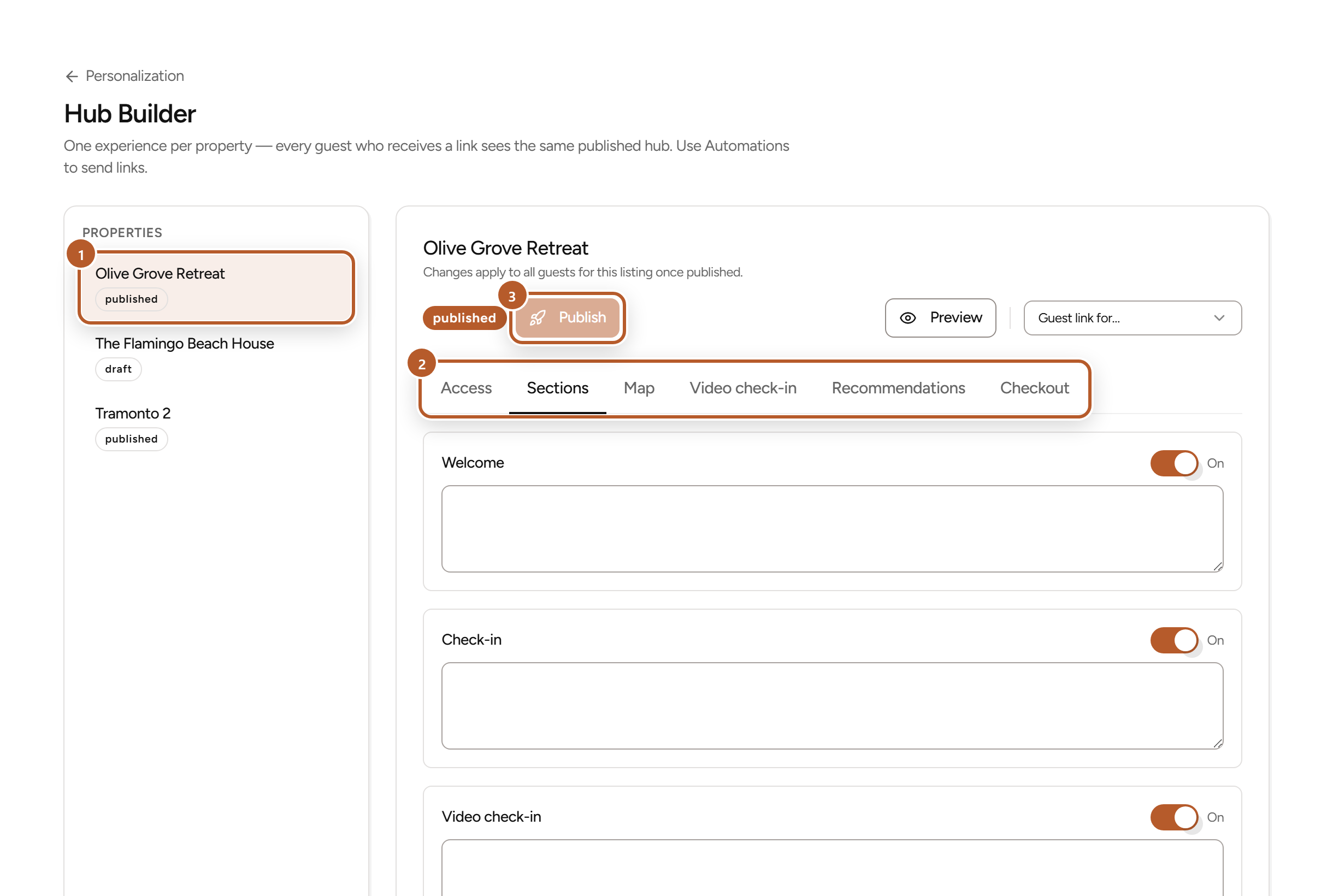
- Click Preview to see the hub as the guest will, using a sample stay.
- Click Publish. You see Hub published.
- To send it to a guest, pick the reservation in Guest link for…. If it has no link yet, click Create guest link; then use Copy guest link and send it to them.
What happens next
Changes apply to every guest of the property once published. The copied link opens that guest’s own session, within the window set under Access. The hub uses your brand identity.
The registration the guest sends shows up in the Guest registration card on the reservation page, and the guest can edit it until the end of check-in day.
FAQ
Does Preview open the guest’s session?
No. Preview uses a sample stay and does not depend on a reservation. The guest link is different: it opens that guest’s real session.
Does picking a reservation in the list create the link?
No. Picking only looks it up. The link is only created when you click Create guest link.
Can I upload a video from my computer?
No. The builder only accepts video links.
Why does the card show “Available from the Pro plan”?
Your account does not have an active or trialing Pro or Enterprise plan. In that case the Hub Builder does not open, and the button takes you to your subscription.
Updated on 10/2/2026