Getting to know the home screen and menu
How to use the home screen chat to build campaigns, flows and sequences, and where each menu item and the search live.
- Available on All plans
- For All workspace members
What it is
The home screen (/dashboard) is a chat: you write what you want to do and SparkOS builds a campaign, a flow or a message sequence from your data. It opens after you sign in and from the Dashboard item in the menu. The side menu and the top bar take you everywhere else in SparkOS.
Step by step
Ask for something in the chat
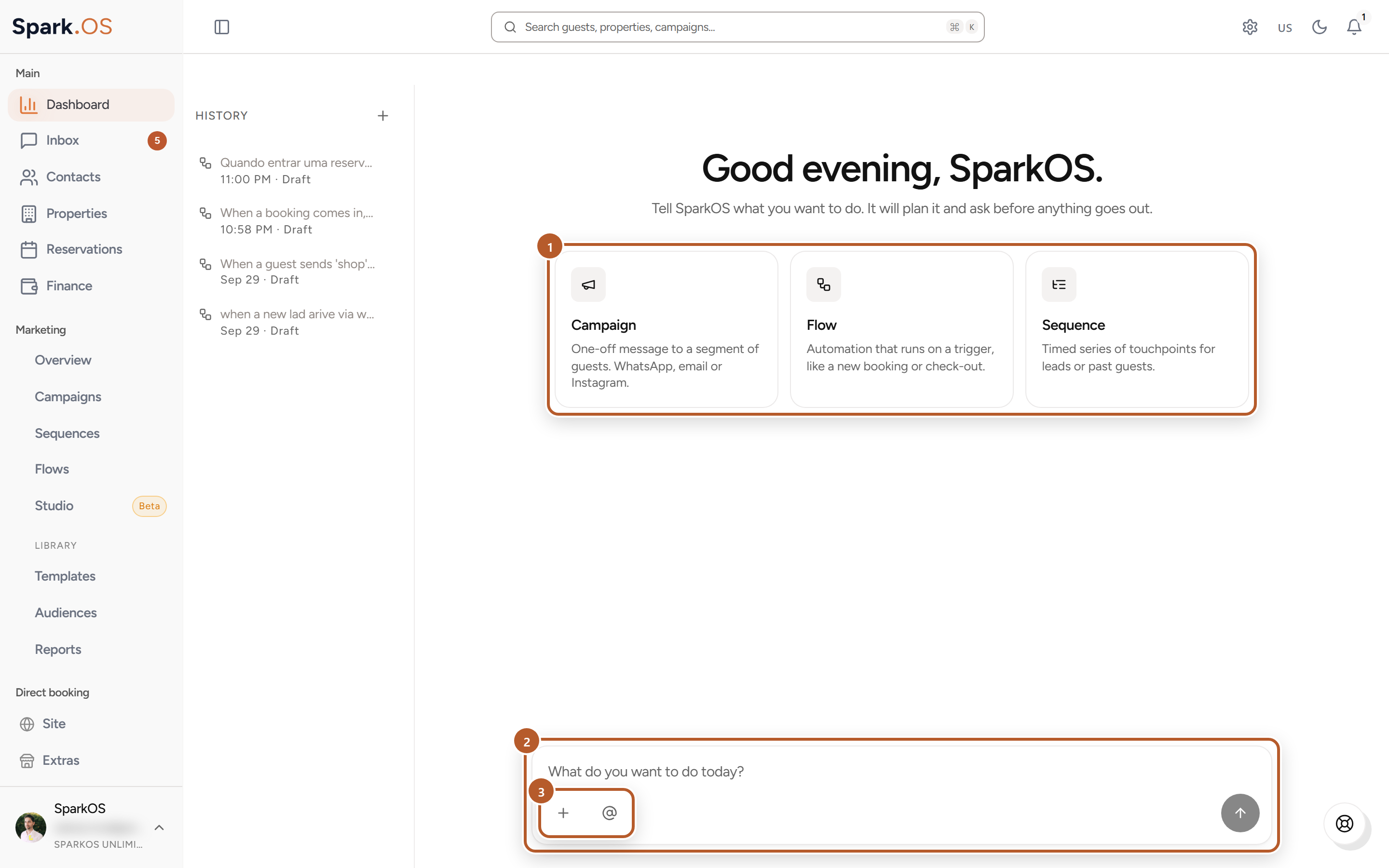
- On the empty screen, pick a card: Campaign (a one-off message to a segment of guests), Flow (an automation that runs on a trigger) or Sequence (a timed series of messages). The card fills the box with an example; it does not send.
- Edit the example or write your own in What do you want to do today?. The + button swaps in another example from the same category, and @ inserts the name of one of your properties.
- Press Enter to send (Shift+Enter adds a new line).
- Follow the steps as they run, such as Understanding the request and Checking your data. If something is missing, SparkOS asks: click an option or reply in the box.
Review the result
| Type | What SparkOS does |
|---|---|
| Flow or sequence | Saves it as a draft. Nothing goes out until you activate it |
| Campaign | Shows how many guests will receive it and asks first: Send to N guests (or Schedule it) or Save as draft instead |
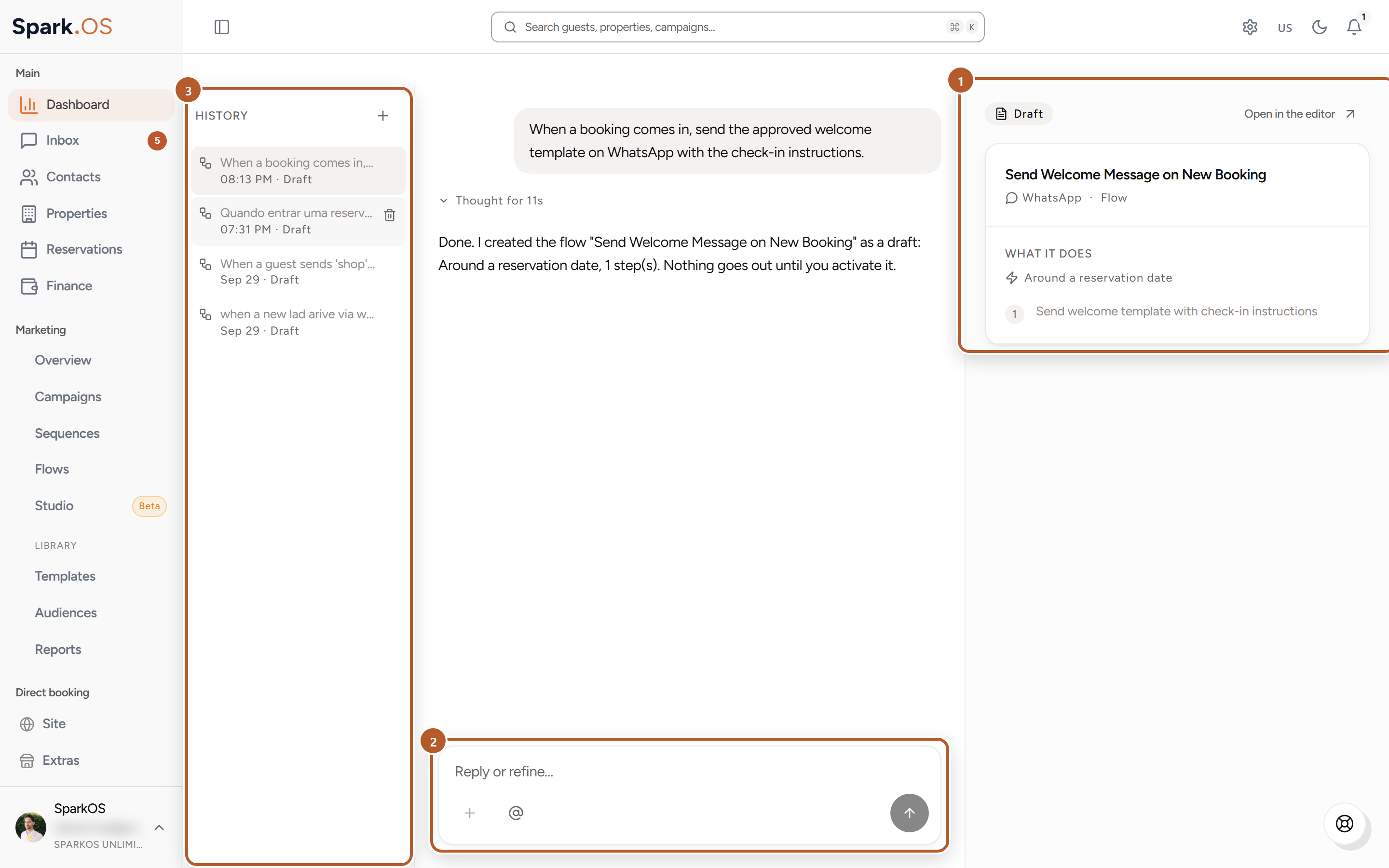
- The Result panel shows what was built and its status: Not created yet, Draft, Sent or Scheduled. Once it exists, Open in the editor takes you to the full editor.
- To adjust it, write in the box (Reply or refine…). SparkOS rebuilds it taking into account what you already asked for.
- On wide screens, the History column lists your conversations: click one to reopen it, or use + (New conversation) to start another.
Find your way around the menu
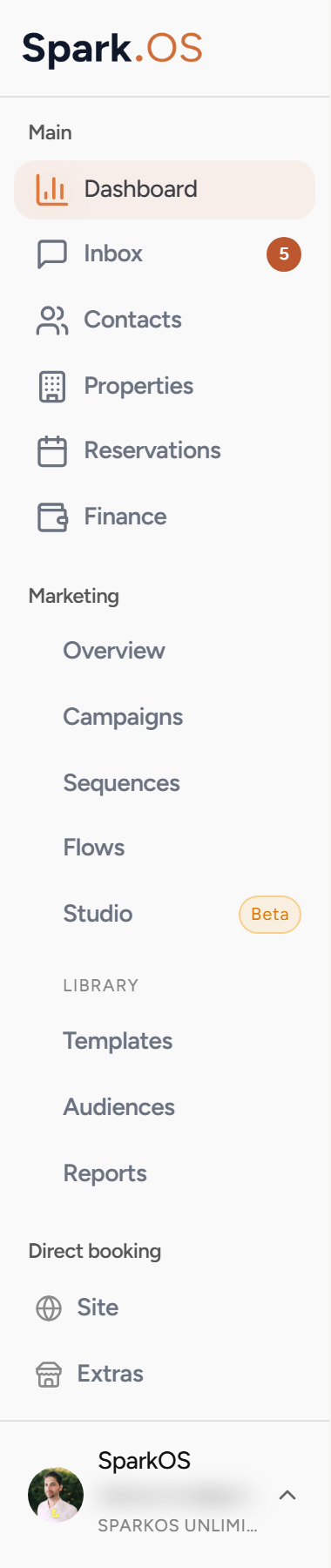
| Menu item | What it opens |
|---|---|
| Dashboard | This home screen |
| Inbox | Guest conversations, with the unread count |
| Contacts | Leads and guests |
| Properties | Your properties |
| Reservations | Board, table and calendar of reservations |
| Finance | Finance, analytics and payments |
| Marketing | A group with Overview, Campaigns, Sequences, Flows and Studio and, under Library, Templates, Audiences and Reports |
| Extras | Items you sell to guests. It sits in the Direct booking group, with Site when your account has access |
Team members only see the items they have been given permission for.
Search
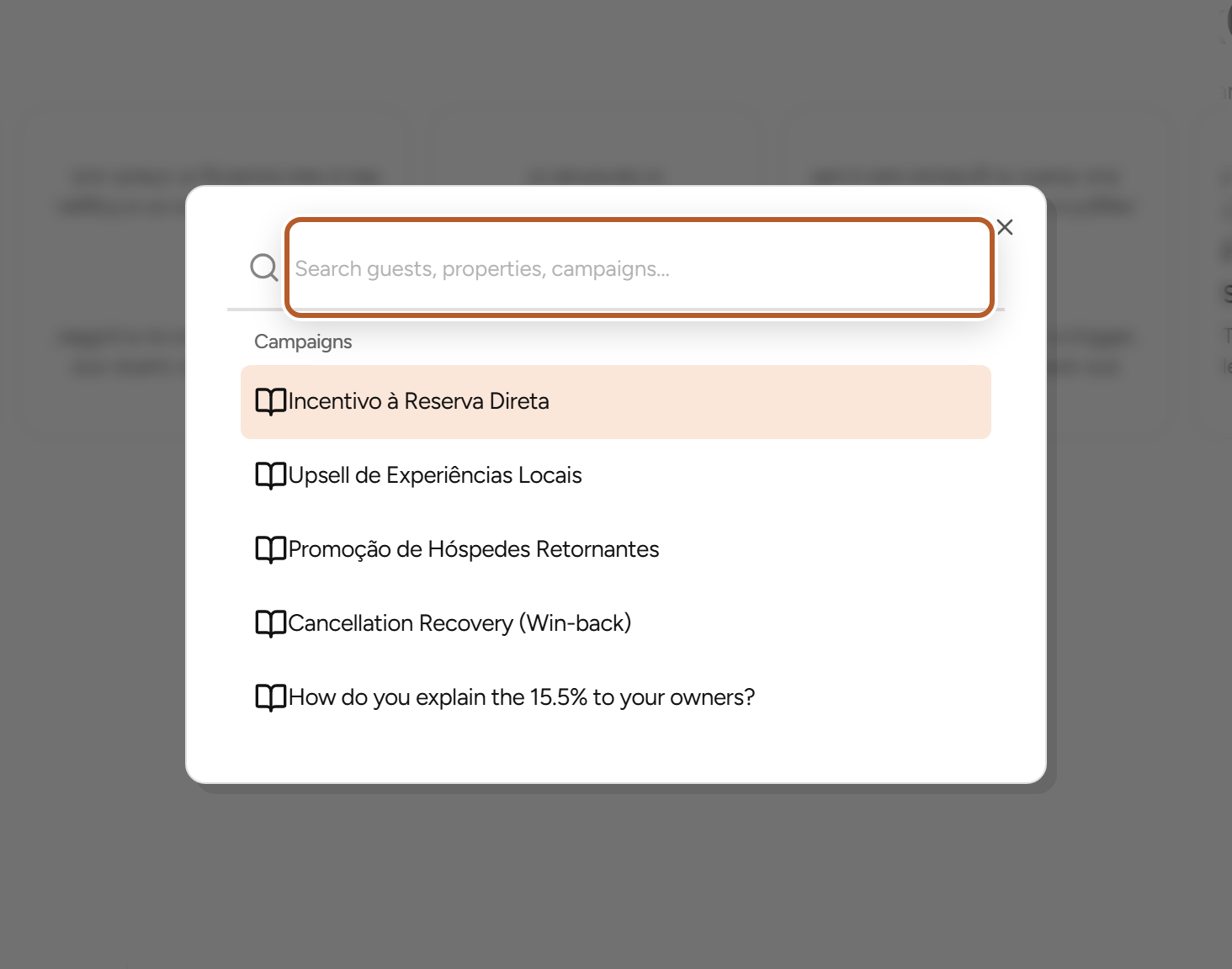
Click the search box in the top bar (Search guests, properties, campaigns…) or press ⌘K / Ctrl+K and type part of a name. SparkOS shows up to five guests, properties and campaigns.
FAQ
Does the chat send messages on its own?
No. Flows and sequences stay as drafts, and a campaign only goes out when you click the send button. Before that, SparkOS tells you the send cannot be undone.
Does deleting a conversation delete what it created?
No. When you delete one with the trash icon in History, SparkOS confirms: Only the conversation goes. Anything it created stays where it is.
Can I ask for something other than a campaign, flow or sequence?
Yes. In that case SparkOS answers in text and creates nothing.
I see “Monthly AI limit reached”. What does it mean?
Chat requests use your plan’s monthly AI limit. The message shows how much has been used and what the limit is.
Updated on 10/2/2026