The reservation page
What a reservation page shows: the guest, the stay, the source, the amounts, the charges and the conversation with the guest.
- Available on All plans
- For Owner and team members with the Reservations permission
What it is
A reservation’s page (/reservations/
Step by step
- Open the reservation. The header shows the guest’s name and email, the dates with the number of nights, the party (adults, children, pets), the property’s photo and name, and the reservation status. Click the property name to open its page.
- Check the source, in the same header:
| Field | What it shows |
|---|---|
| Channel | Where the reservation was made (Airbnb, Booking.com, Direct…) |
| Confirmation | The confirmation code |
| Reservation ID | The identifier in the system that created the reservation |
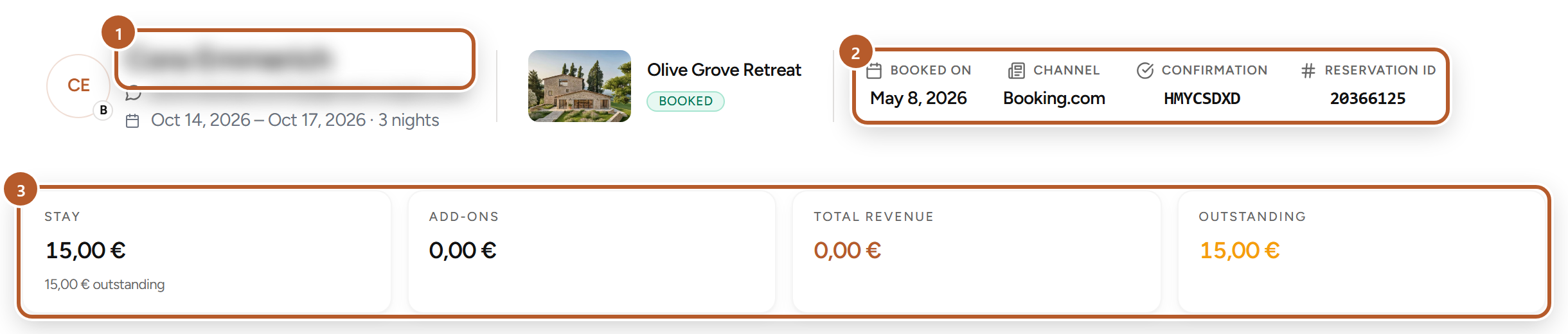
- Look at the four amount cards: stay, add-ons, Total revenue and Outstanding. The stay and add-ons cards show the outstanding amount, when there is one.
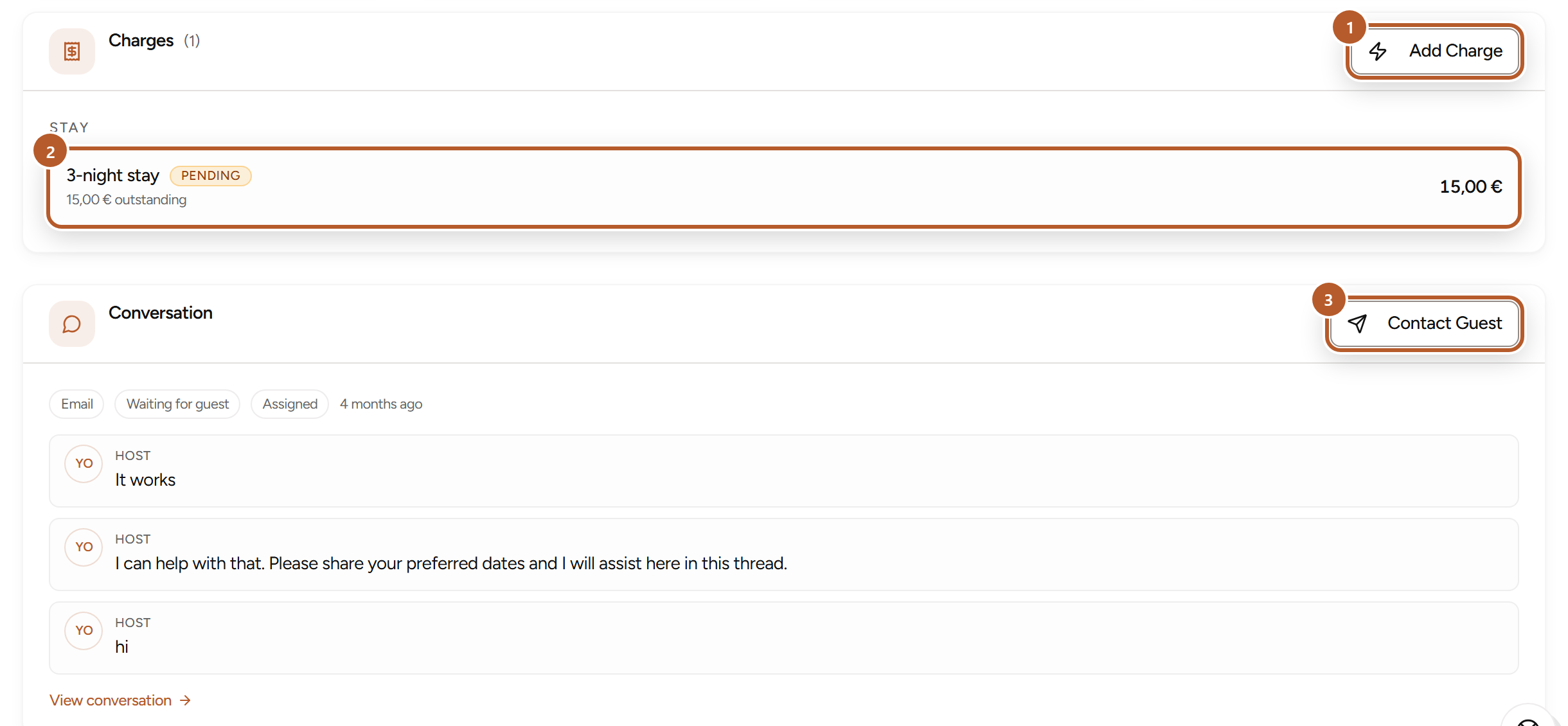
- Under Charges, see the stay line, marked Paid or Pending, and the add-ons sold. Each paid add-on shows SparkOS (paid through the link) or Manual (marked as paid). With more than 5 add-ons, use Previous and Next.
- To charge for something, click Add Charge, choose a product or service from your shop (or create one on the spot with New product) and click Generate Payment Link or Mark as Paid. Without a connected payment gateway, the panel shows Connect payment gateway instead of those buttons.
- If the reservation has a Guest Hub, the Guest registration card lists the people the guest registered in the guide, with their name and CPF or passport, and the plate under Vehicle when there is one. Click Copy for front desk to copy the list. Only the account owner sees this card, and the documents are deleted 30 days after check-out.
- Under Conversation, see the latest messages with the guest, the channel, the status (Resolved, Waiting for host or Waiting for guest) and whether the conversation is Assigned or Unassigned. Click View conversation to open the Inbox.
- Click Contact Guest to pick a template, let Spark draft the message, or write it yourself.
- Click Back to bookings to return to the Table.
FAQ
Why do I see “Reservation not found”?
The stay may have been removed, or you may not have access to it.
Is the payment link sent to the guest automatically?
No. After generating the link, copy it with Copy link and use Contact Guest to send it in a message.
Why is the conversation empty?
There are no messages linked to this stay yet. When the guest writes to you, the linked threads show up here.
Where do I cancel or refund this reservation?
With the cancel and refund buttons at the top of the page. The article “Cancel a reservation and refund” explains each one.
Updated on 10/2/2026