Campaign reports and analytics
Email and WhatsApp metrics under Reports, each campaign's detail page and one-to-one emails under Transactional.
- Available on All plans
- For Owner and team members with the Marketing & Studio permission (Marketing role)
What it is
Reports gathers campaign performance by channel: cards and a table for email, plus the WhatsApp campaigns and WhatsApp flows tables. Each campaign has its own page with delivery, engagement and recipients. The Transactional view, on the same page, shows the one-to-one emails sent from the Inbox, by automations and by SparkOS agents, kept apart from bulk campaigns.
Step by step
- In the sidebar, under Marketing, in the Library, click Reports (/marketing/reports). The page opens on the Campaigns view. The old links /campaign-reports and /marketing-analytics lead to the same place.
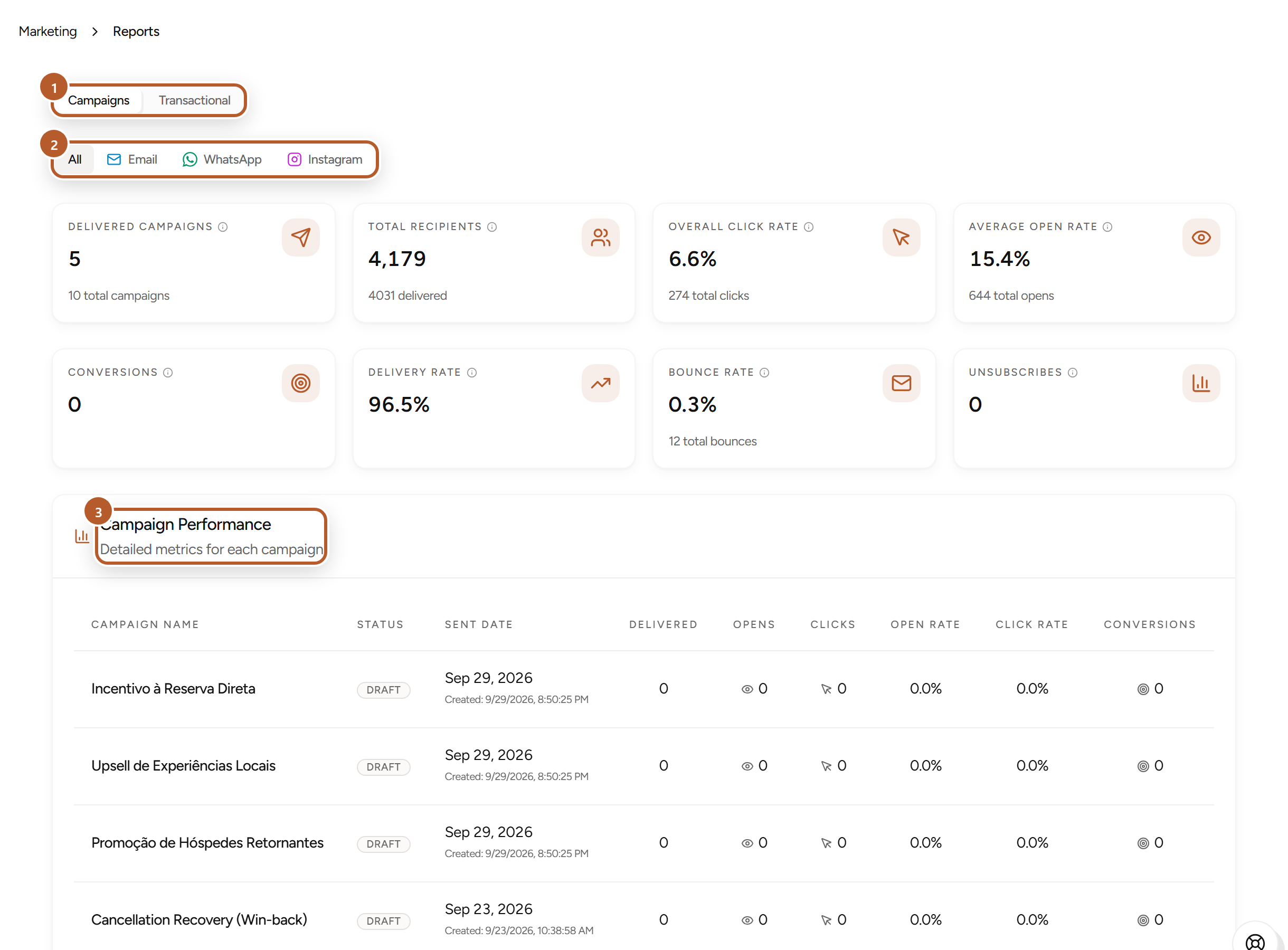
- Filter by channel: Email shows only the email report, WhatsApp only the WhatsApp tables, and All shows both.
- For email, read the cards Delivered Campaigns, Total Recipients, Overall Click Rate, Average Open Rate, Conversions (“Bookings attributed to these campaigns.”), Delivery Rate, Bounce Rate and Unsubscribes. The numbers cover the campaigns on the page shown.
- In the Campaign Performance table, see Campaign Name, Status, Sent Date, Delivered, Opens, Clicks, Open Rate, Click Rate and Conversions. Use Previous and Next to page (“Showing N of M campaigns”).
- Click a campaign to open its detail (/campaign/:id). It shows Sender, Created, Sent, Total Sent, Open Rate, Click Rate, Engagement, Delivery Statistics (Delivered, Hard Bounces, Soft Bounces, Deferred), Subscriber Actions (Unsubscriptions, Complaints), the Campaign Health Score and the Campaign Timeline; the Refresh button fetches the latest numbers. Below are the tabs Recipients (filters Read, Not read, Opted out) and Email Template. Emails with a poll block show Poll results.
- For WhatsApp, the WhatsApp campaigns table shows Campaign, Sent, Cost and what is queued; WhatsApp flows shows Active flows, Contacts in flows, Completion and Delivery, with the columns Enrolled, Completed, Delivered, Read, Replied, Failures and Excluded.
- For one-to-one emails, switch to the Transactional view in the selector at the top of the page (/marketing/reports?view=transactional). The cards are Emails sent, Open rate, Click rate and Channel; the table lists Sent, Recipient, Subject, Engagement and Source (SparkOS or Inbox).
Email campaign statuses
| Status | Meaning |
|---|---|
| Draft | Not sent yet |
| Scheduled / Ready | Waiting for its time or for the staged-sending release |
| Queued / Pending / Sending | Being processed |
| Sent | Done |
| Failed / Cancelled | Did not go out |
What happens next
On campaigns with staged sending, the detail shows the current stage and how many recipients have been released, and later releases are automatic, evaluated every 15 minutes after the deliverability window. On the same page you can Add recipients (only contacts who have not received it) and switch on “Also send to contacts added to this audience later”, which every 15 minutes includes new members of the folder or segment without sending twice.
FAQ
What is “Excluded” in WhatsApp flows?
“Contacts in the audience who could not be messaged: no opt-in, no phone, or blocked by a market rule.”
How does the click rate ignore scanners?
The detail counts people with “delivery confirmed, at least 60 s after delivery, not every link, no same-second bursts”.
Updated on 10/2/2026