Payouts: owners and recipients
The Payouts tab defines who receives each reservation: invite the owner to open an Asaas subaccount, link the listings and choose between standard routing and owner direct.
- Available on All plans
- For Host account: workspace owner and team members with the Finance module (View or Act level)
What it is
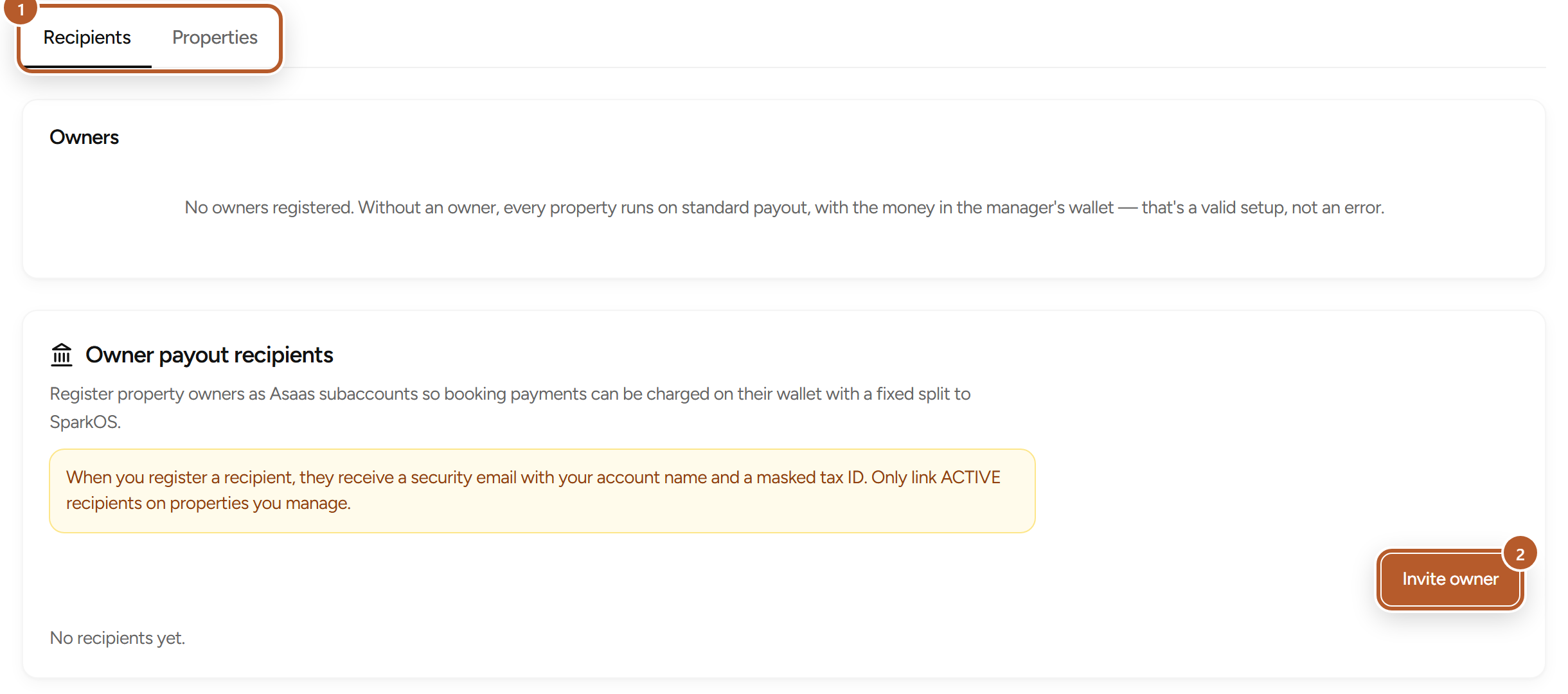
Finance → Payouts (/finance/payouts) shows who receives each reservation and how the money is split. With no owner registered, every listing runs on standard routing, with the money in the manager’s wallet. Once an owner is registered as a recipient, each of their listings can switch to Owner direct: the charge is issued on the owner’s Asaas subaccount and your administration fee comes to you through the split.
Before you start
- An Asaas account connected under Settings → Payouts.
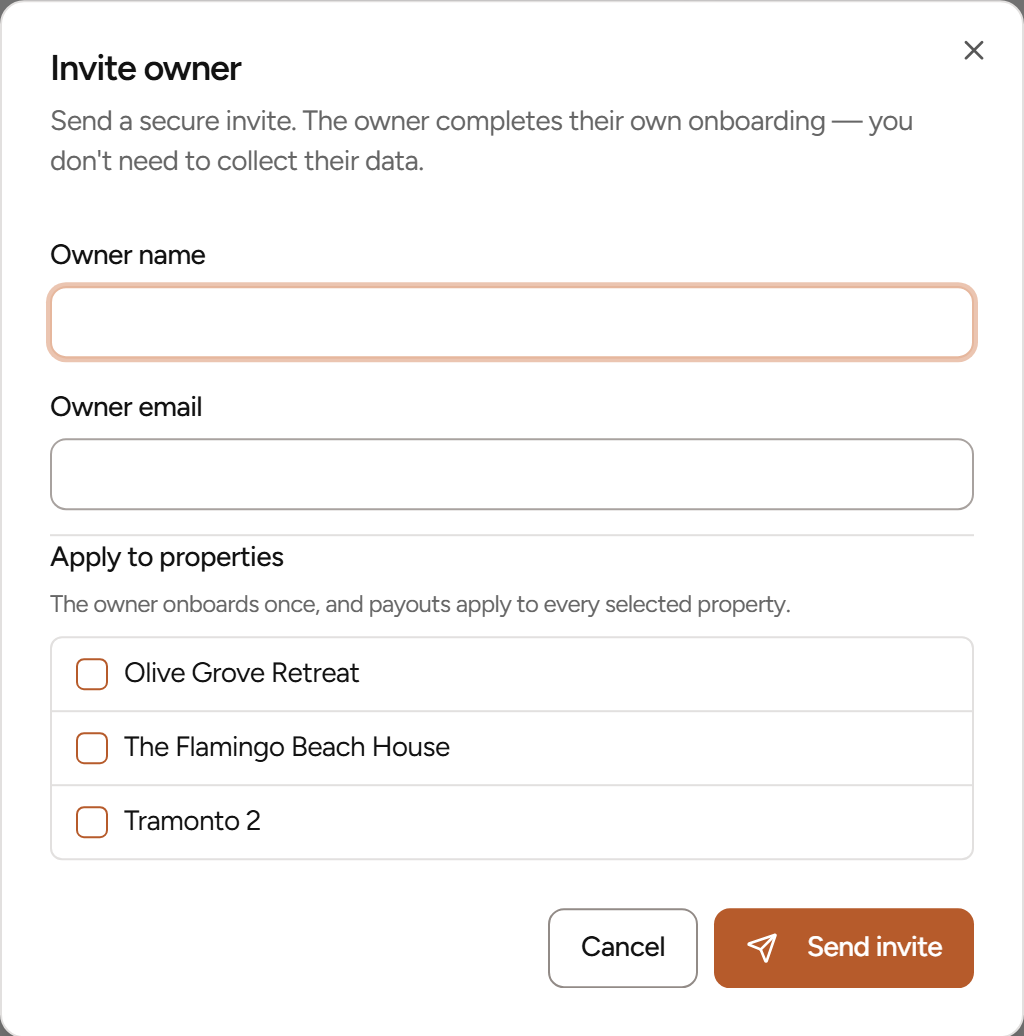
- The owner’s name and e-mail. The owner completes their own onboarding — you don’t need to collect their data.
Step by step
Invite the owner
- On the Recipients tab, in Owner payout recipients, click Invite owner.
- Fill in Owner name and Owner email, tick the listings under Apply to properties and click Send invite.
- To share over WhatsApp, use Copy link; then Done.
- Under Pending invites, follow each invite’s status, resend with Copy link, cancel with Revoke or open View activity.
What the owner does
- The link opens the public Payout onboarding page (/payout/invite/…), with no SparkOS login. The owner clicks Continue, fills in Full legal name, CPF or CNPJ, Mobile (with DDD), Birth date, Declared monthly income (BRL), Postal code (CEP), Street address, Number, Neighborhood (bairro), City and State (UF) — the e-mail is locked (“Use the same email as the invite”) —, ticks the ownership confirmation and clicks Complete onboarding.
Link listings and choose the mode
- In the Owners table, see how many listings each owner serves and their status (for example Approved, Under review, Document pending or Re-confirmation expired). Refresh status and Refresh all statuses query Asaas; Archive removes the recipient and clears its links.
- On the Properties tab (Listing payout routing), pick the Payout recipient and click Apply — only recipients with status Active can be selected. Under Mode, switch between Standard and Owner direct; in the Management column, enter the percentage and click Save.
“Switch to owner-direct? Charges for this listing will use the linked payout recipient’s wallet once their status is Active. If verification is still pending, guests may see an error until approval completes.”
What happens next
The owner receives the e-mail “Convite para receber pagamentos — SparkOS”; the link is valid for 14 days and single-use. On completion, SparkOS opens the subaccount at Asaas with status Under review; the listings ticked in the invite switch to owner direct automatically when Asaas approves. When you replace or remove a listing’s recipient, the previous one receives a security e-mail.
FAQ
What is the “Roteamento inválido” banner?
A listing is on owner direct with no linked recipient, or its linked recipient cannot receive. Charges on those listings are blocked until you fix it; the Resolve button opens the Properties tab.
Does the administration fee apply in Standard mode?
No. It only takes effect on Owner direct; on standard routing the row notes “No effect on standard payout”.
What does “Recadastro vencido” mean?
The annual data confirmation at Asaas has expired. Until it is updated, balance, charges, withdrawals and payouts on that account are blocked.
Updated on 10/3/2026