Tasks
Track, assign and complete cleaning and maintenance tasks for your properties, with costs posted to Finance.
- Available on Enterprise
- For Owner and team members with the tasks permission
What it is
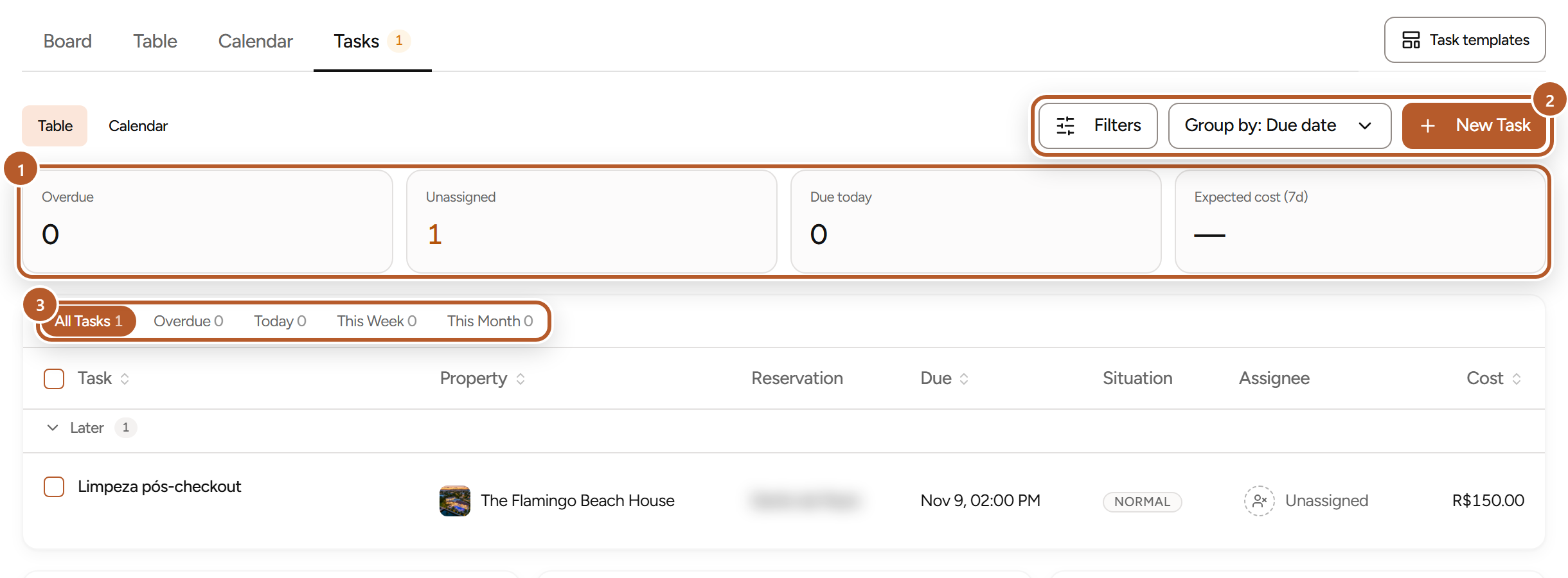
Tasks is a view inside Reservations that gathers the operational work for each property: cleaning, inspections, restocking and anything else you create. It shows what is overdue, unassigned or due today, and the expected cost of each task. When you complete a task that has a cost, the amount is posted to the reservation and rolls up into Finance.
Before you start
- For the workspace owner, Tasks requires the paid Enterprise plan. Without it, the Tasks tab is locked with the message Team Workspace is Enterprise-only (during the free trial, Unlock Team on paid Enterprise) and a View plans button.
- Team members see the tab if they have the tasks permission. Only active members who have accepted their invite can be assignees.
- To post costs, set your workspace currency in Settings.
Step by step
- In the menu, open Reservations and click the Tasks tab (/reservas?view=tasks). The old /tasks address leads to the same place.
- Use the cards at the top (Overdue, Unassigned, Due today, Expected cost (7d)) and the All Tasks, Overdue, Today, This Week and This Month cuts to decide what to look at first.
- Under Filters, tick Unassigned only, My tasks only or Show completed. Under Group by, choose Due date, Assignee or Property.
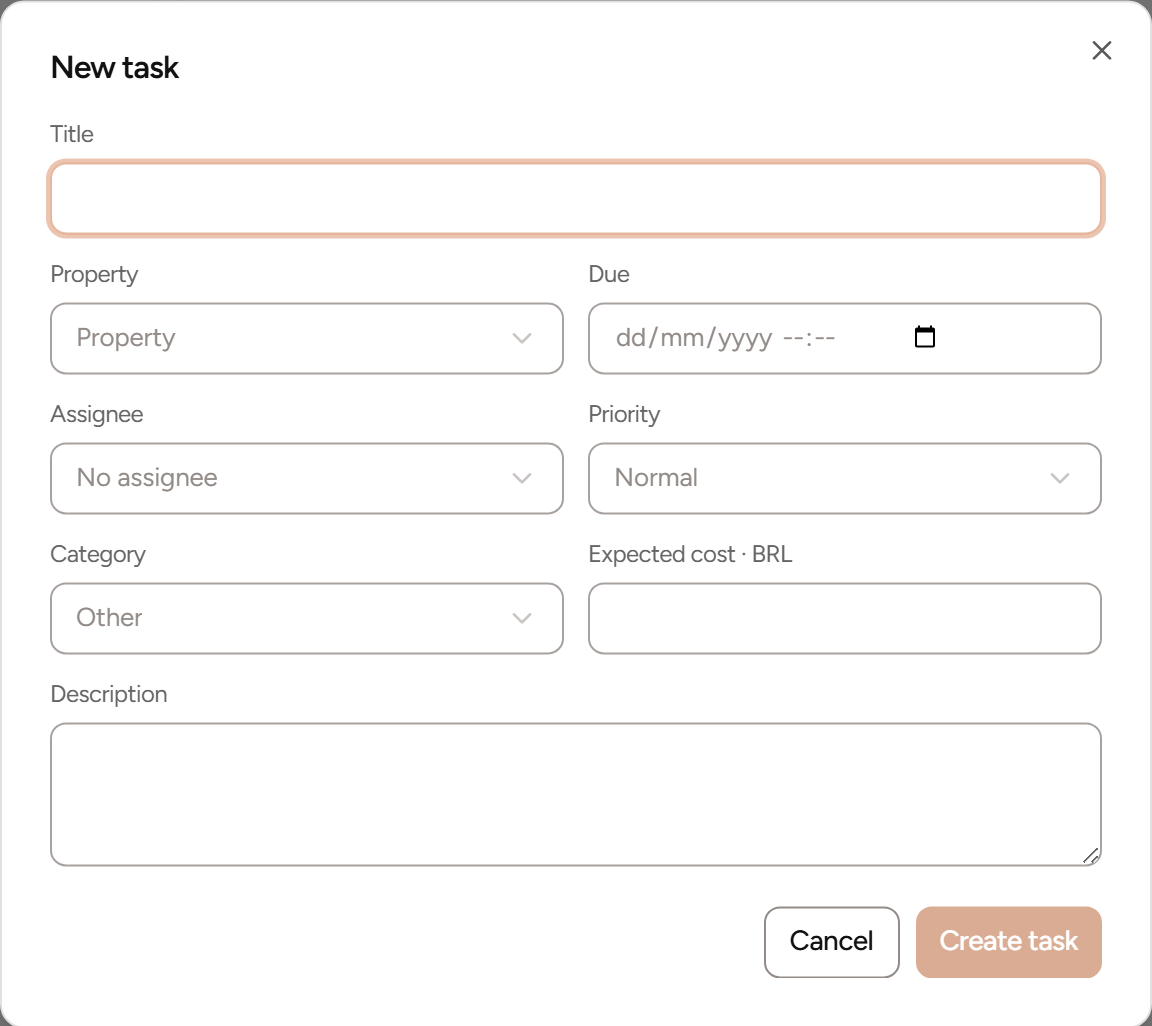
- For a one-off task, click New Task, fill in Title and Property (required) and, if you like, Due, Assignee, Priority, Category, Expected cost and Description. Click Create task.
- To change the assignee, click the name in the Assignee column. To act on several tasks, tick their boxes and use Complete, Assign or Remove assignee.
- To complete a task, hover over it and click Complete. If it has a cost, choose Complete to post the amount or Complete without cost.
- To see tasks by day, switch from Table to Calendar.
What happens next
Before you confirm, the completion window shows where the cost will go: the amount, the category and the property. On completion, SparkOS posts the cost to the reservation and to Finance, and logs the action under Recent Activity in the right-hand column, next to My Tasks and Automations.
FAQ
Does completing several tasks at once post their costs?
Yes. Complete in the selection bar posts the costs of the selected tasks without opening the confirmation window.
What does the Situation column show?
The urgency (Critical, High, Normal or Low). Hover over it to see the reason, such as the check-in the task is blocking.
What does “Cleaning · queue” mean as the assignee?
The task is assigned to the Cleaning role rather than to a person. It counts as unassigned in the counters.
How do I see only one property’s tasks?
In Properties, click the task counters on the property card. Tasks opens filtered to that property; click Clear to remove the filter. Due times always follow the property’s timezone.
Updated on 10/2/2026